How Do I Update Business Profile Details and Billing Addresses in Kickcall?
Update a Kickcall business’s name, contact details, logo, website, time zone and billing address, and understand how changes affect future records
Written By Maruf Ansari
Last updated 9 days ago
Business General Information Overview
Business General Information allows Agency users to view and manage a Business's profile and account details. You can review and update the Business name, industry, primary contact, business number, website, logo, and billing address. These details are used across connected modules for functions such as caller ID, invoicing, and notifications. Keeping this information accurate ensures the correct Business details are displayed and used throughout the platform.
Important notes
Billing Address changes affect future invoices only. Existing invoices retain the address used when they were generated. Historical events keep their original timestamps; newly generated reports and schedules use the updated time zone.
The proposed logo size is 350 × 180 px, with a maximum file size of 2.5 MB. Larger images are downscaled and may appear less crisp.
Before you start
Open the Business using Edit in All Businesses and confirm its Business Code.
Have the current legal name, contact details, time zone and billing address ready.
Update business profile information
Open the correct business in the Agency Portal. Open the business profile or General Information area.
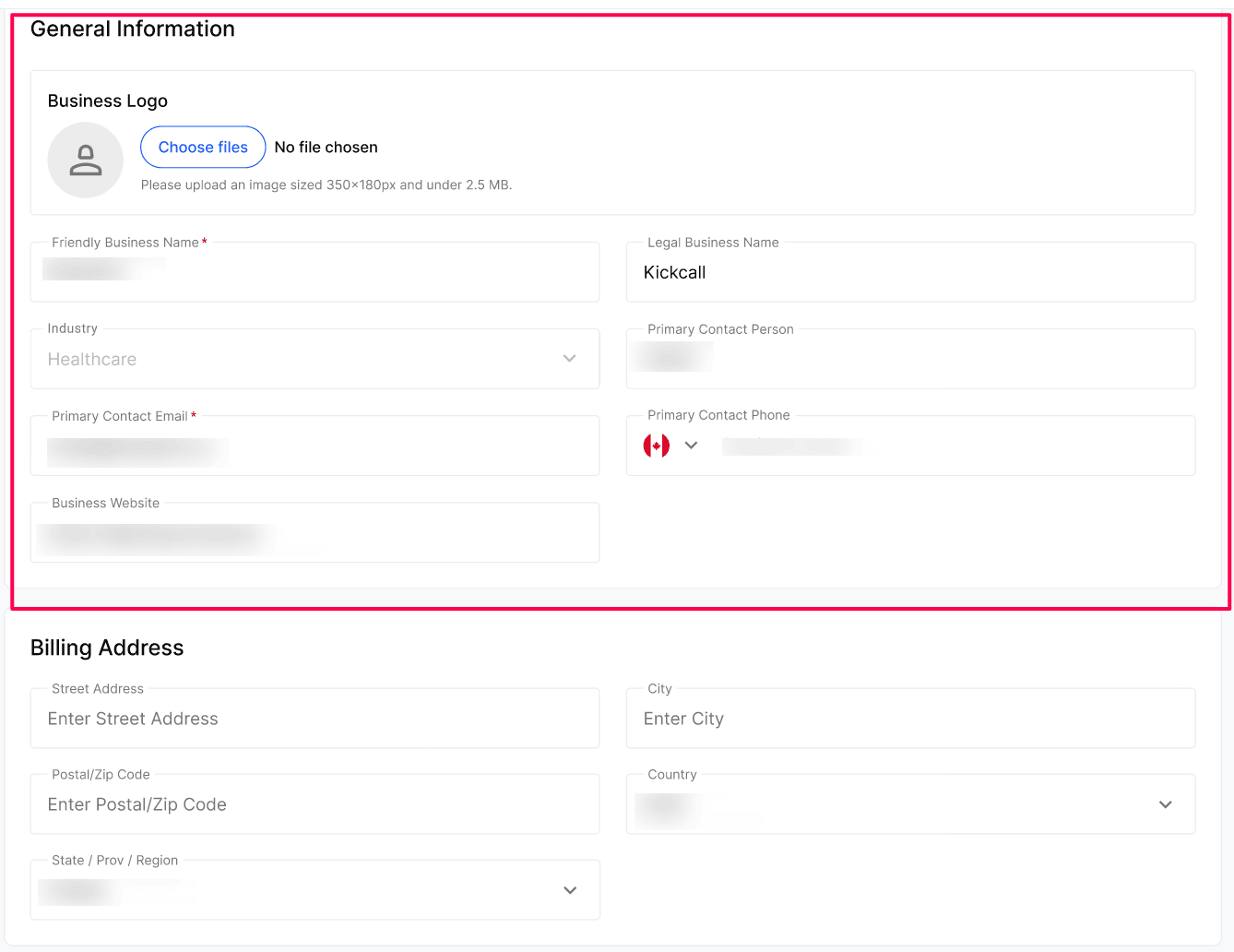
Update only the fields that need correction, such as Friendly Business Name, Legal Business Name, Industry, Primary Contact Person, Primary Contact E-mail, Business Number, Business Website, or Business Logo.
If updating the time zone, confirm the business’s intended local time zone before saving; future reports and schedules may use it.
Save using the current control and review the displayed values.
Update billing address
Open the business’s billing-address fields.
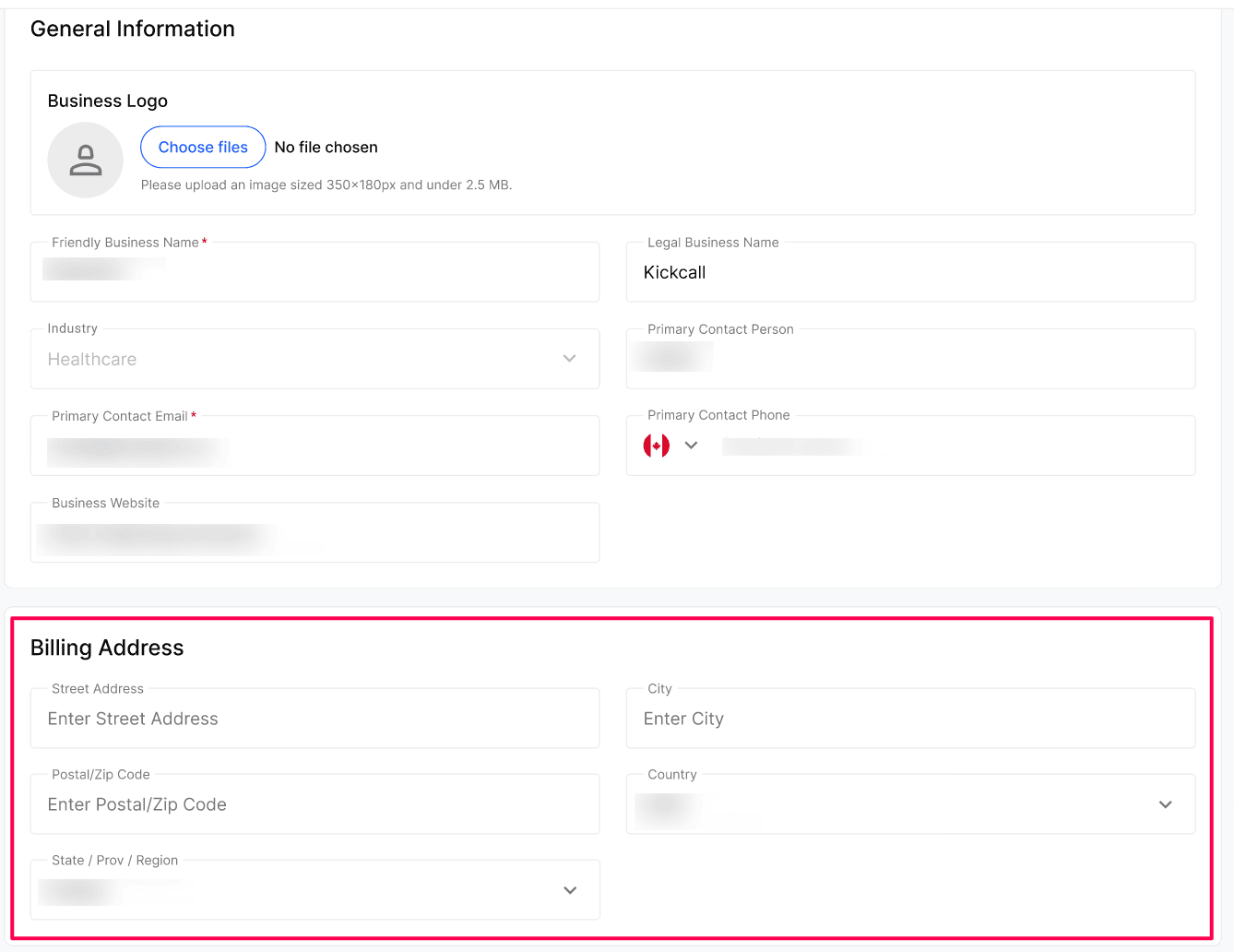
Enter the approved Street Address, City, Postal/Zip Code, Country, and State/Prov/Region values as applicable. Review the complete address that will appear on future invoices.
Save using the current control and confirm the address shown on the profile.
Do not expect already-generated invoices to change, they retain the address recorded at generation time.
Configuration reference
Expected result
The Business profile shows its current identifying and contact information. Future invoices use the updated billing address.
Verify the result
Reopen General Information and Billing Address to compare the stored values with the intended changes.
Check Friendly Business Name and Legal Business Name separately.
Review a relevant schedule or newly generated report after a time-zone change.
Review the next generated invoice’s address; do not expect older invoices to change.
Troubleshooting
Frequently Asked Questions
What's the difference between Friendly Business Name and Legal Business Name?
What's the difference between Friendly Business Name and Legal Business Name?
The Friendly Name is what's shown in the UI and to your team. The Legal Name is what appears on invoices and any legal/financial document.
Can the business edit its own General Information?
Can the business edit its own General Information?
Yes, if their role grants access to Business Profile. The Agency can also edit on their behalf at any time from the Agency Portal.
Will changing the Time Zone shift historical reports?
Will changing the Time Zone shift historical reports?
No. Historical events keep their original timestamps; only newly generated reports and schedules will use the updated time zone.
Why is the Business Logo size restricted to 350×180 px?
Why is the Business Logo size restricted to 350×180 px?
That's the rendered size across the Business Portal and customer touchpoints. Larger images get downscaled and may look blurry; sticking to the proposed size keeps the logo crisp.
Related articles
Was this helpful?
Still need help? Ask the team