Changelog

Follow new updates and improvements to Kickcall AI.

🧪 Test Your Agent’s Workflow with Live Integrations, Plus a Simpler Agent Configure Page and Shared Knowledge Bases
New Feature: Live Test in the Agent Builder

A booking flow that works in a mock-up isn’t the same as one that works with your real calendar. The new Live Test Option lets you test a draft of your agent against your connected systems before any caller ever reaches it.
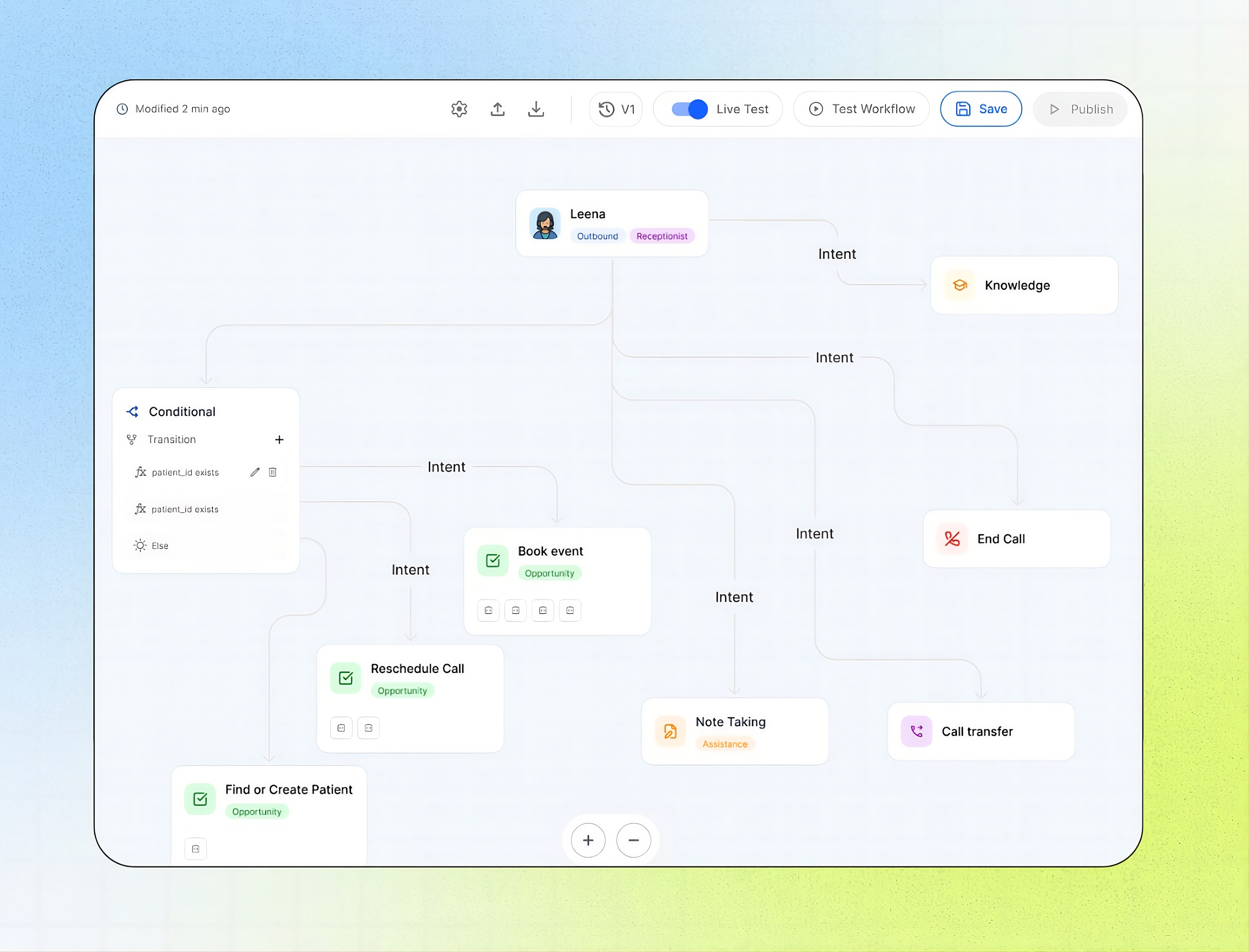
What’s New:

  • A Live Test toggle in the Agent Builder: You decide whether a test run uses your live integrations or stays away from them. Switch it on and a “Turn on Live Test?” prompt asks you to confirm first. Choose Keep Off or Turn On Live Test.

  • Test the way your customers will reach you: Open Test Workflow and choose Test Audio for a spoken call or Test Chat for a text conversation.

  • Real systems, real results: With Live Test on, your agent can read and update information in connected platforms, such as finding a patient or booking, changing, and cancelling an appointment. That lets you confirm the whole flow works from start to finish.

  • Nothing changes for your callers: Testing a draft doesn’t publish it. Live conversations keep using your current version until you publish a change.

  • Tests stay out of your numbers: Builder tests don’t appear in Performance and aren’t billed to your business. Find audio tests under Archived in Call Logs and chat tests under Archived in Chat Logs.

Impact Created:
You can check a change end to end, with real data, before it reaches a single customer. Because Live Test can create or change real records, use test records you control and check the connected system afterward. If you aren’t comfortable editing the conversation flow yourself, ask your Agency support team to run the test with you.


Enhancements

  • Test your inbound agent with a web call: Select Talk above Performance to open a side panel and speak with your inbound agent as a web call. It’s quick for checking greetings and answers. This is a live call, so it counts toward billing, appears in Call Logs and your dashboard, and can update connected platforms. Transfers to operators aren’t processed in this test, so use it to check conversation and answers only.

  • Cleaner Call Me for outbound agents: For an outbound agent, Call Me above Performance places a live call to the phone number or extension you choose, so you hear exactly what your customers will hear. Add Custom Variables if the agent needs context, such as the name of the person it’s calling. Like any live call, it counts toward billing and can change connected records, so use a number you control.

  • One scrollable Configure page: Configure, is now a single page. Scroll through Identity & Conversation Flow, Knowledge, Connect Web, and Personalised Link instead of switching between sub-sections. Everything that shapes how your agent sounds and answers is in one place. If you’re not technical, ask your Agency support team before changing the conversation flow.

  • Shared Knowledge Bases at the business level:

    • Build it once: Create a Knowledge Base under Knowledge Base in your portal, and fill it with Q&A, website content, or documents.

    • Connect it to any agent: Open the agent’s conversation flow, select the Knowledge node, tick the Knowledge Bases that agent should use, then Save and Publish. One agent can use several, and one Knowledge Base can serve many agents.

    • Update once, every agent follows: Change an answer in the Knowledge Base and every connected agent uses the new version. Hover over the Agent badge on any Knowledge Base to see which agents are linked.
NewBusiness

📋 Smarter onboarding tracking, plus more control over your agency’s pricing and setup

New Enhancements: Onboarding Pipeline Upgrades

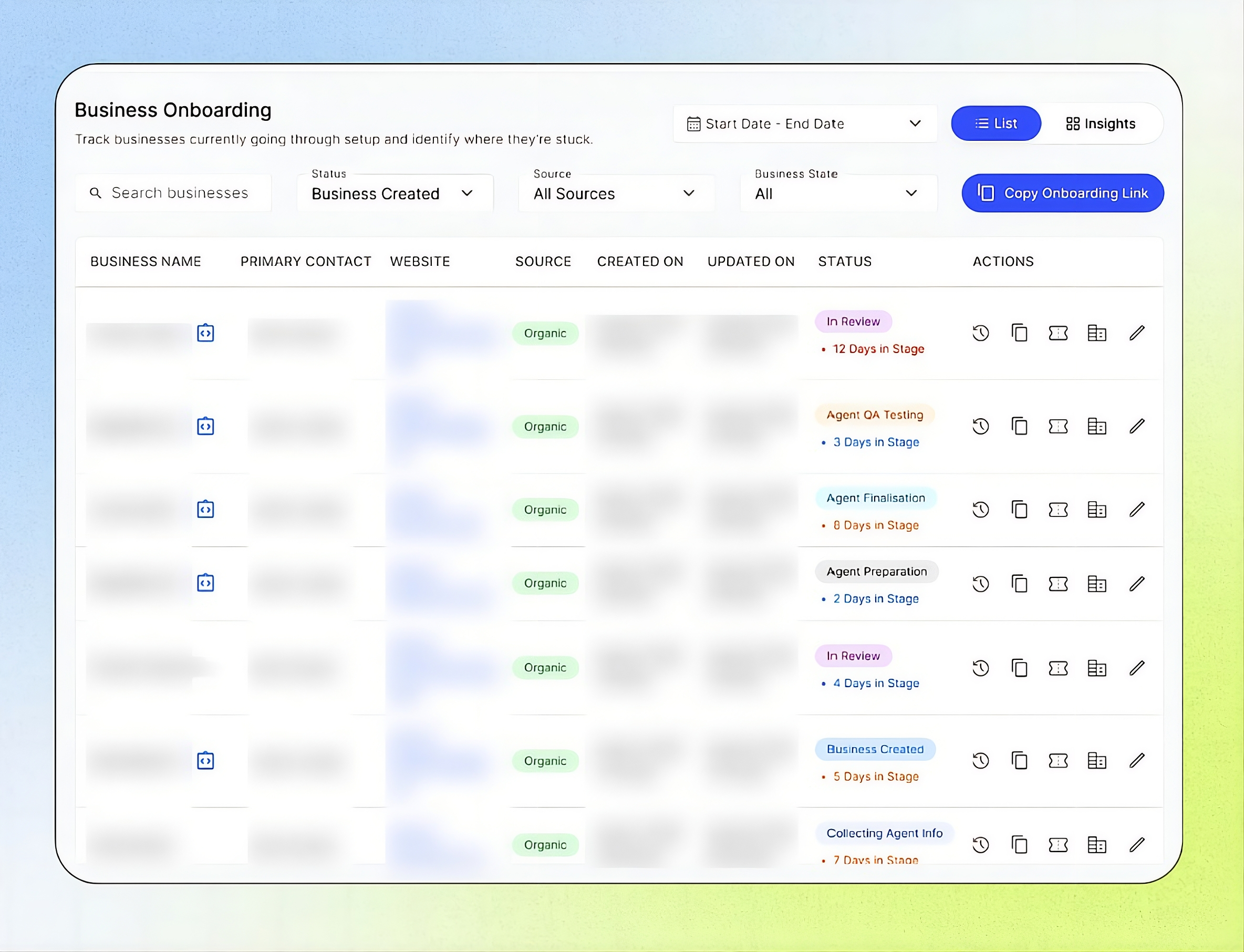
An onboarding that quietly sits for two weeks can cost you a customer. Every onboarding now shows how long it has been in its current stage. You can also flag the ones blocked on engineering, and lost or stale records no longer clutter your list.

What’s New:

  • New Awaiting Engineering status: Flag an onboarding that’s waiting on engineering work, like a custom integration or a telephony provisioning issue, before Business Setup. It’s the only manual status you can set before the Business is created, so your team always knows why an onboarding hasn’t moved. See Onboarding Statuses.

  • Days in Stage on every status: A counter under each status badge shows how many days the onboarding has been in its current stage, and it resets whenever the status changes. The counter turns from blue to orange to red the longer an onboarding sits, so the ones that need a follow-up stand out right away. See All Onboardings & Actions.

  • Lost on Onboarding now cleans up after itself: When you mark an onboarding as Lost on Onboarding, the Business created for it is automatically deleted from the Businesses module. The onboarding record stays for future reference, and you confirm the change by typing the Business’s exact name, so nothing gets removed by accident. See Internal Process.

  • Archive onboarding records: Archive completed, cancelled or stale onboardings to keep your active list focused. Archived records keep their history log, ticket references and audit events, and you can still find them through search and filters.

Impact Created:
Stuck onboardings surface on their own instead of waiting for someone to notice. Your team knows which businesses need a nudge today and why an onboarding is on hold. Lost deals also no longer leave unused Businesses behind in your account.

For more details, see Onboard a Business from Form Intake to Go-Live.


Enhancements

  • Offer Concurrency Limit as an add-on: Businesses can now buy extra simultaneous call capacity from their Add-ons page, so callers don’t hit a busy line at peak times. Turn on Offer this Add-On in Add-on Pricing and set the setup fee and the additional price per concurrency. Businesses can raise or lower their limit anytime, and the extra capacity applies across all their numbers and AI agents. Charges are prorated for the current billing cycle, and lowering the limit takes effect on the next cycle.

  • Choose your own notifications: Notification Preferences now lets you turn each Agency Portal alert on or off, separately for In-App and Email. Choose alerts for events such as Business Onboarding Payment Received, Onboarding Form In Review, Business Monthly Billing Failed, Integration Synchronisation Failed, Business Status Changed, and Engine Update Available. Each toggle saves instantly, and your choices don’t change what your teammates receive.

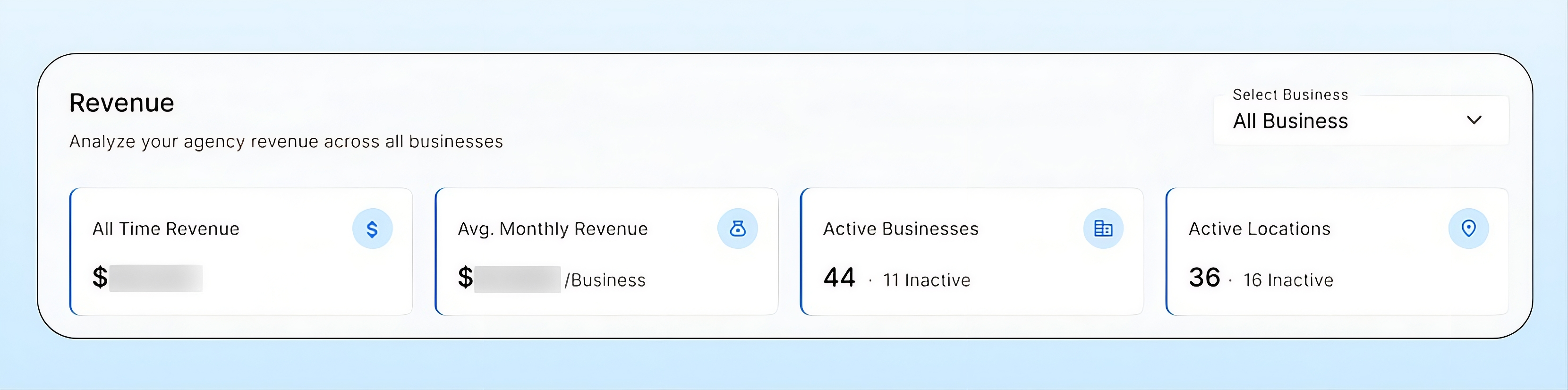
  • New cards at the top of the Revenue dashboard: See All Time Revenue, Avg. Monthly Revenue, Active Businesses, and Active Locations the moment you open the page. Active Businesses and Active Locations show the inactive count beside them, so you can compare at a glance. Pick a single business from the filter and every card, chart, and table updates to match.

  • Total discount cap on coupons: Percentage coupons can now carry a Total amount, a maximum discount spread across billing cycles. Each cycle’s discount is taken from the pool, and once it reaches $0 the Business pays full price. For example, a 50% off coupon with a $400 cap keeps discounting month after month until the $400 is used up, so long-running promos never cost more than you planned.

  • More inclusions in Business Packages: Packages now include Concurrency per location, AI Tokens, and SMS Segments, each with an included amount and its own rate for usage above that amount. Edits apply going forward and appear on the next month-end bill.

  • A cleaner, better organized Agency Portal navigation: The sidebar is now grouped into clear sections: Customers, Insights, Services and Platform, so you can find what you need faster. Configuration now opens a menu split into Whitelabel & Setup and Agency Only, and Coupons, API Keys and Webhooks have moved there. All your setup now lives in one place.

NewAgency

📞 Decide how many calls each location can handle, plus new notification alerts and Do Not Call controls

New Feature: Concurrency Settings

One busy location shouldn’t mean busy signals for its callers. Concurrency Settings lets you decide how many calls each location can handle at the same time, and keeps spare capacity ready for whichever location needs it.

What’s New:

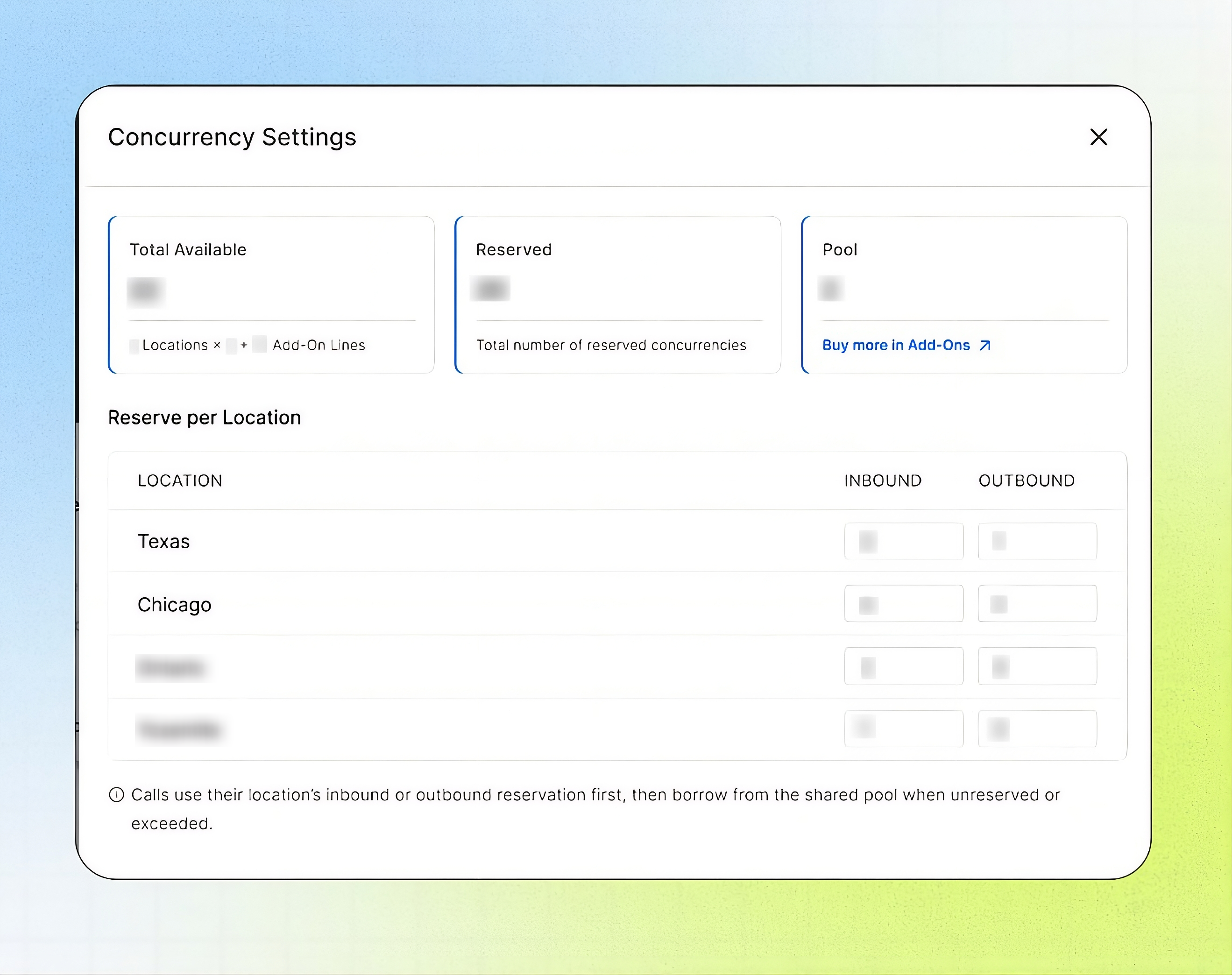
  • Reserve calls for each location: Set how many inbound calls and how many outbound calls every location can handle at once. Give your busiest office more room and your quieter ones less.

  • Three numbers, one screen: Total Available shows every concurrent call you have, Reserved shows what you’ve assigned to locations, and Pool shows what’s left over for anyone to use.

  • A shared pool for the rush: Calls use their own location’s reservation first. If that’s full, they borrow from the pool, so a sudden spike at one location doesn’t turn callers away while another location sits idle.

  • Add more lines when you need them: Need more capacity overall? Activate the Concurrency Limit add-on straight from the Pool card. The extra lines apply across all your numbers and AI agents, and you can raise or lower the limit anytime.

  • Easy to find: Open Locations and select the settings icon next to Add Locations.

Impact Created:
Callers at your busiest location stop hitting a busy line while capacity goes unused elsewhere. You decide where your concurrent calls go, keep a buffer for surprise rushes, and add lines only when you genuinely need them. A good habit is to leave some capacity unreserved so any location can borrow it.


Enhancements

  • Choose how you get notified: Notification Preferences now lets you turn alerts on or off for each type, separately for In-App and Email. Pick the alerts you want for Agent Recommendations, Integration Connected/Disconnected, Monthly Billing Failed, AI Call Minutes Usage, AI Workflows Usage, and Concurrency Limit. Changes save the moment you flip a toggle, and your choices only affect you, not your teammates. Open it from your profile picture or name at the top right.

  • Do Not Call, built into Contacts: Turn on Do Not Call for any contact to block outgoing calls to that number, ideal for anyone who has asked not to be called. It’s one toggle on the contact’s row, it saves immediately, and you can switch it off anytime. You can also set it when you add a contact manually, and calls it stops show up as Blocked by DNC on your outbound performance dashboard.

  • AI tokens added to billing and packages: Your package and billing now include AI tokens, which AI Workflows will use. You can see them listed with your other package inclusions on the Billing page. To change what your package includes, reach out to your agency.

  • A simpler Business settings menu: The Business settings navigation has been reorganized so related settings sit together and the menu is easier to scan. Finding what you need takes fewer clicks.

NewBusiness

Earlier updates