📞 Decide how many calls each location can handle, plus new notification alerts and Do Not Call controls
New Feature: Concurrency Settings
One busy location shouldn’t mean busy signals for its callers. Concurrency Settings lets you decide how many calls each location can handle at the same time, and keeps spare capacity ready for whichever location needs it.
What’s New:
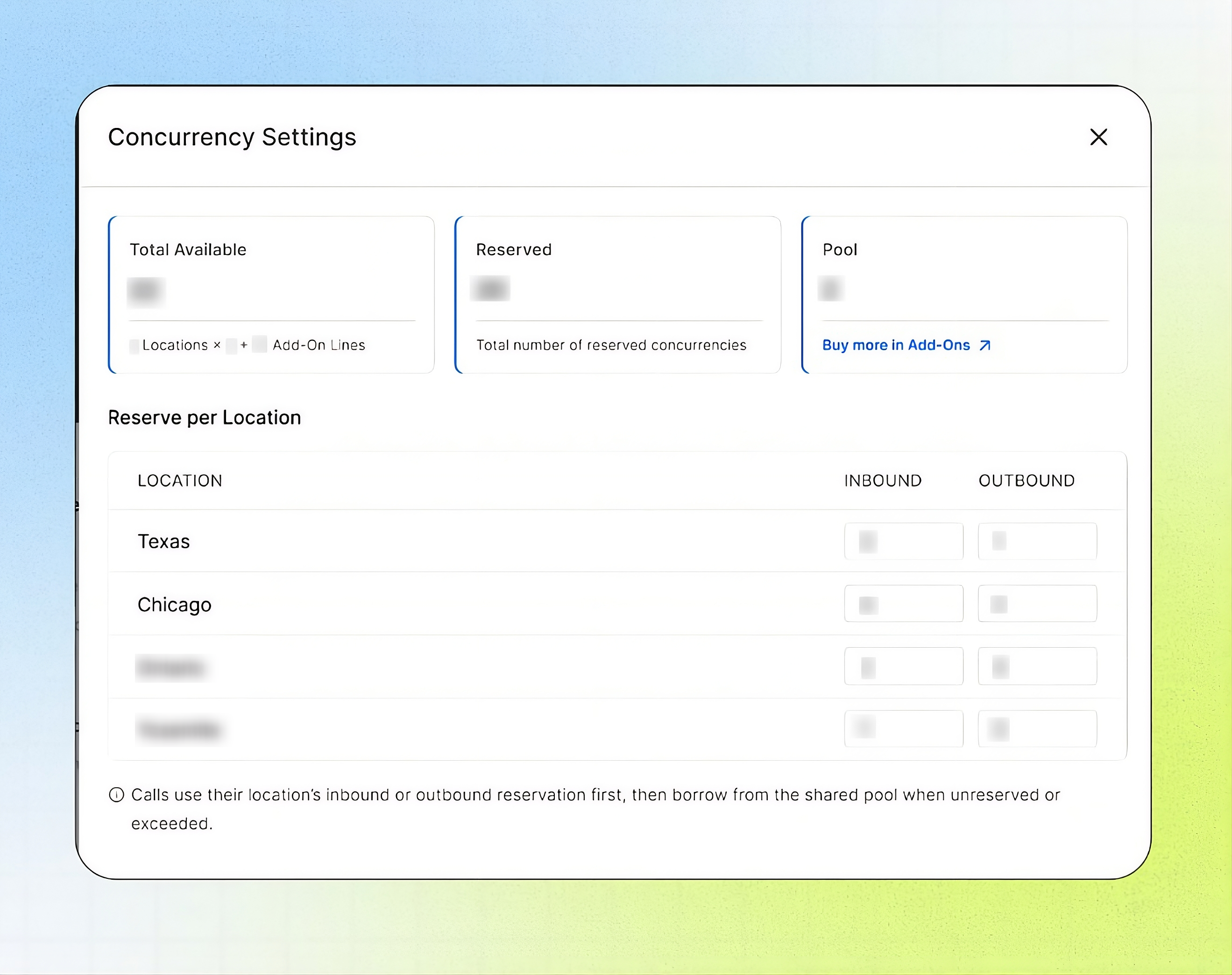
Reserve calls for each location: Set how many inbound calls and how many outbound calls every location can handle at once. Give your busiest office more room and your quieter ones less.
Three numbers, one screen: Total Available shows every concurrent call you have, Reserved shows what you’ve assigned to locations, and Pool shows what’s left over for anyone to use.
A shared pool for the rush: Calls use their own location’s reservation first. If that’s full, they borrow from the pool, so a sudden spike at one location doesn’t turn callers away while another location sits idle.
Add more lines when you need them: Need more capacity overall? Activate the Concurrency Limit add-on straight from the Pool card. The extra lines apply across all your numbers and AI agents, and you can raise or lower the limit anytime.
Easy to find: Open Locations and select the settings icon next to Add Locations.
Impact Created:
Callers at your busiest location stop hitting a busy line while capacity goes unused elsewhere. You decide where your concurrent calls go, keep a buffer for surprise rushes, and add lines only when you genuinely need them. A good habit is to leave some capacity unreserved so any location can borrow it.
Enhancements
Choose how you get notified: Notification Preferences now lets you turn alerts on or off for each type, separately for In-App and Email. Pick the alerts you want for Agent Recommendations, Integration Connected/Disconnected, Monthly Billing Failed, AI Call Minutes Usage, AI Workflows Usage, and Concurrency Limit. Changes save the moment you flip a toggle, and your choices only affect you, not your teammates. Open it from your profile picture or name at the top right.
Do Not Call, built into Contacts: Turn on Do Not Call for any contact to block outgoing calls to that number, ideal for anyone who has asked not to be called. It’s one toggle on the contact’s row, it saves immediately, and you can switch it off anytime. You can also set it when you add a contact manually, and calls it stops show up as Blocked by DNC on your outbound performance dashboard.
AI tokens added to billing and packages: Your package and billing now include AI tokens, which AI Workflows will use. You can see them listed with your other package inclusions on the Billing page. To change what your package includes, reach out to your agency.
A simpler Business settings menu: The Business settings navigation has been reorganized so related settings sit together and the menu is easier to scan. Finding what you need takes fewer clicks.