How Do You Configure Signals and Review Caller Trends?
Configure the topics you want Signals to track and review the resulting conversation patterns
Written By Maruf Ansari
Last updated 9 days ago
Want to know how often callers ask for a service you don't offer, or complain about wait times? Signals lets you tell your AI Agent which topics to listen for on every call, then shows matching calls and trends so you can act on real demand and complaints.
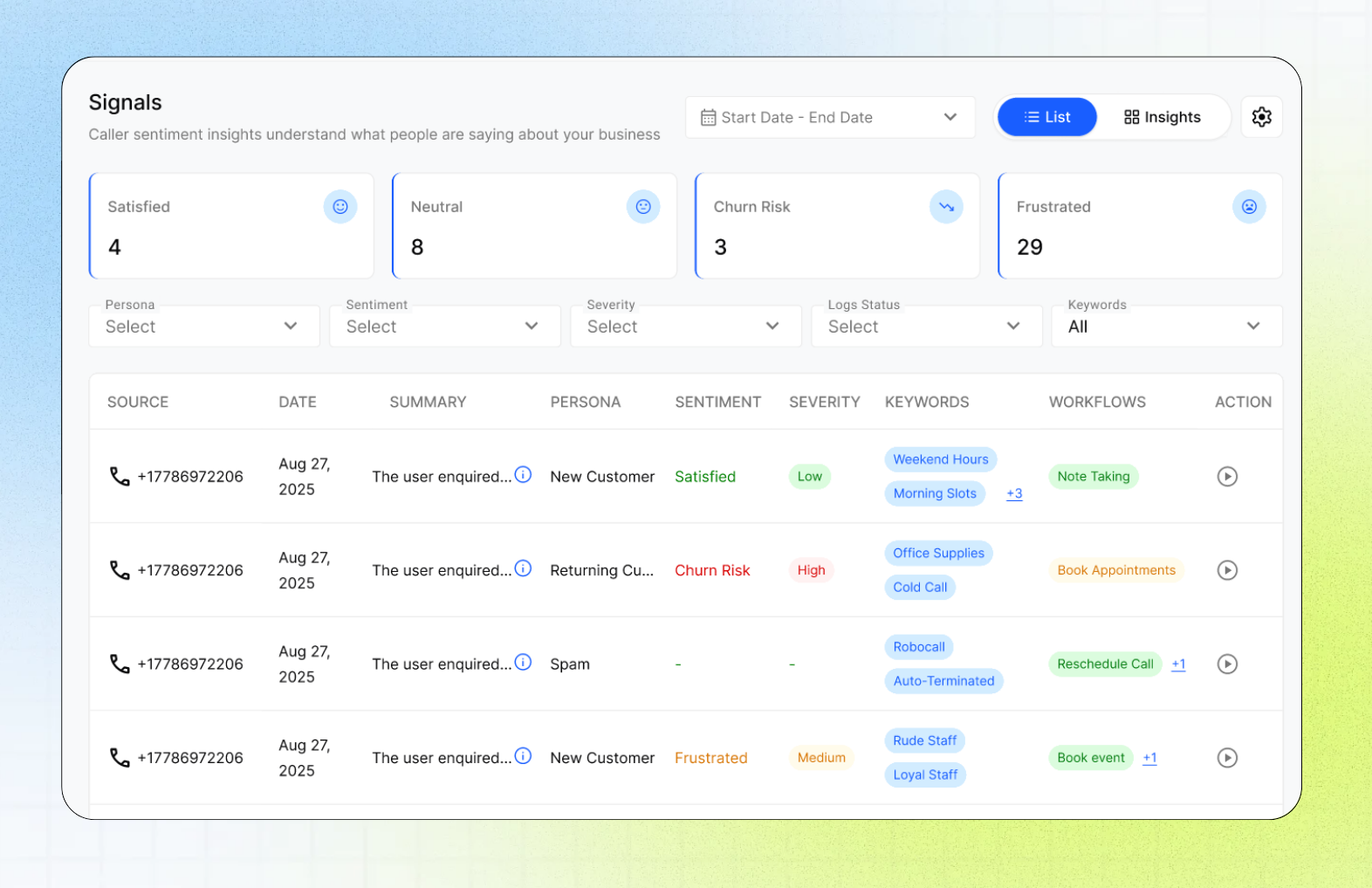
Signals Overview
The Signals page in the Business Portal tracks business-specific keywords and topics mentioned during calls, helping you understand what callers are saying and identify trends in customer demand and service quality. You can add keywords relevant to your Business, filter calls containing those keywords in the List view, and review trends in the Insights view.
Signals can help identify demand for new services, feedback about staff, recurring customer pain points, and potential revenue opportunities.
This guide is intended for Business users, administrators, owners, and managers who monitor customer needs and service quality.
What Signals do in Kickcall
Signals looks for tracked topics in new phone conversations. It adds those topics to call analysis so you can identify patterns that may not be obvious from call summaries or workflows alone.
Use Signals to track topics such as:
Services callers ask for but you do not currently advertise.
Feedback about a new provider or staff member.
Long wait times, callback requests, or missed appointments.
Complaints about staff or the check-in experience.
Demand for weekend or evening appointments.
Requests to speak with a human.
Important notes
Signal tracking starts after a keyword is added and saved. It does not back-fill results for calls that happened earlier.
Default System Keywords are automatically tracked and are read-only.
Business-Specific Keywords are generated from a plain-English description.
Review generated keywords before saving them to ensure they represent the business question you want to measure.
Signals may contain sensitive conversation data, including caller comments, sentiment, and business complaints.
The exact keyword list and processing time may change as the product evolves.
Before you start
Make sure you have:
Access to the Business Portal. Access to the Signals page.
A clear question you want to answer.
Examples of the language callers may use.
A date range or business period you want to analyze.
Configure keyword tracking
Open the Business Portal. Open Signals. Select the settings icon. Review the Default System Keywords.
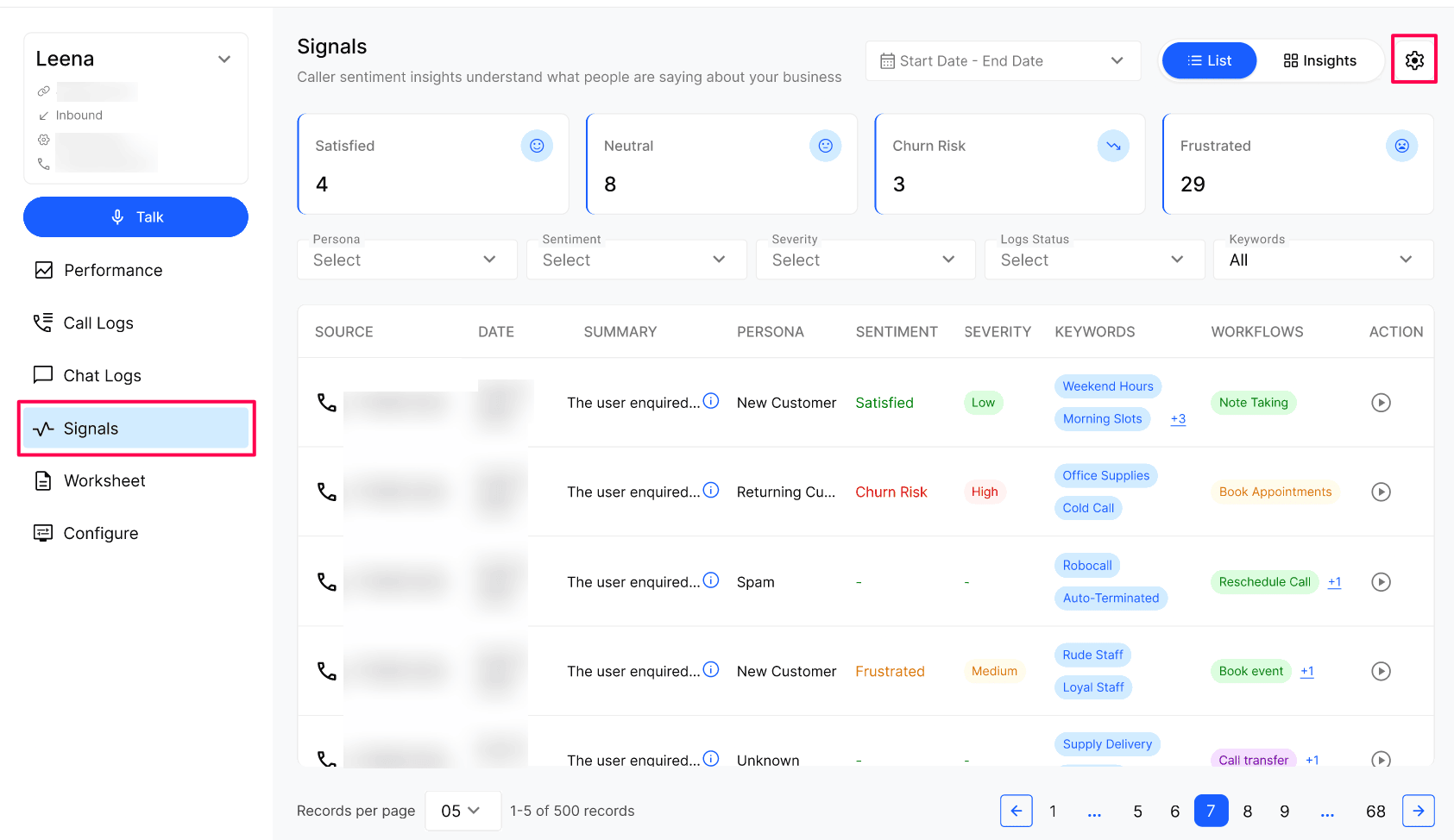
In the custom keyword area, describe what you want to track in plain English. Select Generate. Review the name and description of the generated Business-Specific Keywords by selecting the keyword.
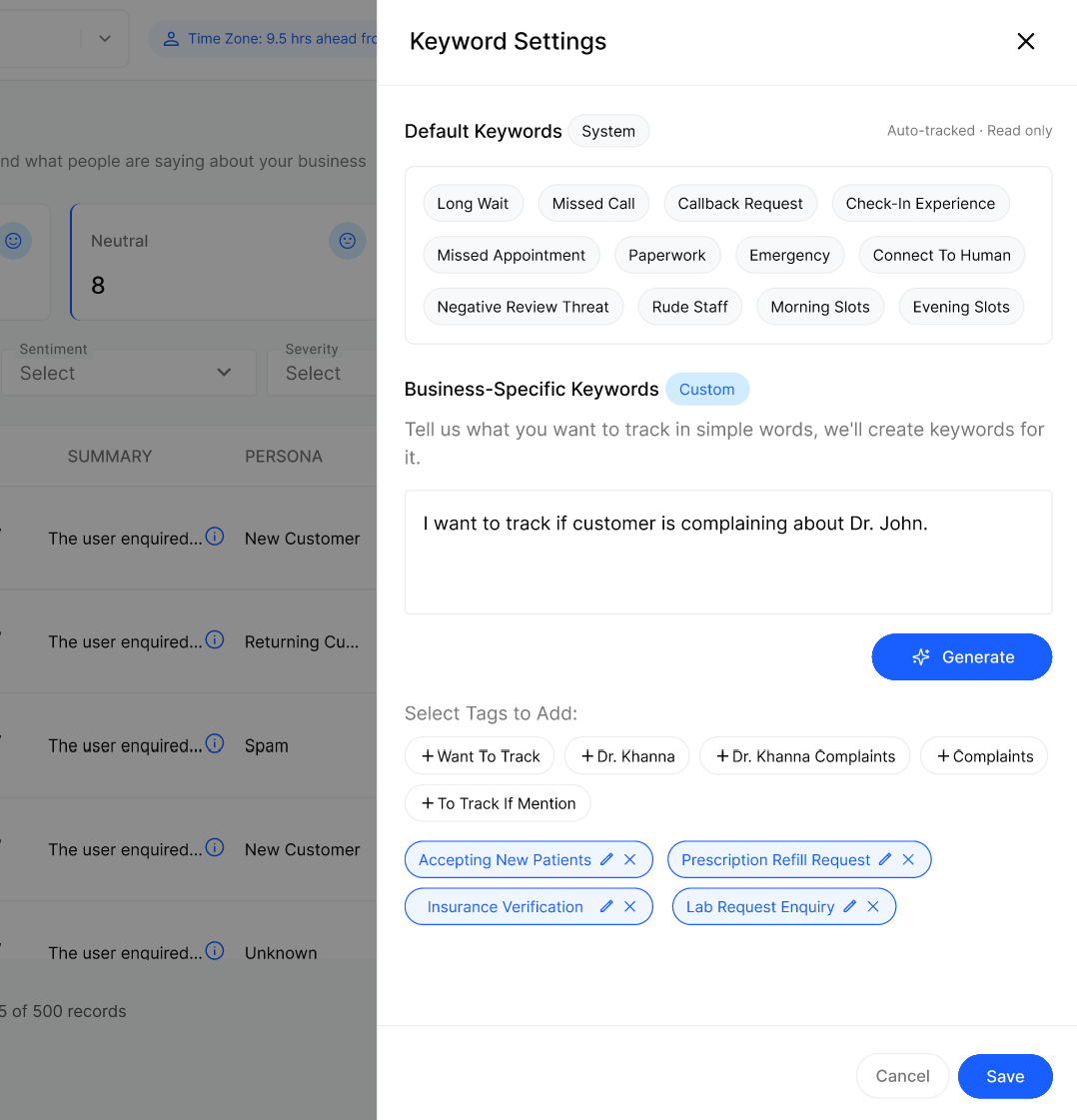
Select Save.
Examples of plain-English tracking requests:
“Track callers who ask for a service we do not currently offer.”
“Track callers who complain about Dr. John.”
“Track callers asking for evening appointments.”
“Track callers requesting an insurance verification.”
“Track callers asking for a prescription refill.”
After you select Save, new calls are scanned for the configured keywords.
Keyword configuration reference
Review Signals in List view
The List view shows one row for each call that matched at least one tracked Signal.
Combine filters with the date range at the top right.
Read trends - Insights view
Switch to the Insights view to move from individual calls to aggregate trends. You get:
Sentiment counters — Satisfied, Neutral, Frustrated, Churn Risk totals for the selected date range.
Breakdown across all keywords — split of matched calls by Persona, Sentiment, Severity and Workflow. Click any keyword chip to refocus the breakdown on just that signal.
Top Keywords by Volume — the most-mentioned themes across all conversations (Long Wait, Rude Staff, Word of Mouth, etc.). This is the fastest way to spot what callers keep bringing up.
Use the date range picker (top right) to compare any window — last week vs. last month, before vs. after launching a new service, and so on.
Expected result
Your new keywords appear in the Keywords filter, and new calls that mention them appear in the List and count towards Insights.
Verify the result
Open the Keywords filter and confirm your new keyword is listed.
Make a test call that mentions the topic.
Filter by that keyword and confirm the call appears. Open it to check the transcript.
Troubleshooting
Frequently Asked Questions
Why don't I see data for a keyword I just added?
Why don't I see data for a keyword I just added?
Signals are tracked from the moment a keyword is created — they are not back-filled on past calls. That's why we recommend setting up your Business-Specific Keywords on day one.
Can I track something the default keywords don't cover?
Can I track something the default keywords don't cover?
Yes. Open Keyword Settings, describe what you want to track in plain English under Business-Specific Keywords, click Generate, review the suggestions and Save.
Can I remove a default System keyword?
Can I remove a default System keyword?
No. Default keywords are auto-tracked and read-only because they power core dashboards. You can always add your own Business-Specific Keywords alongside them.
What's the difference between Signals and Performance?
What's the difference between Signals and Performance?
Performance measures what the AI Agent did (calls answered, time saved, workflows completed). Signals measure what your callers are saying about the topics you chose to track — your early-warning system for demand, complaints and opportunities.
Related articles
Was this helpful?
Still need help? Ask the team