How do I set up and verify my whitelabel identity in Kickcall?
Configure your Kickcall whitelabel identity with logos, colors, support and legal links, then check the branding shown on login and onboarding pages
Written By Maruf Ansari
Last updated 9 days ago
Businesses interacting with your platform should see your brand, not Kickcall's. Branding & Domain is where you configure that whitelabel identity — name, logo, colors, support links and the custom domain — so the portal looks and feels like your own product.
Branding Overview
The Branding section allows Agency administrators to customize the Business Portal with their Agency’s identity. You can configure the business name, logo, favicon, primary color, support email, support calendar link, Terms & Conditions, Privacy Policy, and custom domain. These settings help maintain consistent branding across the portal and ensure Businesses see the correct information from their first login.
Important notes
The Support Calendar link is shown on the onboarding thank-you page, after a Business submits the onboarding form — not elsewhere in the app.
The Custom Domain is set up during Agency provisioning. You cannot change it yourself; contact the Kickcall support team.
Product validation required: Confirm whether Branding changes apply retroactively to Businesses already onboarded, or only to new sessions and new onboardings.
Before you start
Have your logo (2 MB max, .JPG or .PNG) and favicon (under 1 MB, .ICO or .PNG) ready.
Know your primary brand hex color.
Have your support email, support calendar link (e.g. Calendly), and Terms & Conditions / Privacy Policy URLs ready.
Configure Branding & Domain
Open Configuration → Branding.
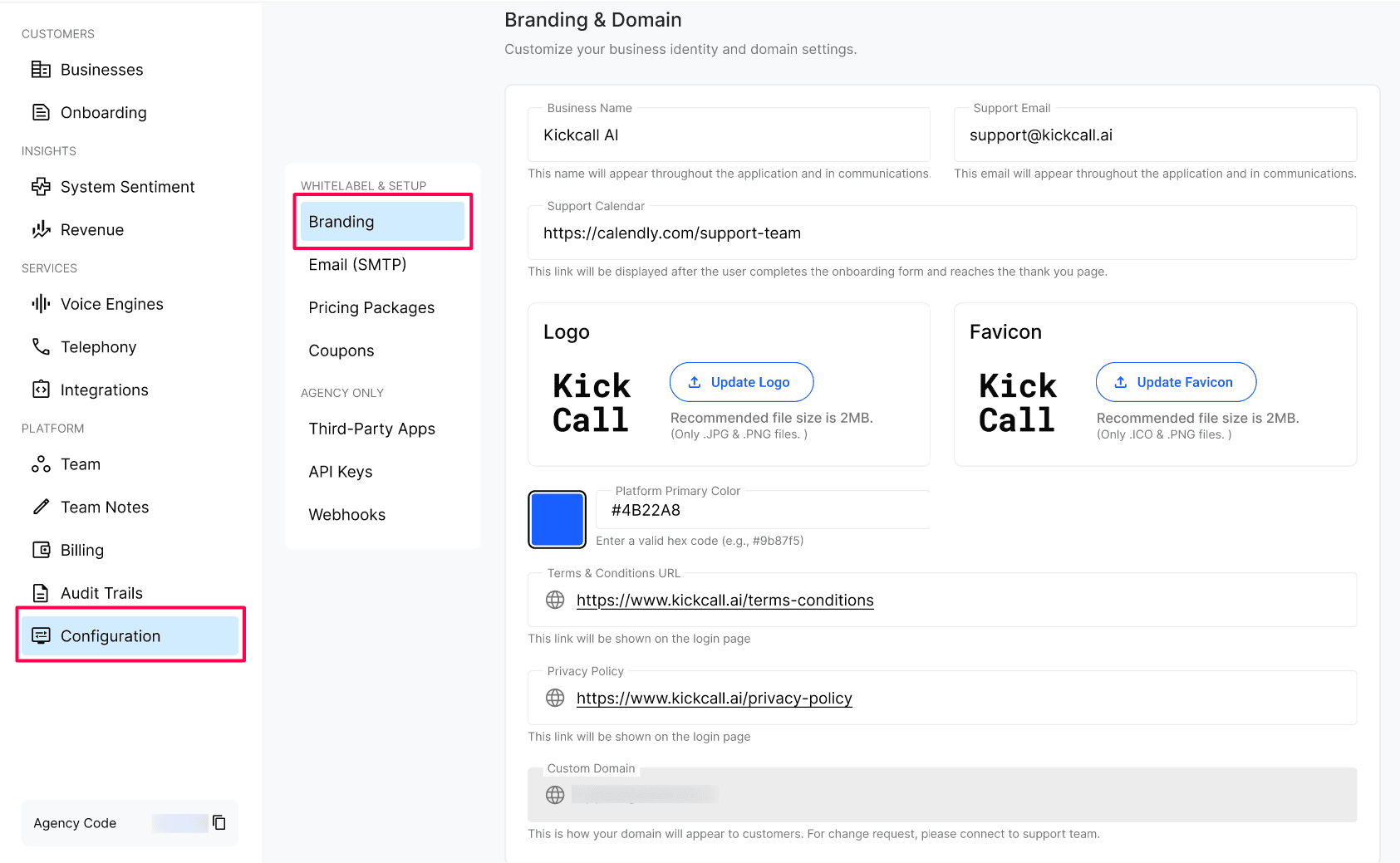
Under Identity, enter your Business Name, Support Email and Support Calendar link.
Under visual whitelabel, upload your Logo and Favicon, and set your Platform Primary Color.
Under legal links, enter your Terms & Conditions URL and Privacy Policy URL.
Save your changes.
Configuration reference
Expected result
The login page and app sidebar show your logo, favicon and primary color. The onboarding thank-you page shows your Support Calendar link, and the login page shows your Terms & Conditions and Privacy Policy links.
Verify the result
Log out and reload the login page to confirm the logo, favicon, primary color and legal links appear correctly.
Complete a test onboarding submission and confirm the Support Calendar link appears on the thank-you page.
Troubleshooting
Frequently Asked Questions
Where is the Support Calendar link shown?
Where is the Support Calendar link shown?
It is shown on the onboarding thank-you page, right after a business completes the onboarding form, so they can book a call with your team without leaving the flow.
Can I change the primary color later?
Can I change the primary color later?
Yes. Update the hex code and save — the change is applied across the portal immediately.
Why is the Custom Domain field disabled?
Why is the Custom Domain field disabled?
Custom domain changes require DNS coordination. Reach out to the Kickcall support team and they will update it for you.
Do I need to upload both Logo and Favicon?
Do I need to upload both Logo and Favicon?
Yes for a complete whitelabel — the logo appears inside the app and the favicon appears in browser tabs and bookmarks.
Related articles
Was this helpful?
Still need help? Ask the team