AI Agent Performance Dashboard – Inbound
Written By Anand Raj
Last updated 16 days ago
The Inbound Agent Performance dashboard is your Central hub for what your AI Agent is doing on inbound calls — what callers are asking when they dial in, what the AI is handling on its own, where it needs your help, and how much human staff time it is saving you on incoming traffic.
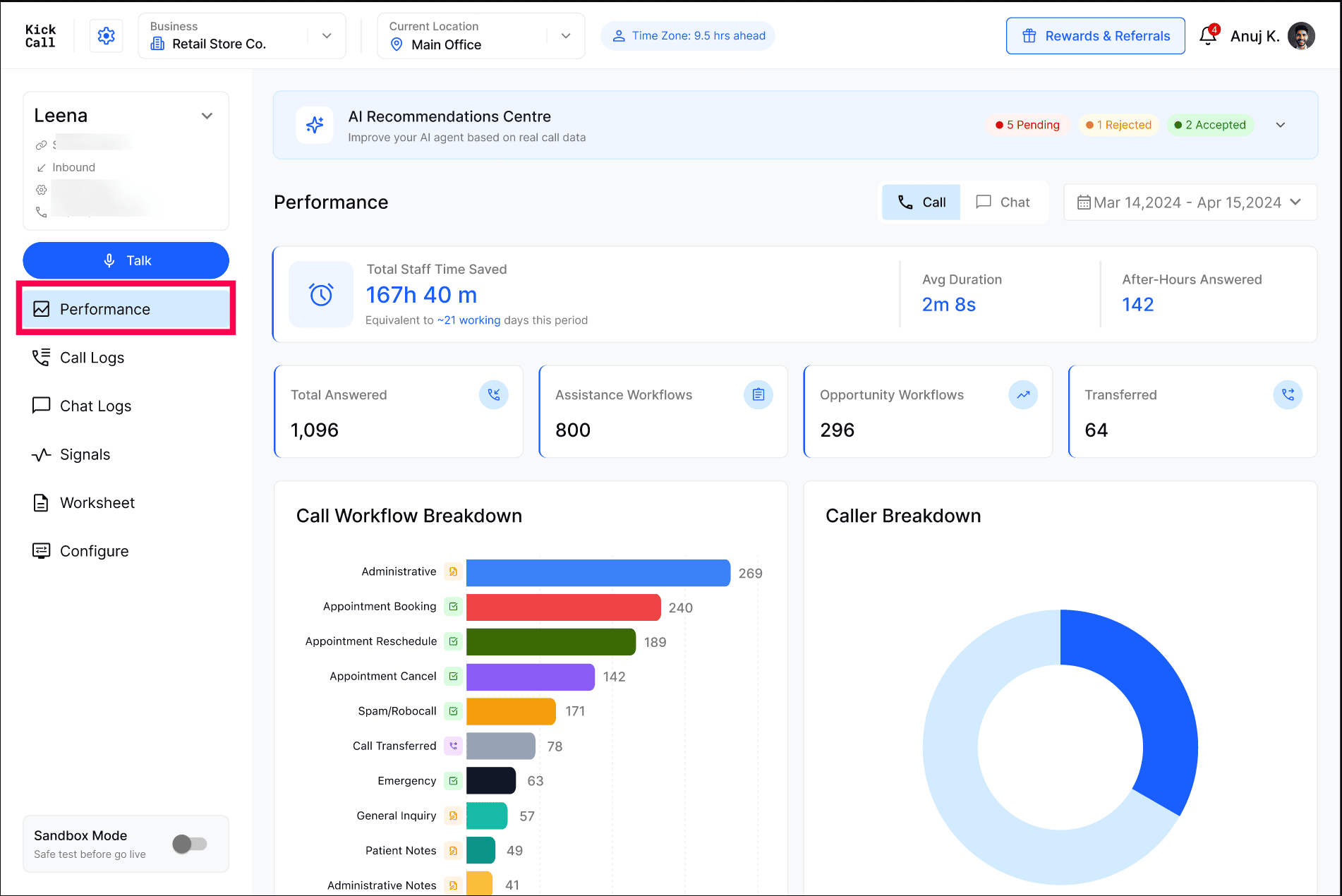
Use it to spot gaps in your Knowledge Base, understand inbound caller intent, and measure the real operational impact of your AI Agent on calls coming into your business.
Note: Outbound campaigns and outbound AI activity have their own dedicated dashboard. Everything on this page is scoped to inbound calls only.
Sandbox Mode is only visible and enabled for Agency users. If you are using the Business Portal, you will not see the Sandbox Mode toggle or be able to switch the Agent into sandbox from this screen.
Call and Chat views
Next to the date picker you'll find a Call / Chat toggle. It switches the entire dashboard between the two channels your AI Agent handles:
Call — inbound phone calls answered by the AI Agent (see Call Logs).
Chat — inbound web chat and messaging sessions handled by the AI Agent (see Chat Logs).
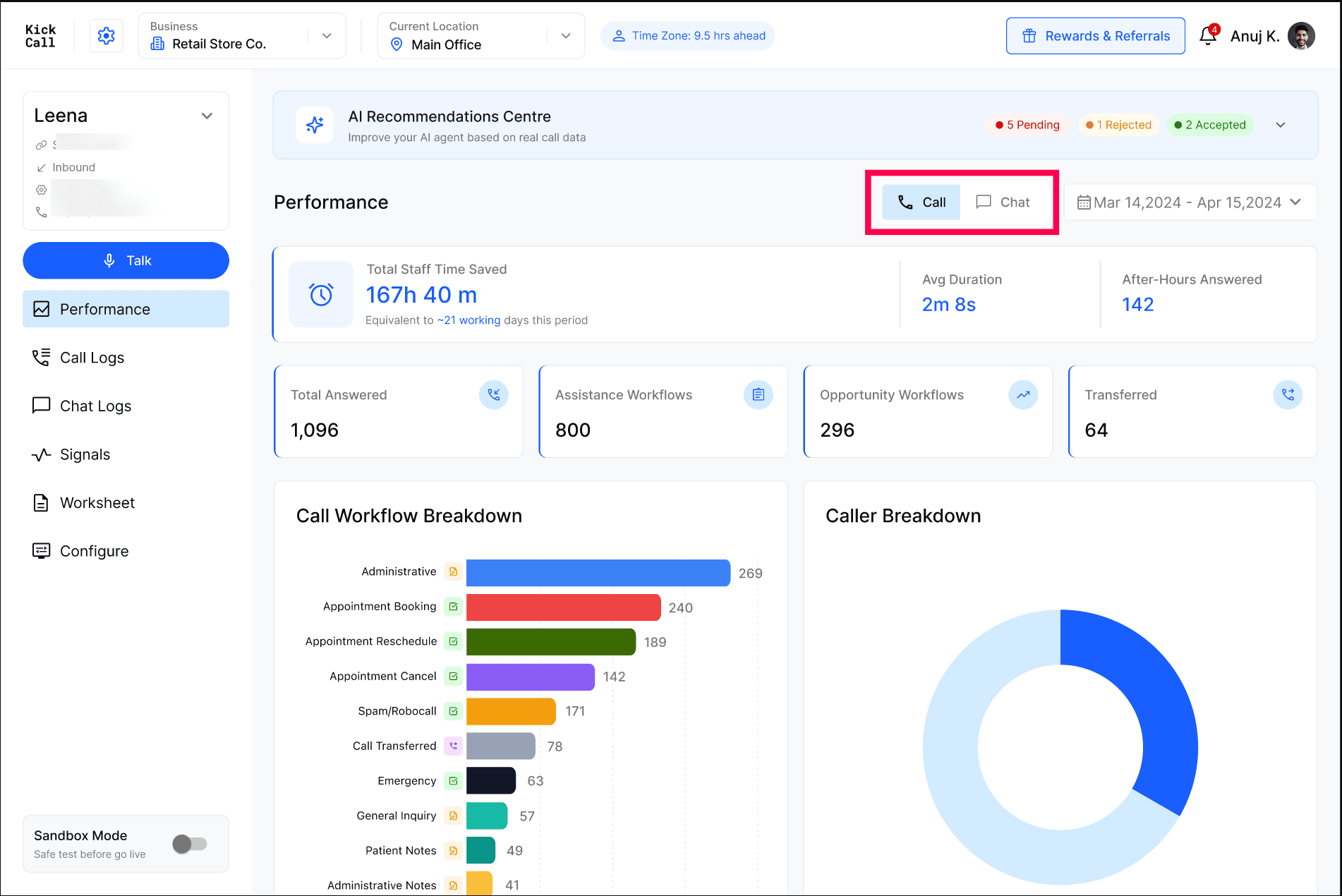
Both views share the same structure - recommendations, headline metrics, workflow breakdown, tasks completed and volume by hour - so your team only learns one screen. The date range you pick applies to whichever channel is selected.
AI Recommendations Centre
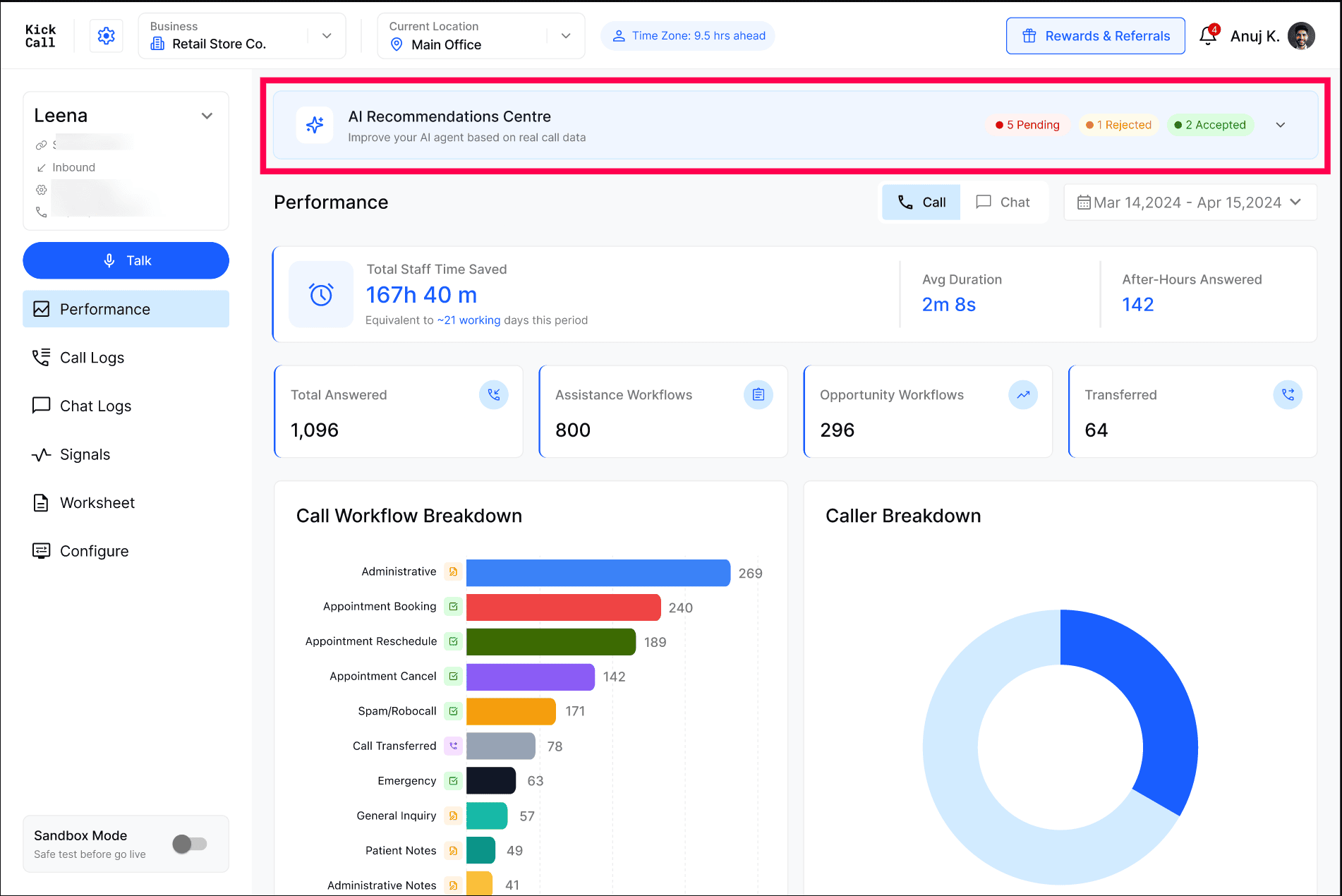
The AI Recommendations Centre sits at the top of the dashboard because it directly tells you what your business is missing.
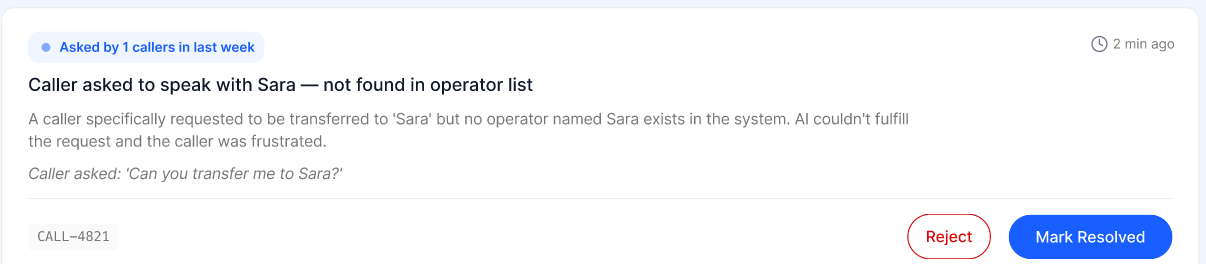
Whenever a caller asks something the AI Agent does not have an answer for, the Agent captures that question and turns it into a recommendation for you. Each recommendation is essentially:
"An inbound caller asked X. I didn't have an answer — would you like to add this to the Knowledge Base / configuration?"
Example:
Recommendations are grouped by status so you can act on them quickly:
All — every open recommendation in one list.
Unanswered Questions — specific questions callers asked that the AI could not answer.
Knowledge Gaps — broader topics where your Knowledge Base is missing coverage.
Each recommendation card shows how often the question is coming up — for example "Asked by 5 callers in last 24h" — along with a short summary of the context, so you can prioritise the questions costing you the most customers.
Reviewing this centre regularly is the fastest way to make your AI Agent smarter, because every recommendation comes from a real caller question.
Acting on a recommendation
Click a recommendation to open the Add to Knowledge Base panel. It shows the Context (what the caller asked and why the AI had no answer) and lets you save the answer in one of two places:
Agent Knowledge Base — the answer is added directly to the AI Agent's knowledge and it can start using it on future conversations. Fill in the pre-populated Question and type Your Answer — the exact response the AI should give when this comes up.
Business Knowledge Base — select a specific or multiple Knowledge Base from the dropdown (required), then confirm the question and answer. Useful when you maintain multiple knowledge bases and want the answer stored in the right one.
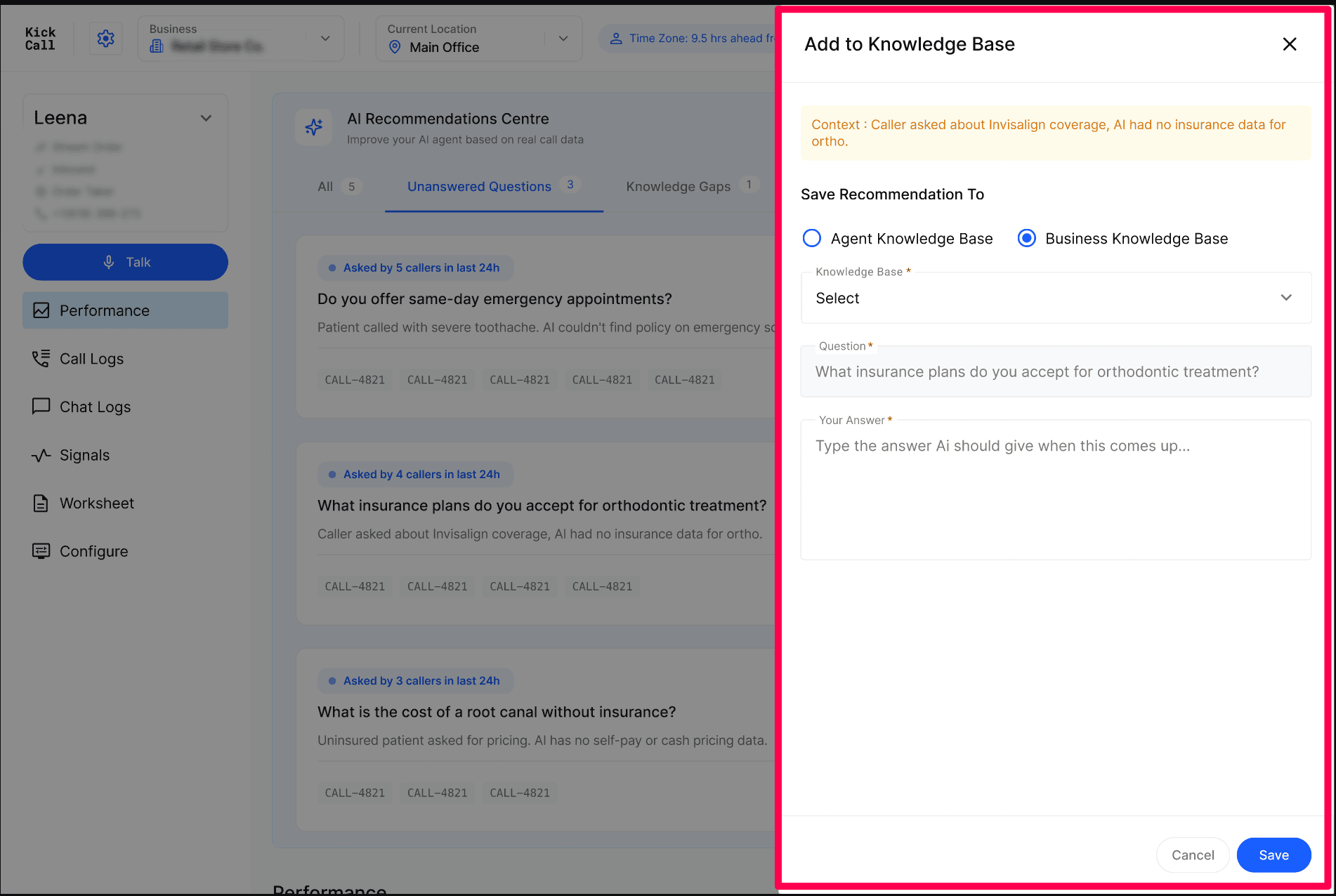
Click Save and the recommendation is resolved — the AI Agent can answer that question from then on.
Headline Performance Metrics
Just below the recommendations centre you'll find the high-level numbers for inbound traffic over the selected date range. The metrics shown depend on which channel you have selected.
Call metrics
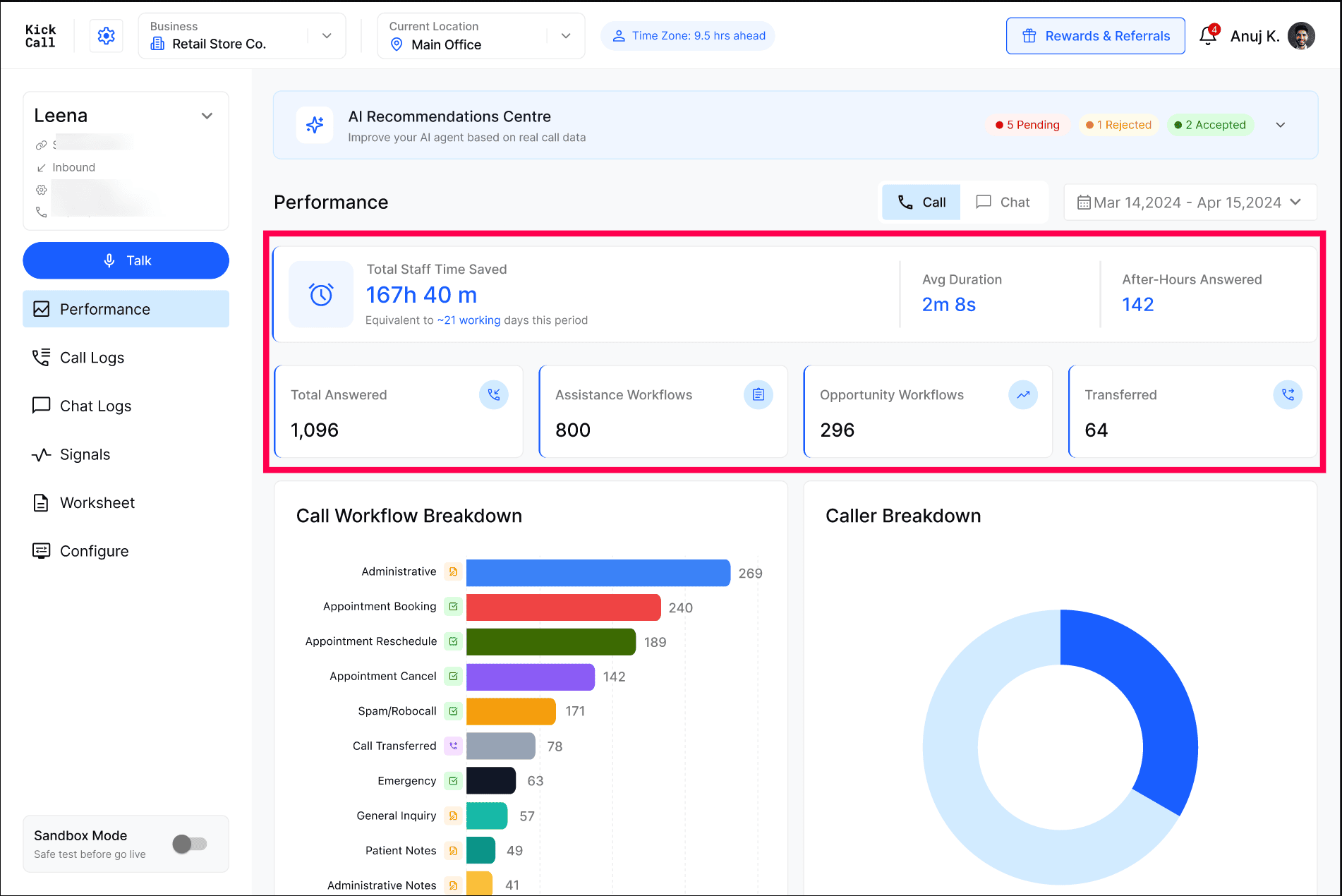
Total Staff Time Saved — total human hours your AI Agent has replaced by handling inbound calls instead of your staff, with an equivalent in working days.
Avg Call Duration — average length of an answered inbound call.
After-Hours Answered — inbound calls handled outside your business hours that would otherwise have been missed.
Total Answered — total inbound calls the AI Agent picked up.
Assistance Workflows — inbound calls where the AI helped the caller with a request (info, status, notes, etc.).
Opportunity Workflows — inbound calls tied to revenue-generating intents like new bookings, jobs, or service requests.
Transferred — inbound calls routed to an Operator (human team member).
Chat metrics
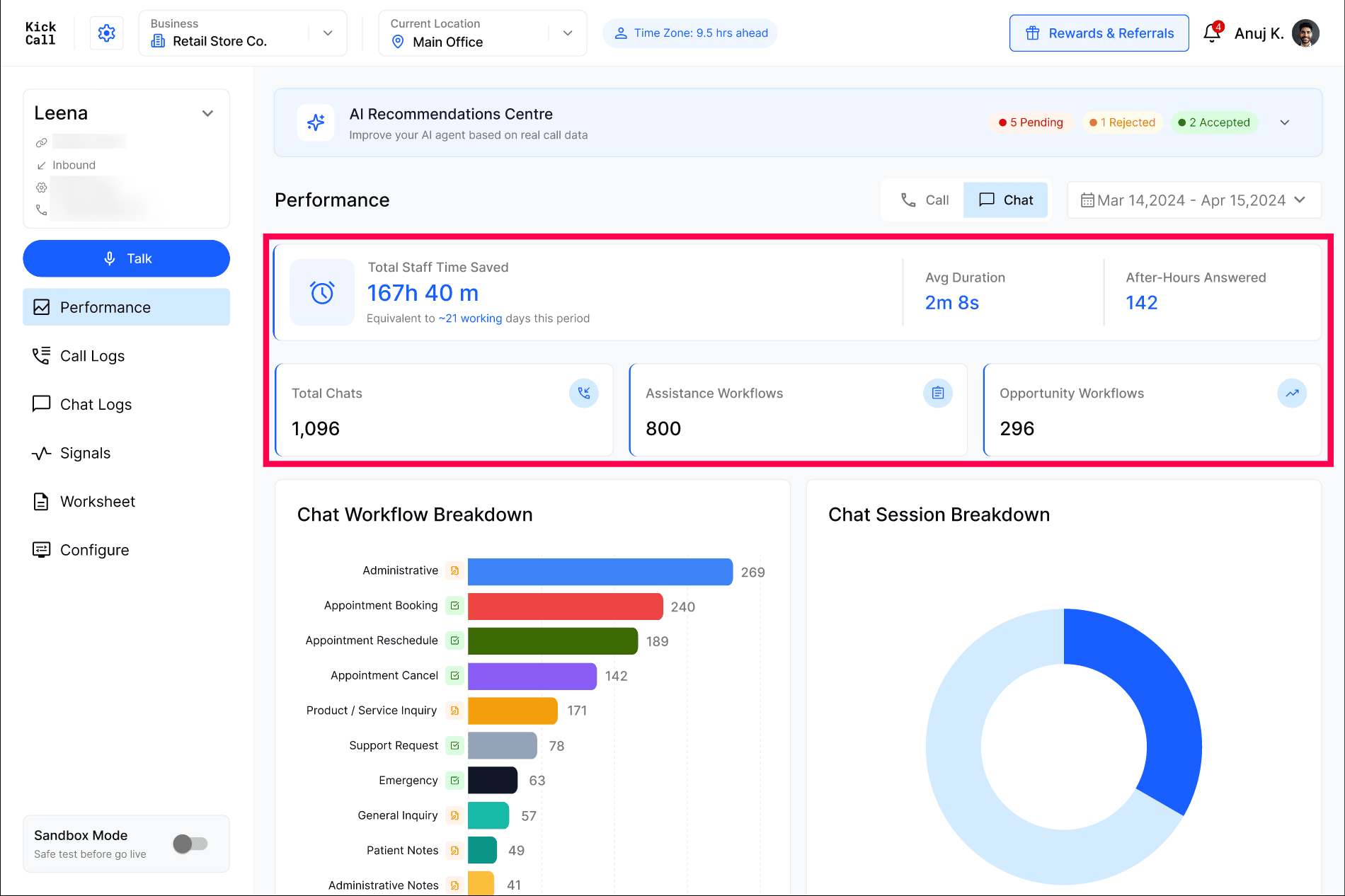
Total Staff Time Saved — human hours replaced by the AI Agent handling chat sessions, with an equivalent in working days.
Avg Duration — average length of a chat session from first to last message.
After-Hours Answered — chats handled outside your business hours.
Total Chats — total inbound chat sessions the AI Agent handled.
Assistance Workflows — chats where the AI helped with a question or service-style request.
Opportunity Workflows — chats tied to revenue-generating intents like new bookings, jobs or service requests.
Use the date picker at the top right to compare any period — last week, last month, custom range.
Customer Intent Clarity
The workflow and caller breakdowns give you full clarity on why customers are reaching out. An important detail: a single inbound conversation can contain multiple intents. For example, a customer may first ask to cancel an appointment and then immediately ask to book a new one. The AI Agent captures both intents from that one call or chat, so your breakdown reflects the real mix of inbound needs — not just the first thing they said.
Call breakdown
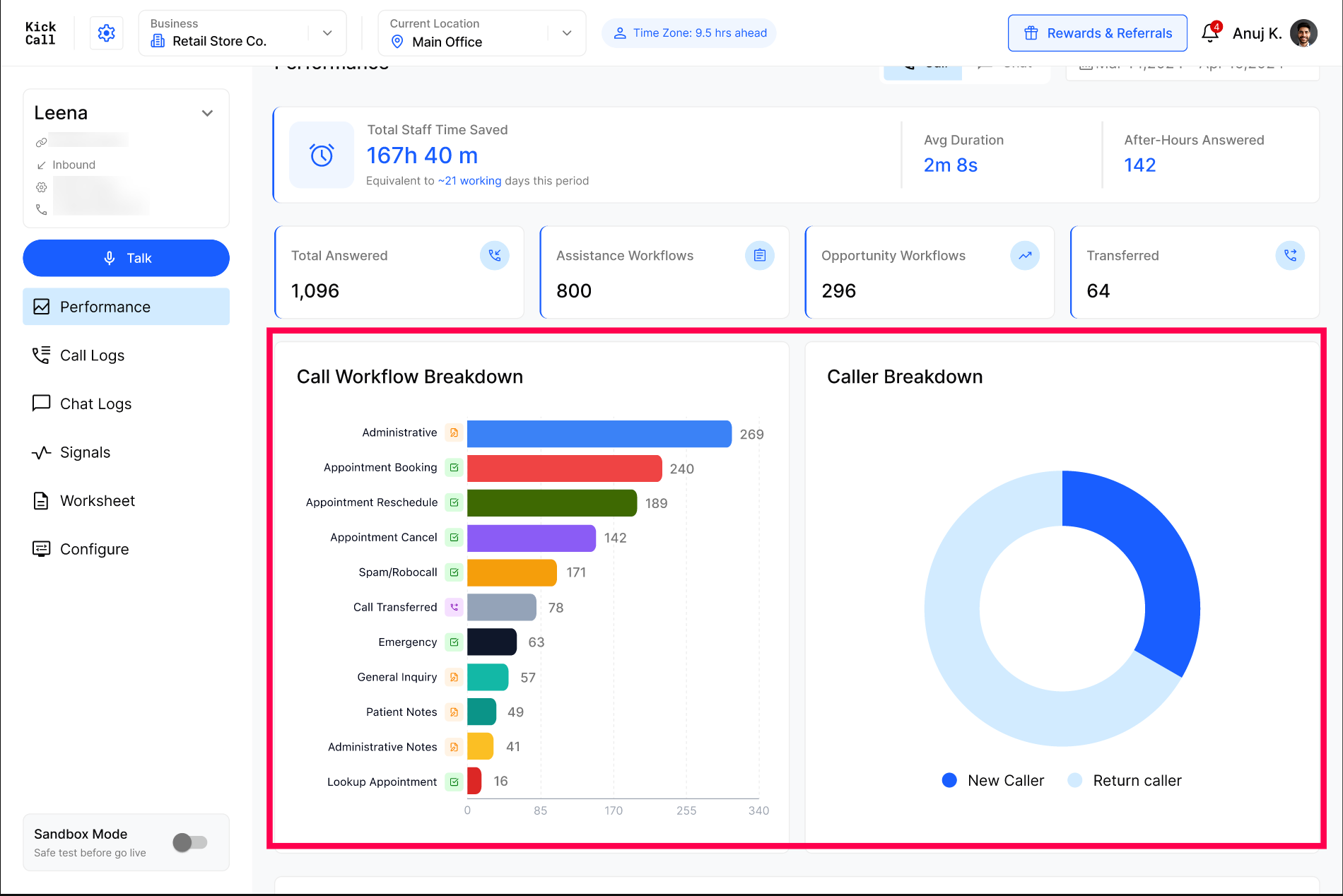
The Call Workflow Breakdown and Caller Breakdown show why people are calling in. This helps you answer questions like:
What categories of inbound calls are we getting the most? (Administrative, Appointment Booking, Emergency, etc.)
How much spam / robocall noise is the AI absorbing for us?
How is inbound call volume split between new vs. existing callers?
Chat breakdown
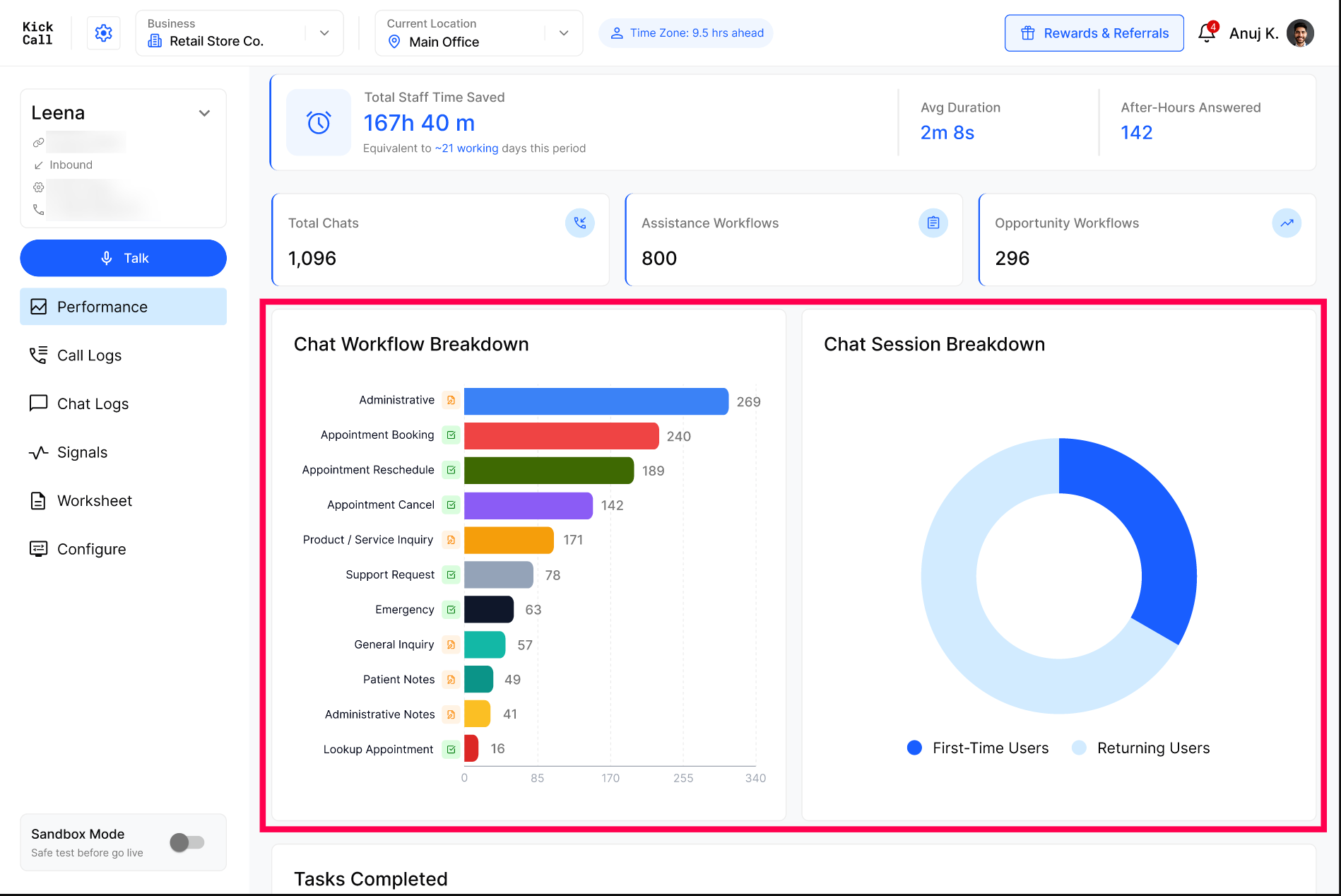
The Chat Workflow Breakdown and Chat Session Breakdown show the same intent detail for messaging sessions. This helps you answer questions like:
What categories of inbound chat conversations are we getting the most?
How much of our chat volume is from First-Time Users versus Returning Users?
Tasks Completed
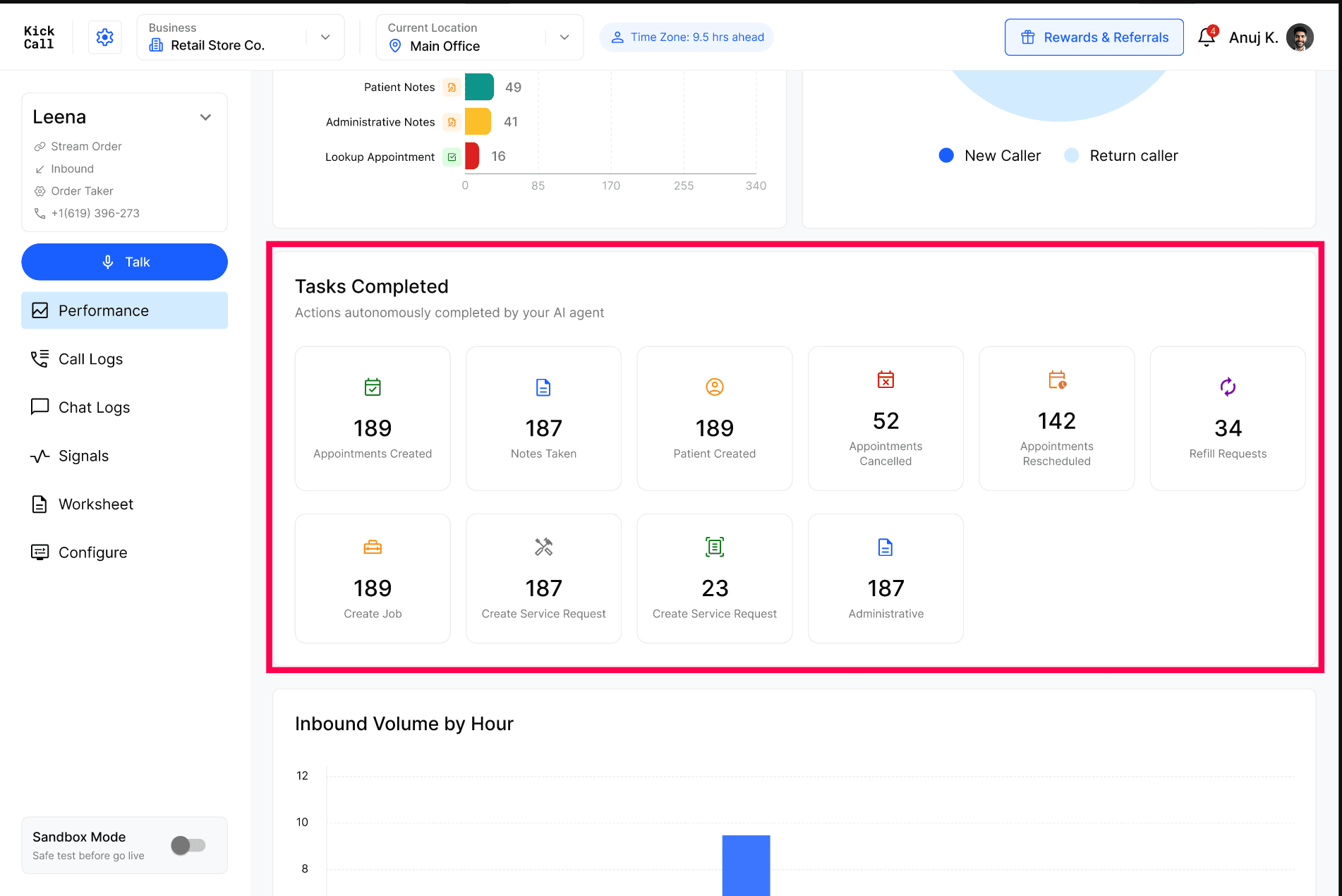
While "conversations answered" tells you what your AI is talking about, Tasks Completed tells you what your AI is actually doing — actions autonomously completed end-to-end while the customer was on the line or in the chat. The grid appears on both the Call and Chat views, scoped to the selected channel.
Typical tasks you'll see tracked here (your set depends on the integrations and workflows enabled on your business):
Appointments Created
Appointments Cancelled
Appointments Rescheduled
Notes Taken
Patient / Customer Created
Refill Requests
Create Job
Create Service Request
Together with the conversation view, this gives you both sides of the picture: what the customer asked and what the AI completed on your behalf.
Inbound Volume by Hour
The volume chart shows when your inbound traffic actually arrives across the day, so you can staff Operators, quantify after-hours capture, and spot unusual spikes.
Call volume
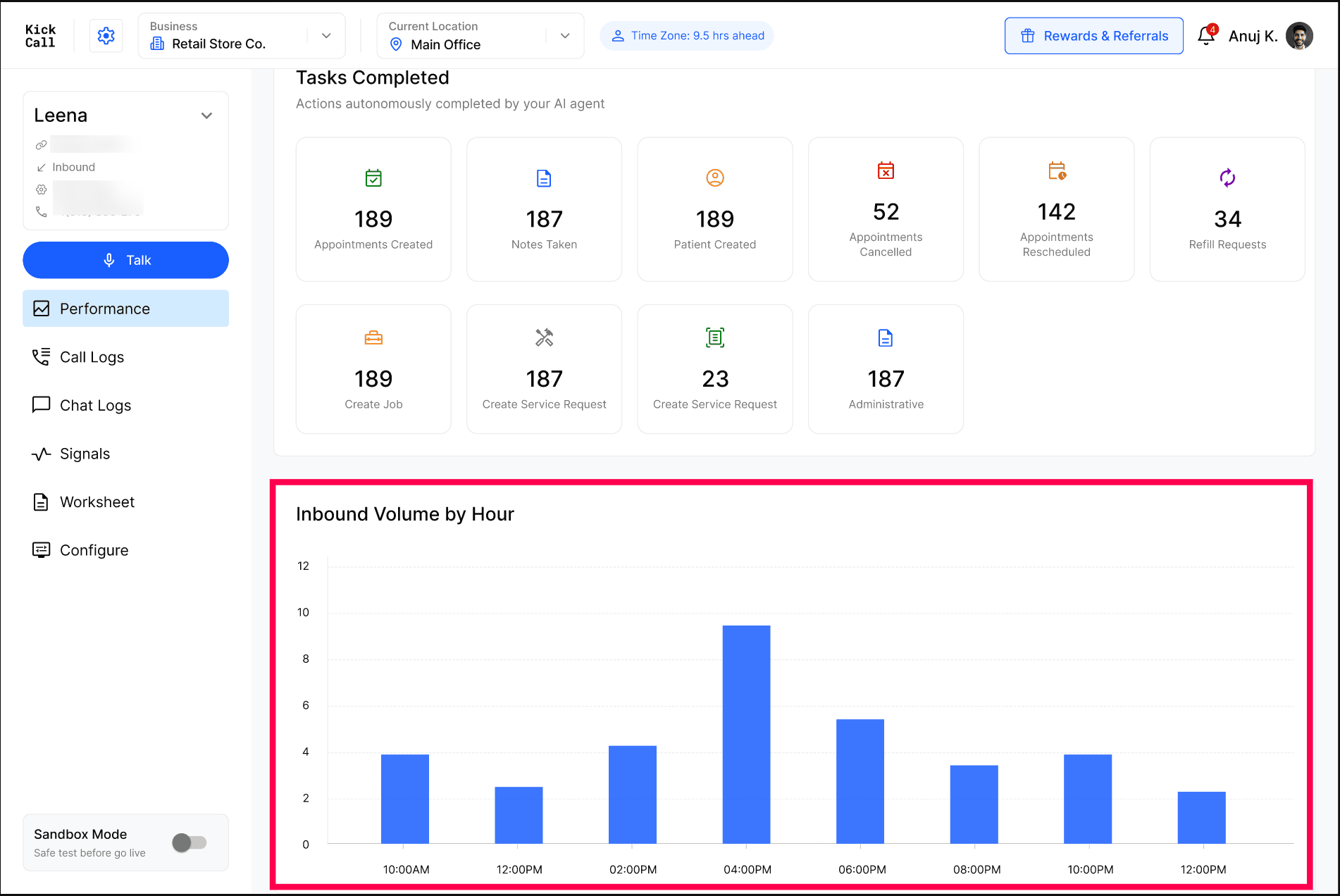
The Inbound Volume by Hour chart shows when inbound calls come in. Use it to:
Identify peak call hours and staff your Operators accordingly.
Quantify how much after-hours call traffic the AI is capturing for you.
Spot unusual call spikes that may need follow-up.
Chat volume
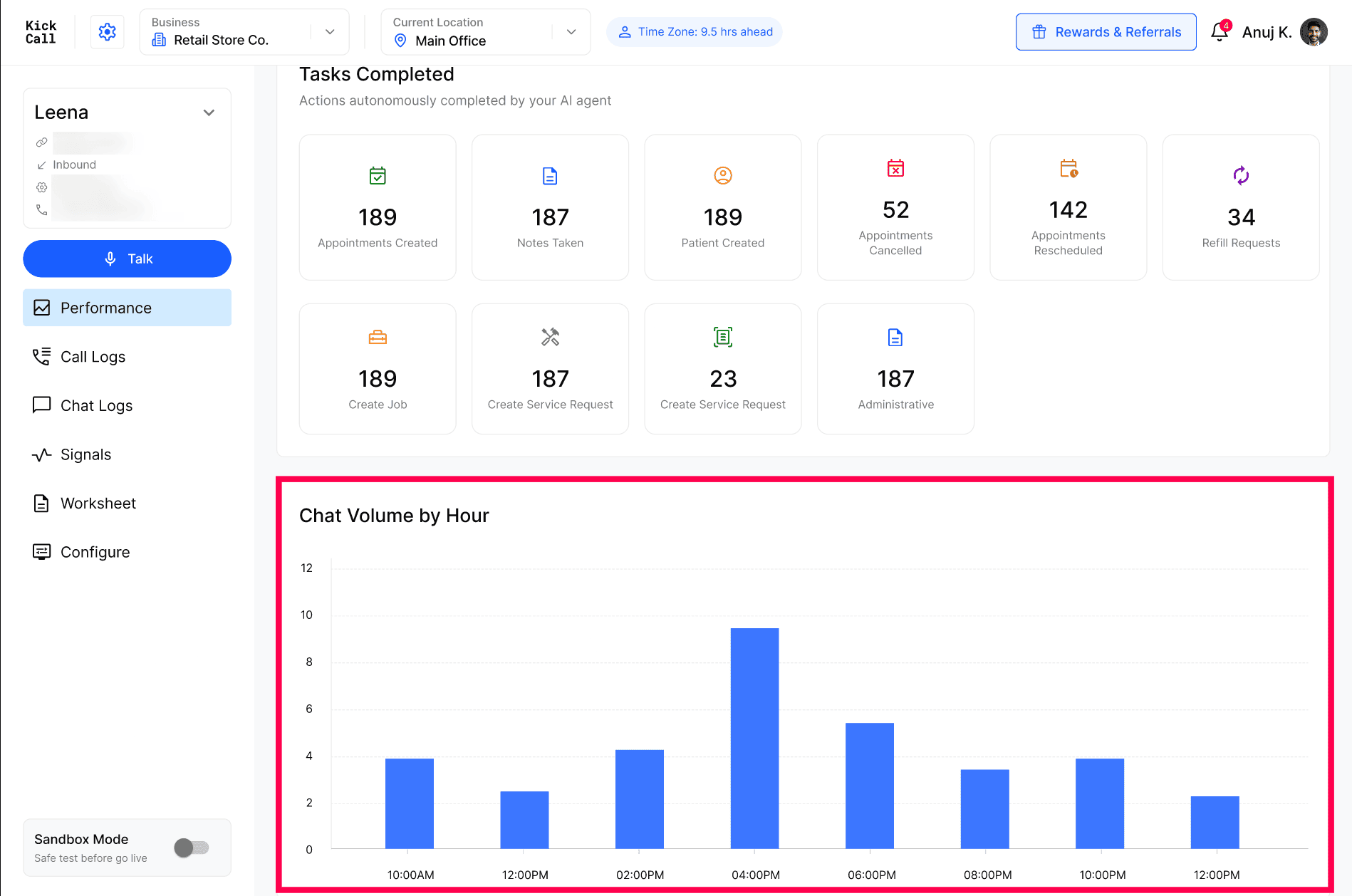
Switch to the Chat view and the same chart becomes Chat Volume by Hour, showing when customers message you. Use it to:
Identify peak chat hours.
Quantify after-hours chat traffic the AI is handling.
Compare chat peaks against call peaks to see which channel your customers prefer, and when.