How Do I Update My Agency Profile Name, Photo and Phone Number in Kickcall?
Update your name, profile photo and phone number in the Kickcall Agency Portal, save your changes, and learn why your email is read-only.
Written By Maruf Ansari
Last updated 10 days ago
Make sure your team, your Businesses and the system can recognize you and reach you on the right channels. The My Profile screen lets you update the picture, name and phone number linked to your Agency user account. Your changes take effect across the Agency Portal as soon as you save them.
My Profile Overview
My Profile allows Agency users to manage and update their personal information in the Agency Portal. You can upload or replace your profile picture, update your display name and phone number, and save the changes to your account. Your profile information helps identify you across platform activities, including Audit Trails, Intraoffice Notes, and other activity records. Keeping your details updated ensures your team and Businesses can easily recognize you and identify your actions within the platform.
Important notes
Your Email Address is read-only on this screen. To change it, contact your agency administrator.
These details apply only to your account. They don't change any other Agency user or any Business.
Before you start
Prepare a JPG or PNG image no larger than 5 MB if you want to change your picture.
Have your phone number and its country ready.
Update your profile details
In the top-right of the Agency Portal, select your profile picture or name. A dropdown opens with My Profile, Notification Preferences and Log Out.
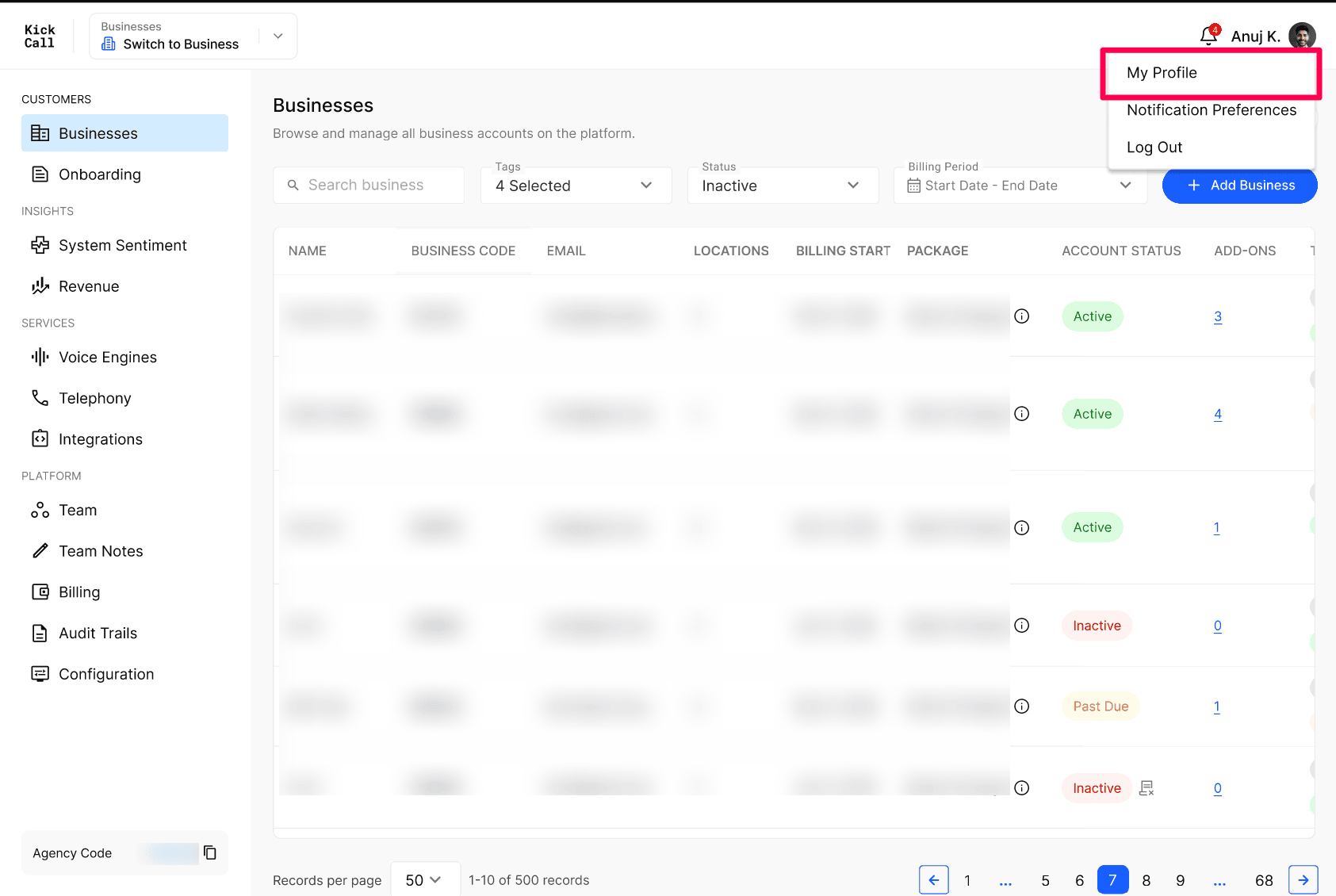
Select My Profile. The Profile and Settings panel slides in from the right with My Profile selected by default.
To change your picture, select Choose File and upload a JPG or PNG image.
Enter your Name. For Phone Number, select your country from the flag dropdown and enter your number.
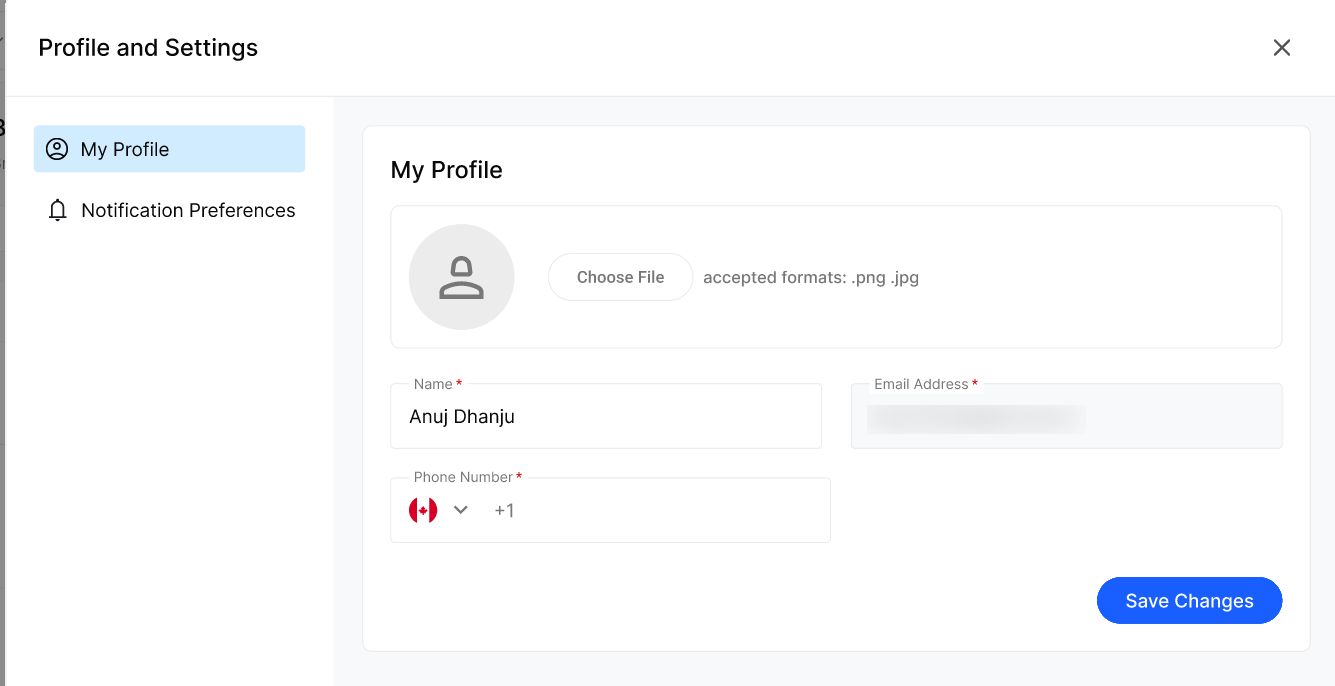
Select Save Changes.
Verify the result
Check that the top-right corner of the Agency Portal shows your new name and picture.
Reopen My Profile and confirm the saved values.
Make a small change elsewhere, then open Audit Trails and confirm the entry shows your updated name.
Troubleshooting
Next step
Open In-App and Email Notifications in the Kickcall Agency Portal and choose which alerts you want to receive.
Frequently Asked Questions
What file formats are supported for the profile image?
What file formats are supported for the profile image?
The profile picture upload accepts JPG and PNG images only. Other formats (such as GIF, WebP, HEIC or SVG) are not supported and will be rejected on upload.
What is the maximum file size supported for the profile image?
What is the maximum file size supported for the profile image?
The maximum allowed file size is 5 MB. If your image is larger than 5 MB, please compress or resize it before uploading.
Why can't I change my email address here?
Why can't I change my email address here?
The login email is read-only on this screen for security. Contact your agency administrator to change it.
Where do my email notifications go?
Where do my email notifications go?
To the email address shown on My Profile.
Related articles
Was this helpful?
Still need help? Ask the team