How do I track agency and business activity in Kickcall Audit Trails?
Use Kickcall Audit Trails to review recorded actions, users, timestamps, affected targets, and outcomes, then narrow an investigation by date range.
Written By Maruf Ansari
Last updated 9 days ago
When something goes wrong - a Business status changed unexpectedly, an account was reset, a configuration disappeared, you need to know exactly who did it and when. The Audit Trails module keeps an immutable, system-generated history of everything happening inside your agency, so you can trace any incident back to the exact action and user responsible.
Audit Trails Overview
Audit Trails provides Agency administrators and owners with a chronological record of activity across their agency, showing who performed an action, when it happened, and which Business it affected. Logs are recorded automatically by the platform and cannot be edited or deleted, making them a reliable source for investigating incidents, reviewing activity, and maintaining accountability.
Important notes
Entries are system-generated and immutable. If an entry looks wrong, it reflects what actually happened — use it as the starting point for your investigation.
Entries showing System as the user are automated platform actions, such as auto-pausing a Business after a failed payment.
Before you start
Have a rough time window and the Business or user involved — this makes filtering much faster.
Open and review Audit Trails
From the left sidebar of the Agency Portal, click Audit Trails.
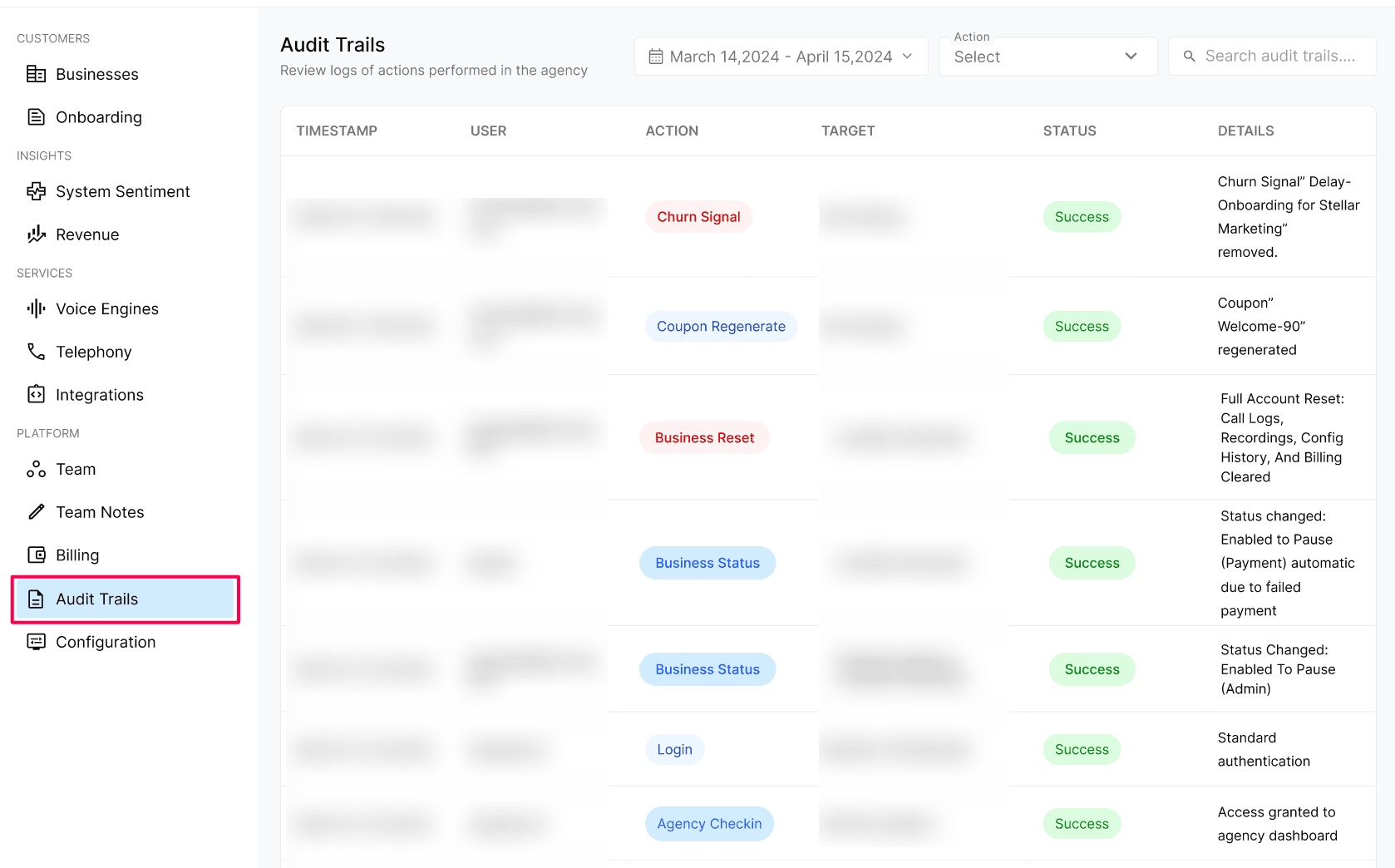
Use the date range filter at the top of the screen to jump to the period you want to investigate.
Scan the table for the user, action, or target you are looking for, and read the Details column for exactly what changed.
Configuration reference — what each column means
What we currently track
User logins — every time an agency user signs in to the Agency Portal.
Agency Check-in — when a user accesses the Agency dashboard.
Business status changes — Active / Pause / Past Due / Archived transitions, including automatic ones triggered by failed payments.
Business Reset — full account resets (call logs, recordings, configuration history, billing) with the exact scope cleared.
Coupon activity — coupon creation, regeneration, and deletion.
Configuration deletions — removal of locations, integrations, or other Business configuration.
Note: We are continuously expanding what gets tracked in audit trails. If there is a specific event or action you would like us to start logging, you can request it and we will look into adding it.
Expected result
You can answer "who did what, when, and on which Business" for any tracked event — for example, exactly which user changed a Business status, reset an account, or deleted a configuration.
Verify the result
Perform a known action (for example, sign in or open a Business Portal) and confirm a matching entry appears in Audit Trails with your email and the correct timestamp.
Use the date range filter to confirm you can isolate the entry to a specific period.
Troubleshooting
Recovery or rollback
Audit entries themselves cannot be changed or removed — that is by design. If an audit entry reveals an unwanted change (for example, a Business reset or a deleted configuration), use the entry's user, timestamp, and details to coordinate recovery with the responsible teammate, and contact Kickcall support if platform data needs to be restored.
Frequently Asked Questions
Can anyone in the agency edit or delete audit trail entries?
Can anyone in the agency edit or delete audit trail entries?
No. Audit trails are system-generated and immutable. No agency user — including admins — can modify or remove entries. This is what makes them reliable for investigations.
Will I see when one of my agency users opened a specific business portal?
Will I see when one of my agency users opened a specific business portal?
Yes. Business Checkin events record when an agency user accesses a business's portal, along with the user, the business and the timestamp.
Why do some entries show "System" as the user?
Why do some entries show "System" as the user?
"System" means the action was performed automatically by the platform rather than by a person — for example, auto-pausing a business after a failed payment.
How far back are audit logs kept?
How far back are audit logs kept?
Audit logs are retained long-term so you can investigate historical issues. Use the date range filter at the top of the screen to jump to a specific period.
Related articles
Was this helpful?
Still need help? Ask the team