How do I create a business discount coupon in Kickcall?
Create Generic or Business-specific coupons in Kickcall, set percentage or flat discounts, and define apply-by dates, validity, and percentage caps
Written By Maruf Ansari
Last updated 9 days ago
Promotional discounts help you close deals faster, run seasonal campaigns, and reward specific Businesses — without touching your package pricing. This guide walks you through creating a coupon in the Agency Portal, including recurring-billing coupons with a maximum total discount cap.
Coupons Overview
Coupons allows Agency administrators to create and manage discounts for Businesses. You can create generic or Business-specific coupons, configure discount amounts or percentages, set validity dates, and apply total discount caps for recurring billing.
Once created, coupons can be applied from the Business Billing page. For Kickcall Stripe users, coupons automatically sync with the connected Stripe account so the discounts are reflected in Stripe-processed invoices and subscriptions.
Important notes
Coupon Type cannot be changed after creation. A wrong type requires a replacement coupon.
Apply By Date controls when the coupon can be added to a new package. Validity Period controls how many months the discount remains active after application.
Only one coupon can be applied to a given package at a time, even if a business has several Business-specific coupons.
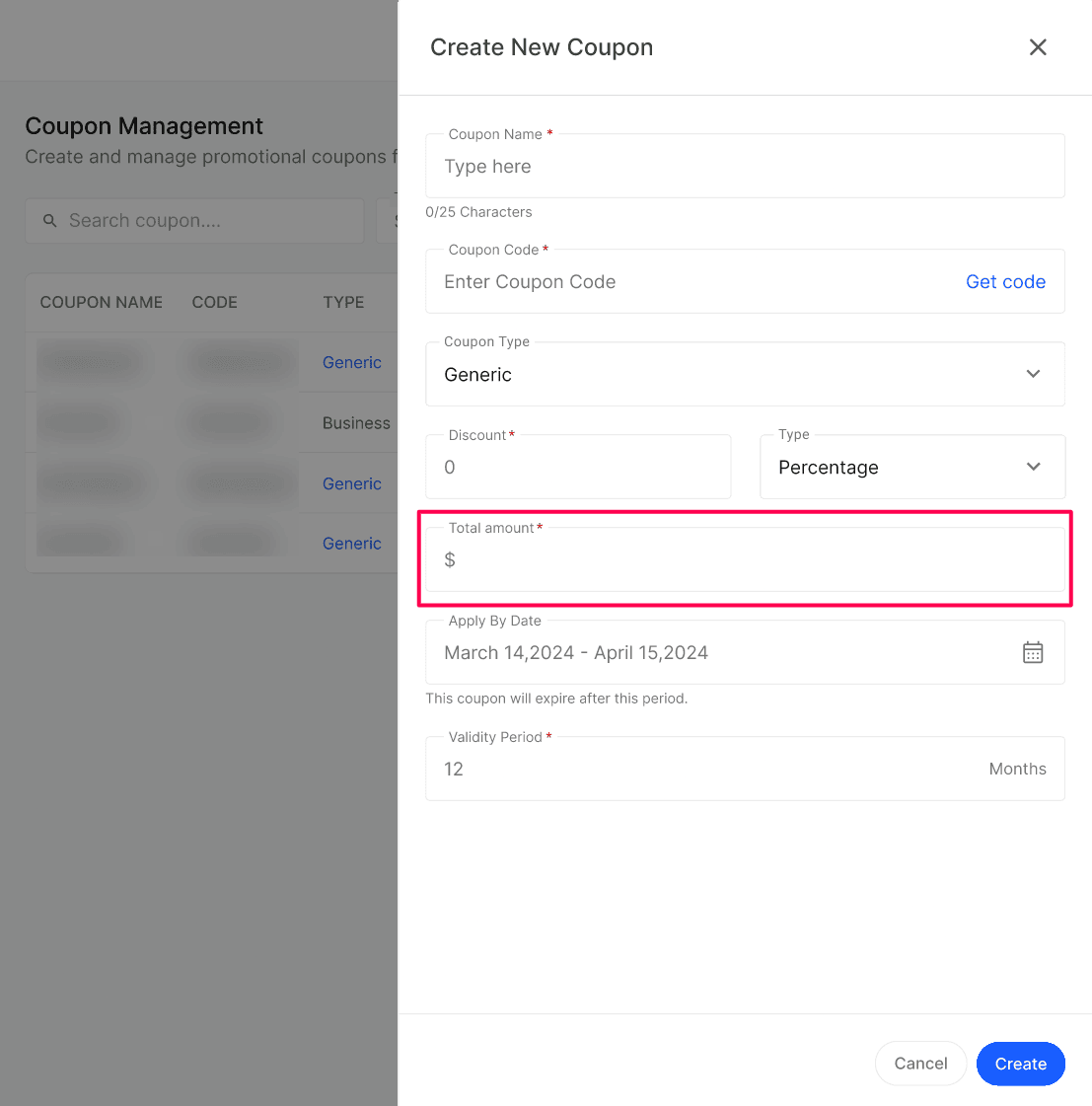
Total amount applies to percentage discounts. When the remaining discount pool reaches $0, the coupon stops providing discounts.
For Kickcall Stripe users, coupons sync automatically to the connected Stripe account and are honored on Stripe-processed invoices and subscriptions
Before you start
Decide whether the coupon is Generic (any Business can use it) or Business (locked to one Business). This cannot be changed after creation.
Know the discount value, the apply-by window, and how many months the discount should stay active once applied.
Create a coupon
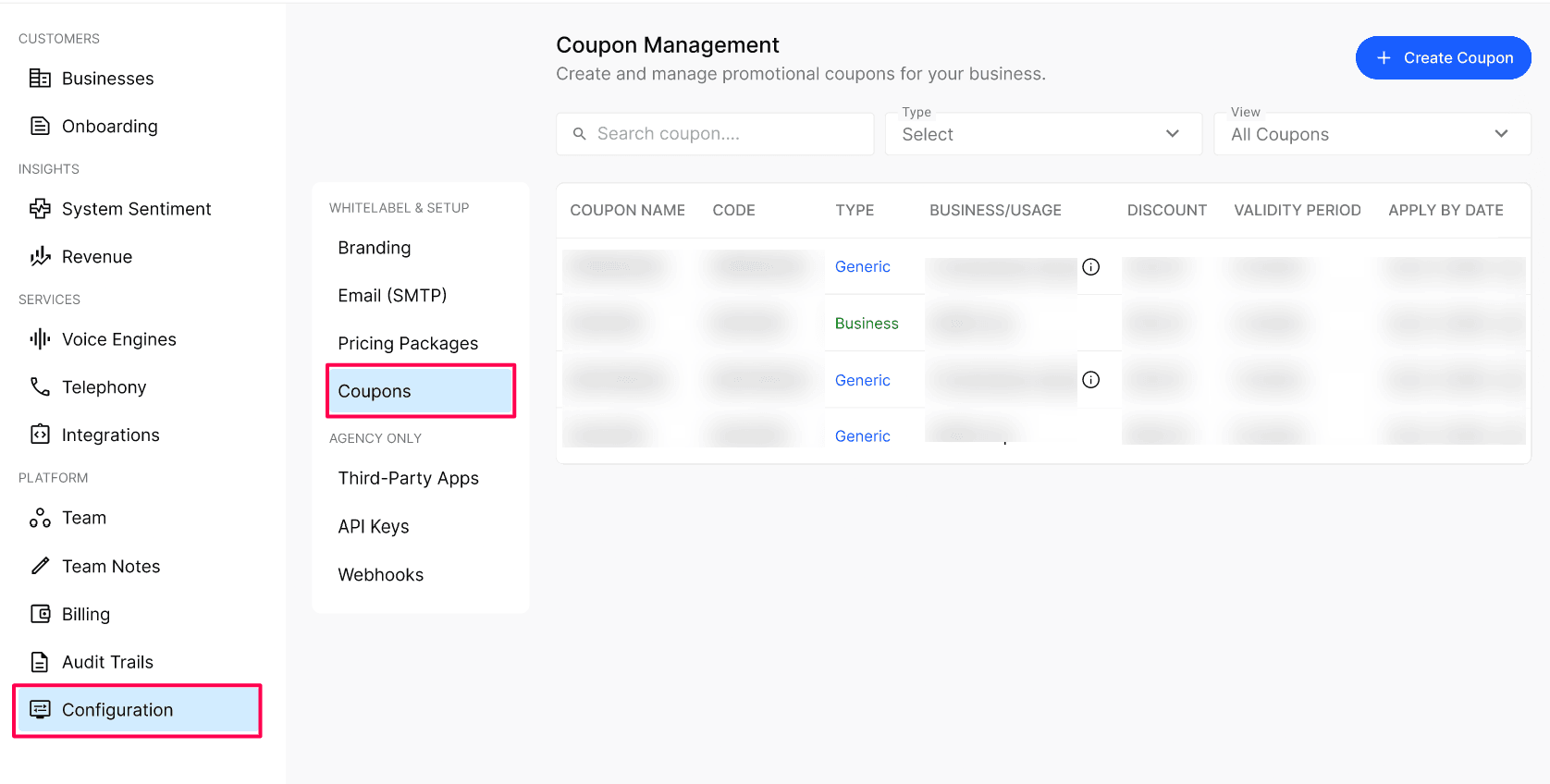
Go to Configuration → Coupons (under Whitelabel & Setup) and click + Create Coupon in the top right.
Enter Coupon Name and a unique Coupon Code, or use Get code to generate a code.
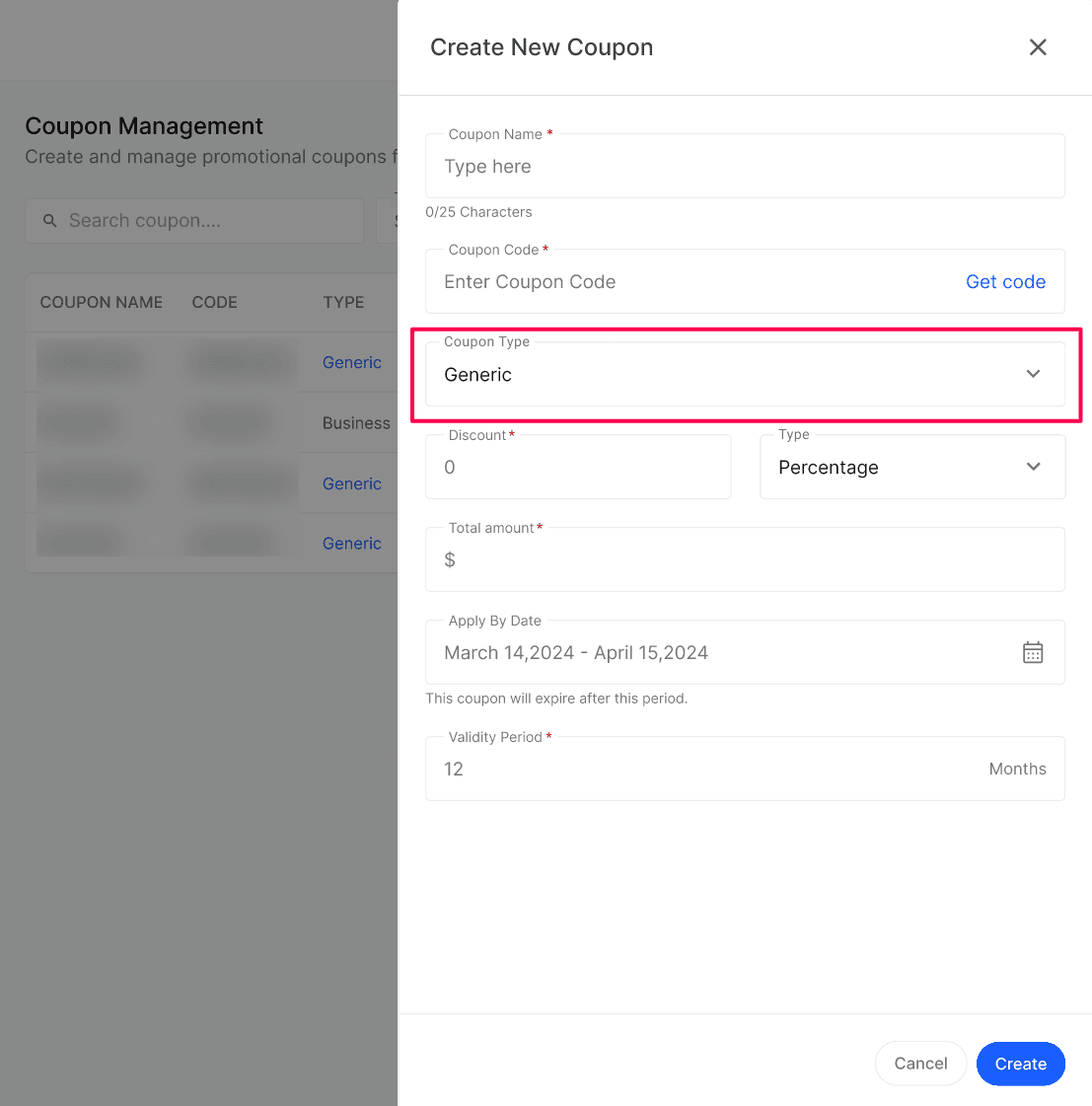
Choose Coupon Type: Generic or Business. For a Business coupon, select the intended business.
Enter Discount and choose Type: % off or Flat. For a percentage offer, configure Total amount as applicable.
Set Apply By Date and Validity Period, then review the offer's audience, amount, dates, and duration.
Select Create. The coupon appears in the Coupons list with status Active.
Configuration reference
How recurring-billing coupon caps work
When you create a percentage coupon with a Total amount cap, the discount is applied on every eligible billing cycle until the cap is exhausted:
The coupon applies the defined discount percentage on every billing cycle.
Each cycle's actual discount is deducted from the remaining discount pool.
If the calculated discount exceeds the remaining pool, only the remaining amount is applied.
Once the pool reaches $0, the coupon stops providing discounts and the Business pays the full bill.
Example: A 50% off coupon with a $400 total cap can provide discounts across multiple months. If the first cycle discount is $200, $200 remains for future cycles. When the remaining pool is smaller than the next cycle's calculated discount, only that remaining amount is discounted, and the coupon is then fully consumed.
Expected result
The coupon appears in the Coupons list with status Active. It can now be applied to a Business from the Business Billing page — Generic coupons on any Business, Business coupons only on the Business they were created for.
Verify the result
Open the Coupons list and confirm the new coupon shows the correct code, type, discount, and Active status.
Open a Business's Business Billing page and confirm the coupon code can be applied to a package.
If you use Kickcall Stripe, confirm the coupon appears in your connected Stripe account.
Troubleshooting
Recovery or rollback
You cannot change a coupon's type after creation. To recover, archive the coupon from the Coupons list and create a replacement with the correct settings. Archiving stops the coupon from being applied to new Businesses, but Businesses that already have it attached continue to receive the discount until it expires.
Frequently Asked Questions
Can I change a coupon's type after I create it?
Can I change a coupon's type after I create it?
No. The Coupon Type (Generic vs Business) is locked at creation. If you picked the wrong type, archive the coupon and create a new one with the correct type.
What's the difference between "Apply By Date" and "Validity Period"?
What's the difference between "Apply By Date" and "Validity Period"?
Apply By Date is the window in which the coupon can be added to a Business. Validity Period is how long (in months) the discount stays active on the Business after it's applied.
What is the "Total amount" field for?
What is the "Total amount" field for?
Total amount is the maximum discount value a percentage coupon can provide across all billing cycles. Each cycle's discount is subtracted from this pool. When the pool reaches $0, the coupon no longer applies.
What happens if a cycle's discount is larger than the remaining pool?
What happens if a cycle's discount is larger than the remaining pool?
Only the remaining amount in the pool is applied for that cycle. The Business is then charged the rest of the bill at full price, and the coupon is fully consumed.
Can I create multiple Business-specific coupons for the same Business?
Can I create multiple Business-specific coupons for the same Business?
Yes. A Business can have several Business-specific coupons, but only one coupon can be applied to a given package on the Business Billing page at a time.
How do I generate a unique coupon code?
How do I generate a unique coupon code?
Click Get code next to the Coupon Code field — Kickcall will generate a unique code for you. You can also type your own, as long as it's not already in use.
Related articles
Was this helpful?
Still need help? Ask the team