How Do You Change Your Kickcall Profile Details?
Update your personal profile information and review the account details associated with your Kickcall login
Written By Maruf Ansari
Last updated 9 days ago
Make sure your teammates can recognize your work and reach you. The My Profile screen lets you update the picture, name and phone number linked to your Business user account. Your changes appear across the Business Portal as soon as you save them.
My Profile Overview
The My Profile page in the Business Portal allows you to manage your personal account details, including your profile picture, display name, and phone number. These details help teammates identify you in activity records, such as audit trails, agent change history, and Knowledge Base edits. Keeping your profile information up to date ensures your activity is correctly associated with your identity. This guide is intended for Business users who want to update their own account details.
Before you start
Prepare a JPG or PNG image no larger than 5 MB if you want to change your picture.
Have your phone number and its country ready.
Important notes
Your Email Address is read-only on this screen. To change it, contact the Agency.
These details apply only to your account. They don't change any other Business user or account.
Update your profile details
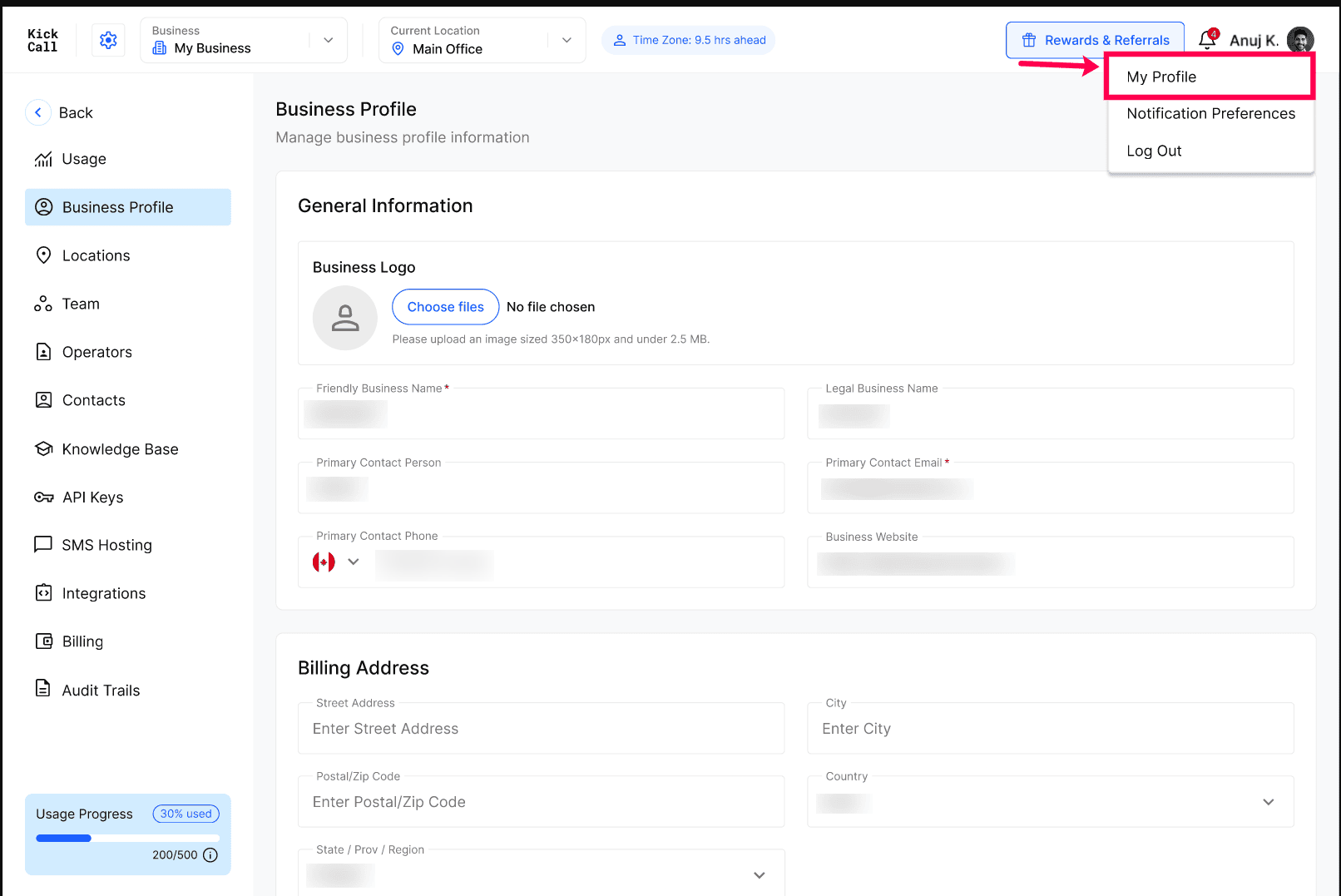
In the top-right of the Business Portal, select your profile picture or name, then select My Profile. The Profile and Settings panel opens with My Profile selected.
To change your picture, select Choose File and upload a JPG or PNG image.
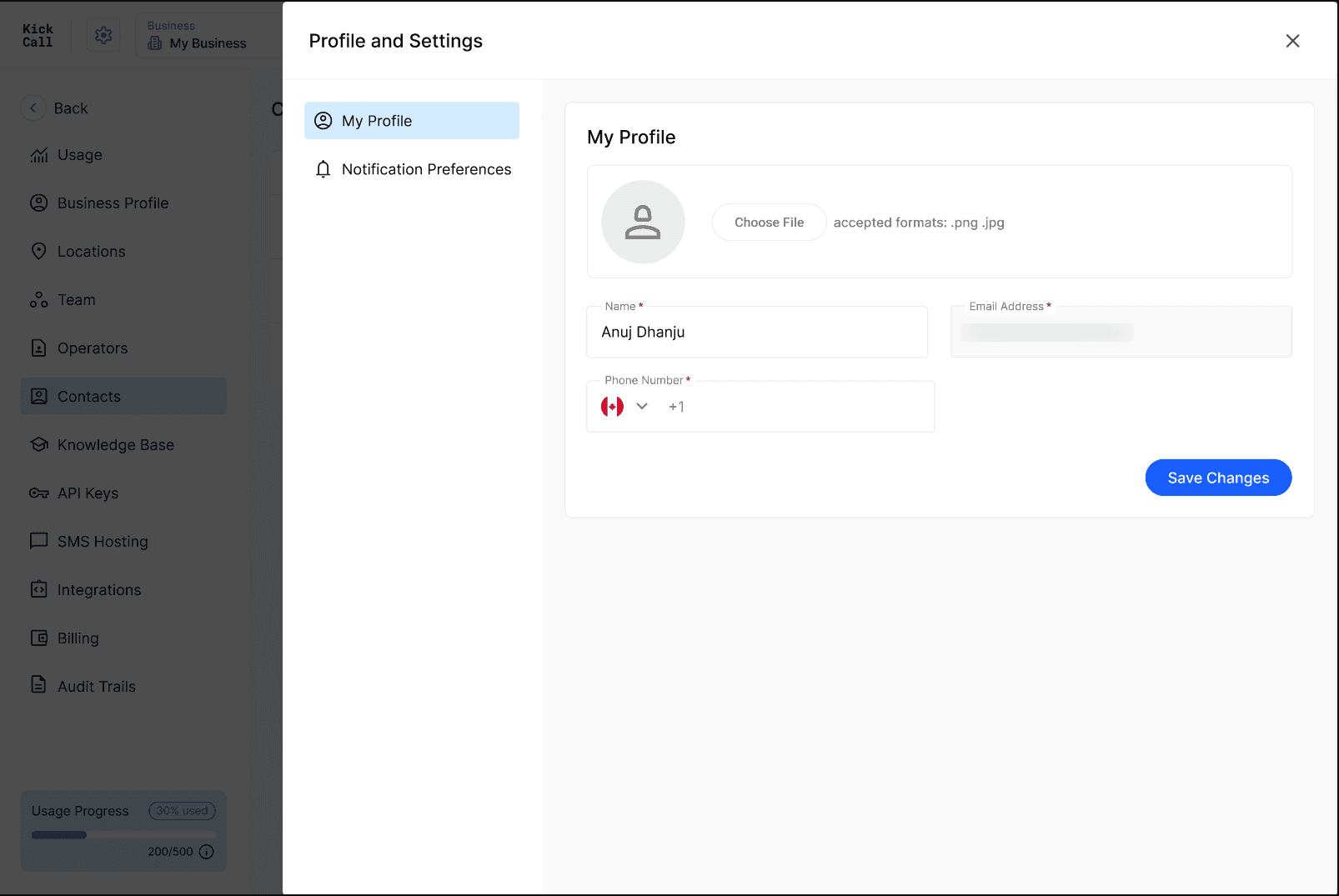
Enter your Name. For Phone Number, select your country from the flag dropdown and enter your number.
Select Save Changes.
Configuration reference
Required fields are marked with a red * on the screen.
Tip: If the Save Changes button stays disabled, check that all required fields (marked with a red *) are filled in correctly.
Verify the result
Check that the top-right corner of the Business Portal shows your new name and picture.
Reopen My Profile and confirm the saved values.
Make a small change elsewhere, then open Audit Trails and confirm the entry shows your updated name.
Troubleshooting
Frequently Asked Questions
What file formats are supported for the profile image?
What file formats are supported for the profile image?
The profile picture upload accepts JPG and PNG images only. Other formats (such as GIF, WebP, HEIC or SVG) are not supported and will be rejected on upload.
What is the maximum file size supported for the profile image?
What is the maximum file size supported for the profile image?
The maximum allowed file size is 5 MB. If your image is larger than 5 MB, please compress or resize it before uploading.
Will updating my profile affect my teammates' profiles?
Will updating my profile affect my teammates' profiles?
No. Profile details are stored against your own user account only. Editing yours has no effect on any other Business user.
Why can't I edit my email address on the My Profile screen?
Why can't I edit my email address on the My Profile screen?
The email tied to your login is read-only on this screen for security. To change it, contact your Agency support team.
Where do my email notifications go?
Where do my email notifications go?
To the email address shown on My Profile.
Related articles
Was this helpful?
Still need help? Ask the team