How do I configure and offer business add-ons in Kickcall?
Choose which Kickcall add-ons to offer, set fees, usage limits, and commitment terms, and review billing requirements before making services available
Written By Maruf Ansari
Last updated 9 days ago
Businesses often need more than a base package — faster support, SMS on a number they already own, compliant text messaging, or AI-powered admin automation. Add-on Pricing lets you turn these optional services on, set their prices and commitment terms, and control exactly what every Business is offered on top of its package.
Add-on Pricing Overview
Add-on Pricing allows Agency administrators to configure and manage optional services that Businesses can purchase alongside their main package. You can enable available add-ons, set setup fees, recurring charges, usage limits, and commitment terms, and understand how charges are prorated and billed. Only enabled add-ons appear on the Business's Add-ons page. Accurate configuration ensures Businesses can access the intended services and are charged correctly without unexpected fees.
Important notes
Only add-ons with Offer this Add-On enabled and saved are shown on the business’s Add-ons page.
Add-on payments and recurring charges are processed through the platform only when Stripe billing is enabled under Configuration → Third Party.
Recurring charges are prorated when enabled mid-cycle and one-time fees are charged at activation; verify the current calculation before quoting an amount.
Available AI Workflows options depend on the API capabilities of the Business's connected integrations.
A2P 10DLC registration is subject to carrier approval and typically takes a few business days.
When a commitment term applies, the Business may be charged if it cancels before the commitment period ends.
Before you start
Decide which add-ons you want to offer and at what price.
For add-on payments and recurring charges to process automatically, enable Stripe billing under Configuration → Third Party.
Configure an add-on
Go to Configuration → Pricing and scroll to Add-on Pricing. The page lists every available add-on with a short description, its main prices, commitment term and current availability.
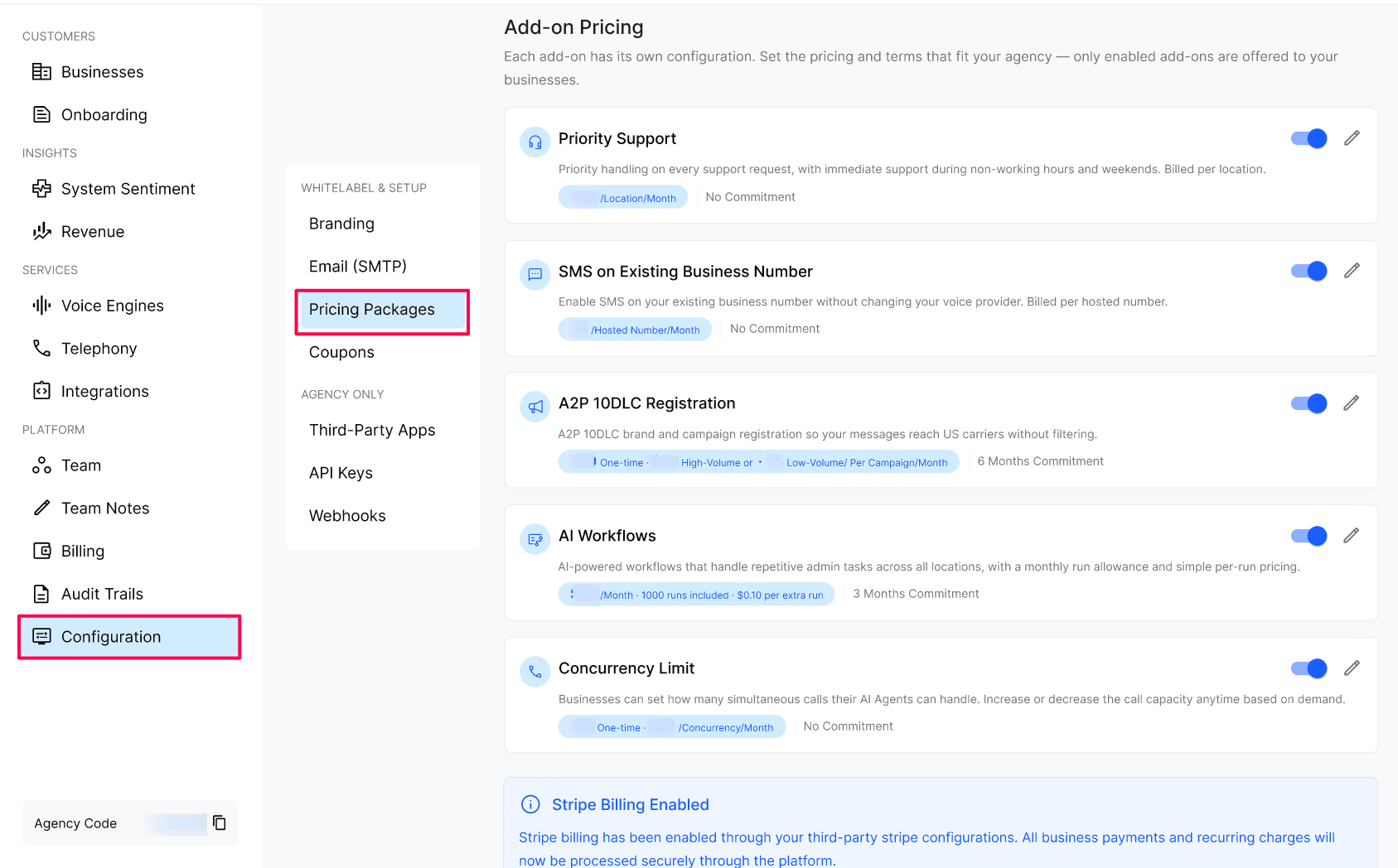
Find the add-on you want to configure and select the pencil icon to open its settings.
Turn on Offer this Add-On when you are ready to make it available on the Business's Add-ons page.
Enter the pricing, limits and commitment term required for that add-on.
Review the description shown to Businesses — it explains what is included and how billing works.
Select Save.
The add-on card updates with the configured prices and commitment. Return to the pencil icon whenever you need to change its settings.
Priority Support
Priority Support provides priority handling for support requests, including immediate support during non-working hours and weekends.
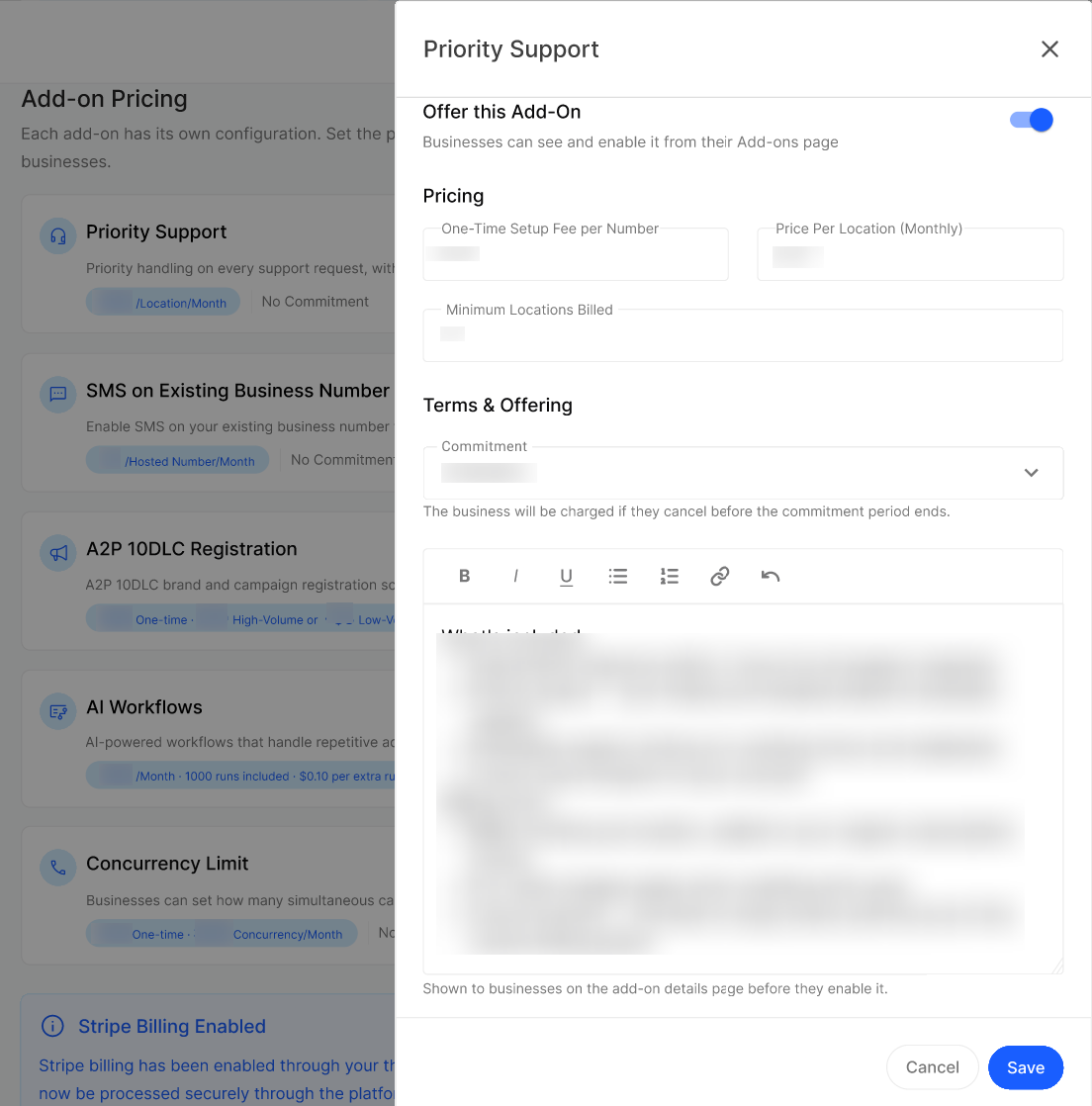
Configure:
One-Time Setup Fee per Number — the setup fee charged when the add-on is activated.
Price per Location (Monthly) — the recurring amount billed for each location.
Minimum Locations Billed — the minimum number of locations included in the recurring charge.
Commitment — choose No Commitment, 3 Months, 6 Months, 12 Months or 24 Months.
Charges are added to the business's regular subscription invoice. If the add-on is enabled partway through a billing cycle, the charge is prorated. When a commitment applies, the business may be charged if it cancels before the commitment period ends.
SMS on Existing Business Number
SMS on Existing Business Number lets a business send and receive SMS from its existing number without porting the number or changing its voice provider. Voice calls stay with the current carrier, while SMS is hosted through the platform and appears alongside calls in the unified inbox.
Country Availability: This add-on is available only to Businesses in the United States and Canada. Businesses in any other country will see it marked as Unavailable.
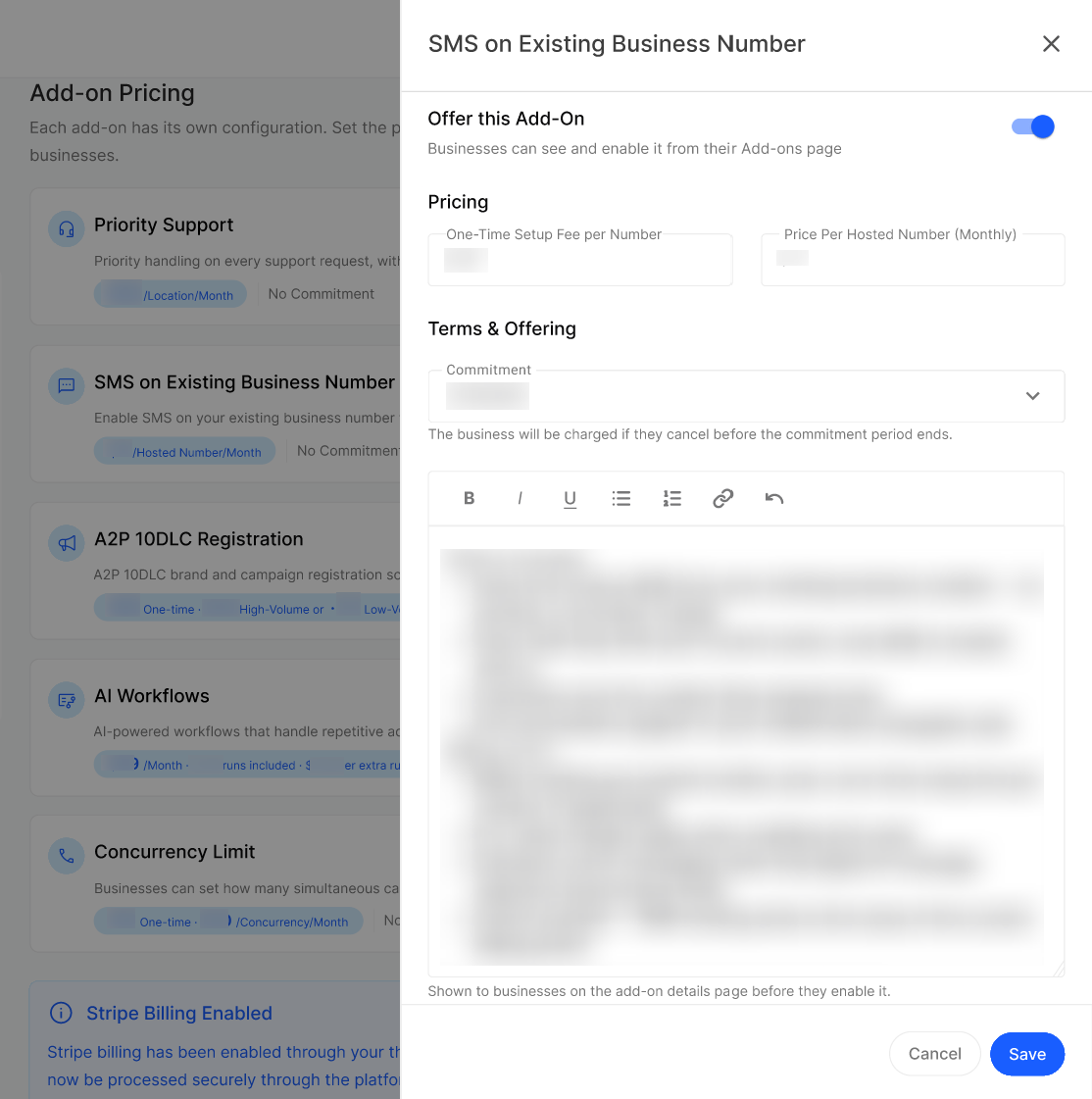
Configure the following:
One-Time Setup Fee per Number — charged for each number when applicable.
Price per Hosted Number (Monthly) — the recurring charge for every hosted number.
Commitment — choose the term offered to businesses.
Standard carrier messaging rates may also apply when message usage exceeds the business's plan limits. Mid-cycle activation is prorated, and SMS hosting remains active until the end of the current billing period after cancellation.
A2P 10DLC Registration
A2P 10DLC Registration covers the brand and campaign registration required for compliant business messaging to US carriers.
Country Availability: This add-on is available only to Businesses in the United States. Businesses in any other country will see it marked as Unavailable.
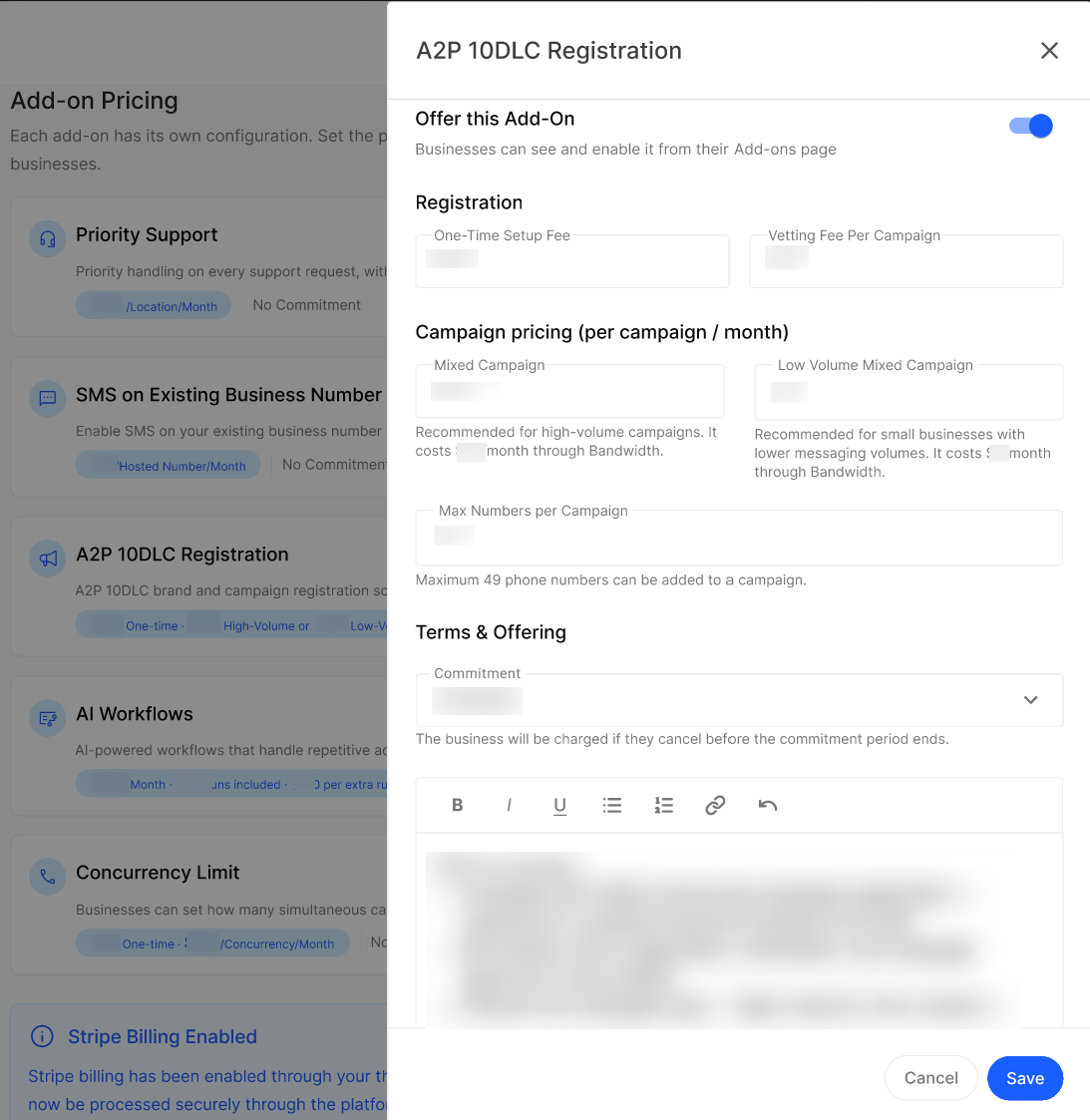
The Agency can configure:
One-Time Setup Fee — charged when registration is activated.
Mixed Campaign — the monthly price for a higher-volume campaign.
Low Volume Mixed Campaign — the monthly price for businesses with lower messaging volume.
Max Numbers per Campaign — the maximum number of phone numbers that can be assigned to one campaign.
Commitment — choose the applicable term.
The Agency handles carrier registration, verification and campaign approval on the business's behalf. One-time registration and brand fees are charged at activation, while campaign pricing is billed monthly for the selected campaign. Carrier pass-through fees are billed at cost with no markup. Registration is subject to carrier approval and typically takes a few business days.
AI Workflows
AI Workflows provides AI-powered administrative automation across all of a business's locations. Workflows are configured around the business's needs and can support tasks such as appointment synchronization, follow-ups, data entry and notifications.
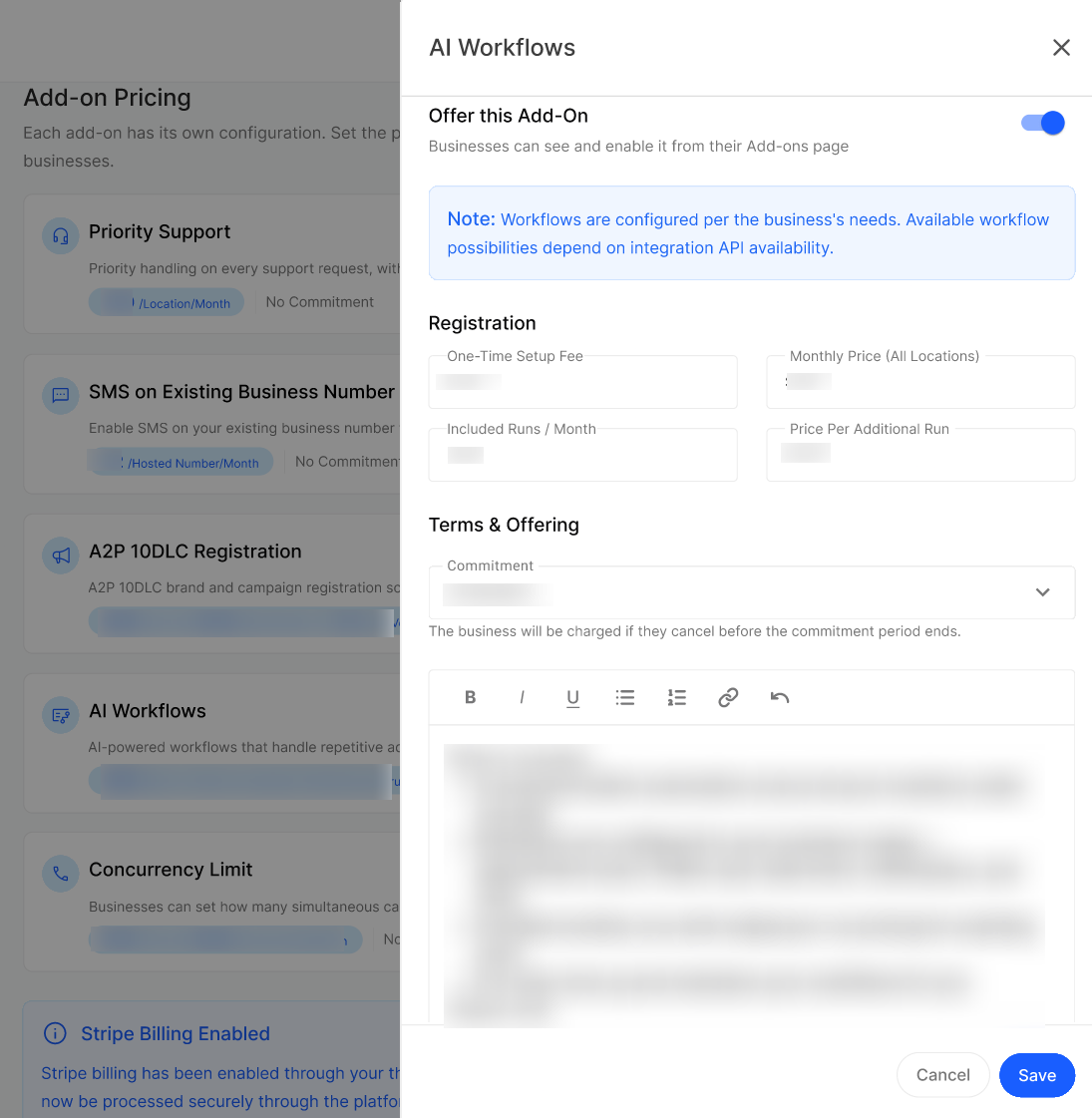
Configure:
One-Time Setup Fee — charged when workflow setup begins.
Monthly Price (All Locations) — the recurring plan price covering all locations.
Included Runs / Month — the number of workflow runs included each month.
Price per Additional Run — the charge for each run above the included allowance.
Commitment — choose the term offered to businesses.
Important: Available workflow options depend on the API capabilities of the business's connected integrations.
The monthly plan and any setup fee are prorated when enabled mid-cycle. Additional runs are added to the next invoice, and the add-on remains active until the end of its configured commitment term.
Concurrency Limit
Lets a Business handle more simultaneous calls than its plan includes, so callers do not hit a busy line during peak hours. The Business can increase or lower its limit at any time from its Add-ons page, and the extra capacity applies across all of its numbers and AI Agents.
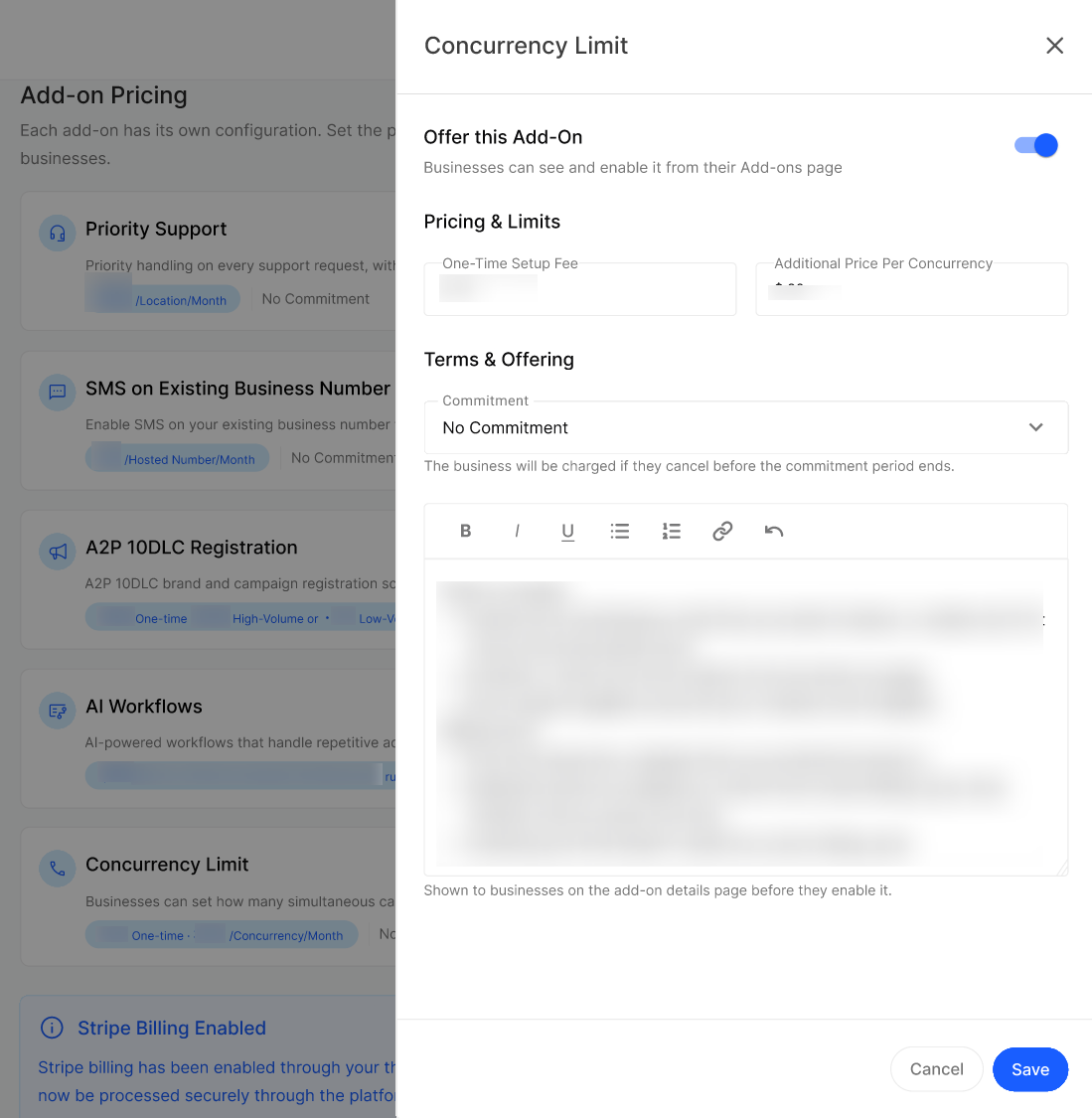
One-Time Setup Fee — charged when the Business activates the add-on.
Additional Price Per Concurrency — charged per additional simultaneous call. Charges are prorated for the current billing cycle, then billed monthly until the Business lowers its limit.
Lowering the limit does not credit the current billing cycle; the reduced price applies from the next cycle.
Expected result
The configured add-on appears on the Business's Add-ons page with the prices and commitment term you set, and it can be purchased. Charges appear on the Business's regular subscription invoice, prorated for partial billing cycles.
Verify the result
Open the add-on's pencil icon and confirm the saved pricing, limits and commitment term match what you entered.
Confirm Offer this Add-On is turned on for any add-on you intend to sell.
Check a test or pilot Business's Add-ons page to confirm the add-on is visible with the correct price.
Troubleshooting
Frequently Asked Questions
When does an add-on become visible to businesses?
When does an add-on become visible to businesses?
An add-on appears on the business's Add-ons page only after the Agency turns on Offer this Add-On and saves the configuration.
Can I configure an add-on without offering it yet?
Can I configure an add-on without offering it yet?
Yes. You can enter and save its pricing, terms and description while leaving Offer this Add-On turned off. Enable it when you are ready for businesses to purchase it.
What commitment terms can I offer?
What commitment terms can I offer?
You can choose No Commitment, 3 Months, 6 Months, 12 Months or 24 Months. The business may be charged if it cancels before the selected commitment period ends.
Are add-on charges prorated?
Are add-on charges prorated?
Yes. Recurring add-on charges are prorated when an add-on is enabled partway through a billing cycle. One-time fees are charged when the add-on is activated.
How is usage above the AI Workflows allowance billed?
How is usage above the AI Workflows allowance billed?
Every run above the included monthly allowance is charged at the configured Price per Additional Run and added to the business's next invoice.
Does A2P 10DLC registration guarantee approval?
Does A2P 10DLC registration guarantee approval?
No. Registration is reviewed by the carriers and remains subject to their approval. The process typically completes within a few business days.
Does SMS hosting move the business's voice service?
Does SMS hosting move the business's voice service?
No. Voice calls remain with the business's current carrier. Only SMS is hosted through the platform, so the business can continue using its existing phone number.
Why might an AI Workflow not support a requested task?
Why might an AI Workflow not support a requested task?
Workflow options depend on the API capabilities made available by the business's connected integrations. Contact the Kickcall Team through your designated agency or enterprise support channel to confirm what can be configured.
Related Articles:
Was this helpful?
Still need help? Ask the team