How Do You Manage Concurrency Across Business Locations?
Written By Maruf Ansari
Last updated 6 days ago
Don't let callers get a busy line when one location gets a rush of calls. Concurrency Settings lets you decide how many calls each location can handle at the same time, inbound and outbound, and keeps spare capacity in a shared pool for whichever location needs it.
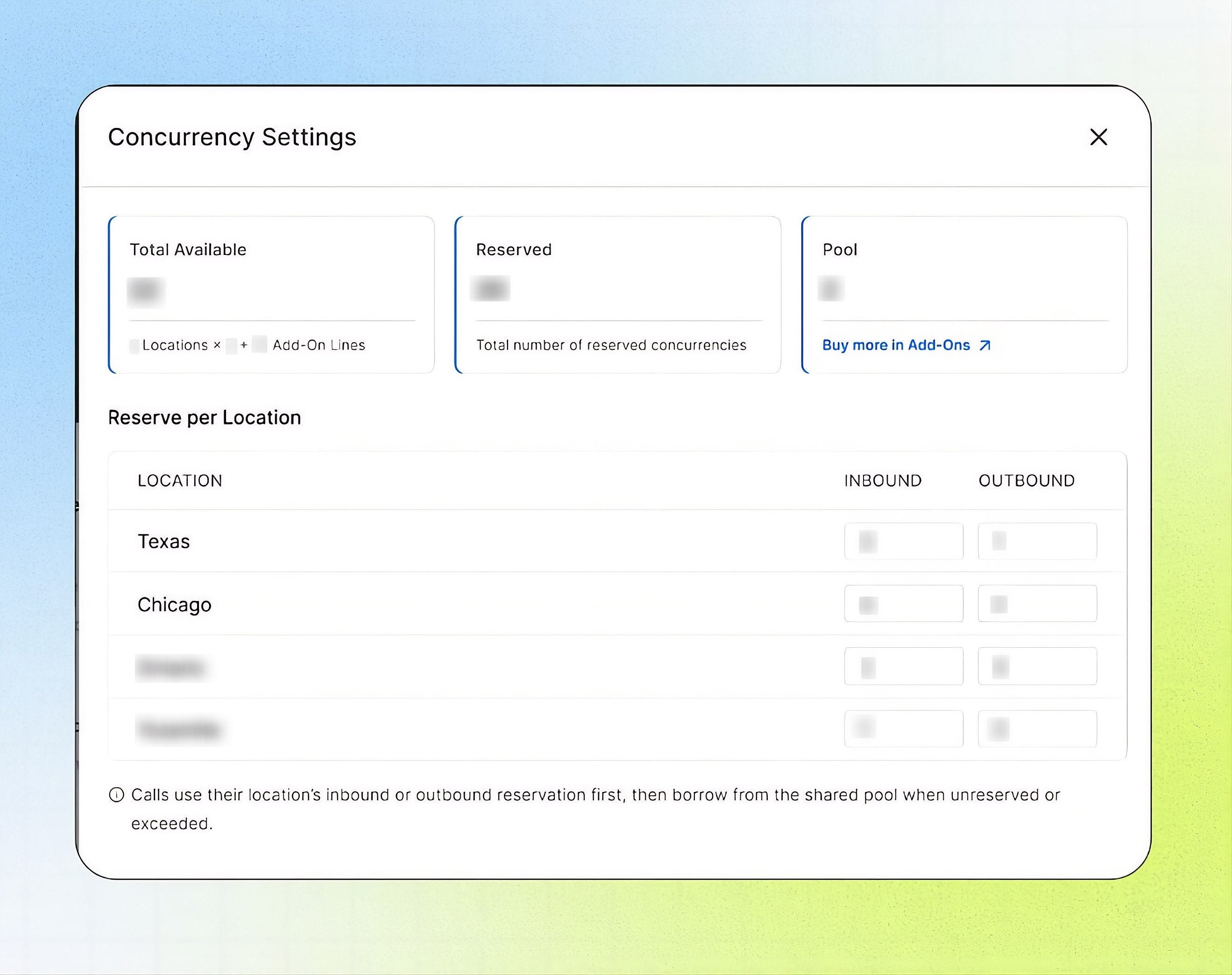
Manage Concurrency Across Locations Overview
Concurrency Settings allows Business users to manage how simultaneous AI Agent calls are distributed across their locations. You can view the total available concurrent calls, reserve inbound and outbound call capacity for individual locations, and monitor the remaining shared capacity in the Pool. Calls first use the assigned location's reservation and can borrow from the shared pool when that capacity is unavailable or fully in use. If additional capacity is needed, you can activate the Concurrency Limit add-on to increase the number of concurrent calls available.
Important notes
Calls use their location's reservation first, then the shared pool.
Add-on lines apply across all your numbers and AI Agents.
Before you start
Add your locations first. See Locations — Set Time Zones, Hours and Addresses.
Know roughly how many calls each location gets at its busiest time.
Understand the Concurrency Settings screen
Open Concurrency Settings
Go to Locations.
Next to Add Locations, select the settings (gear) icon.
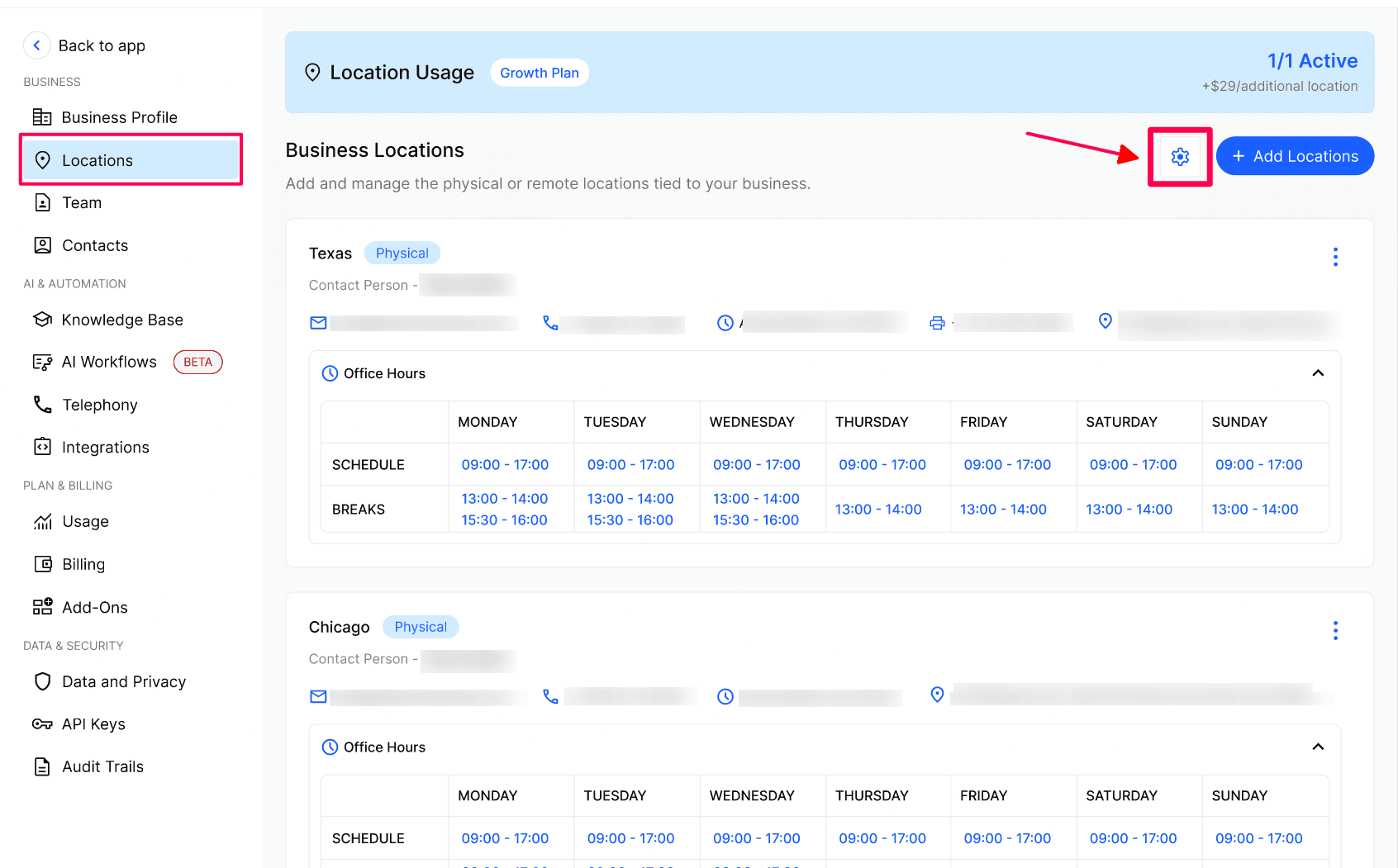
Reserve concurrent calls per location
Without the add-on, you share the concurrent calls included with your locations.
In Reserve per Location, enter an Inbound number for each location — the calls it can receive at the same time.
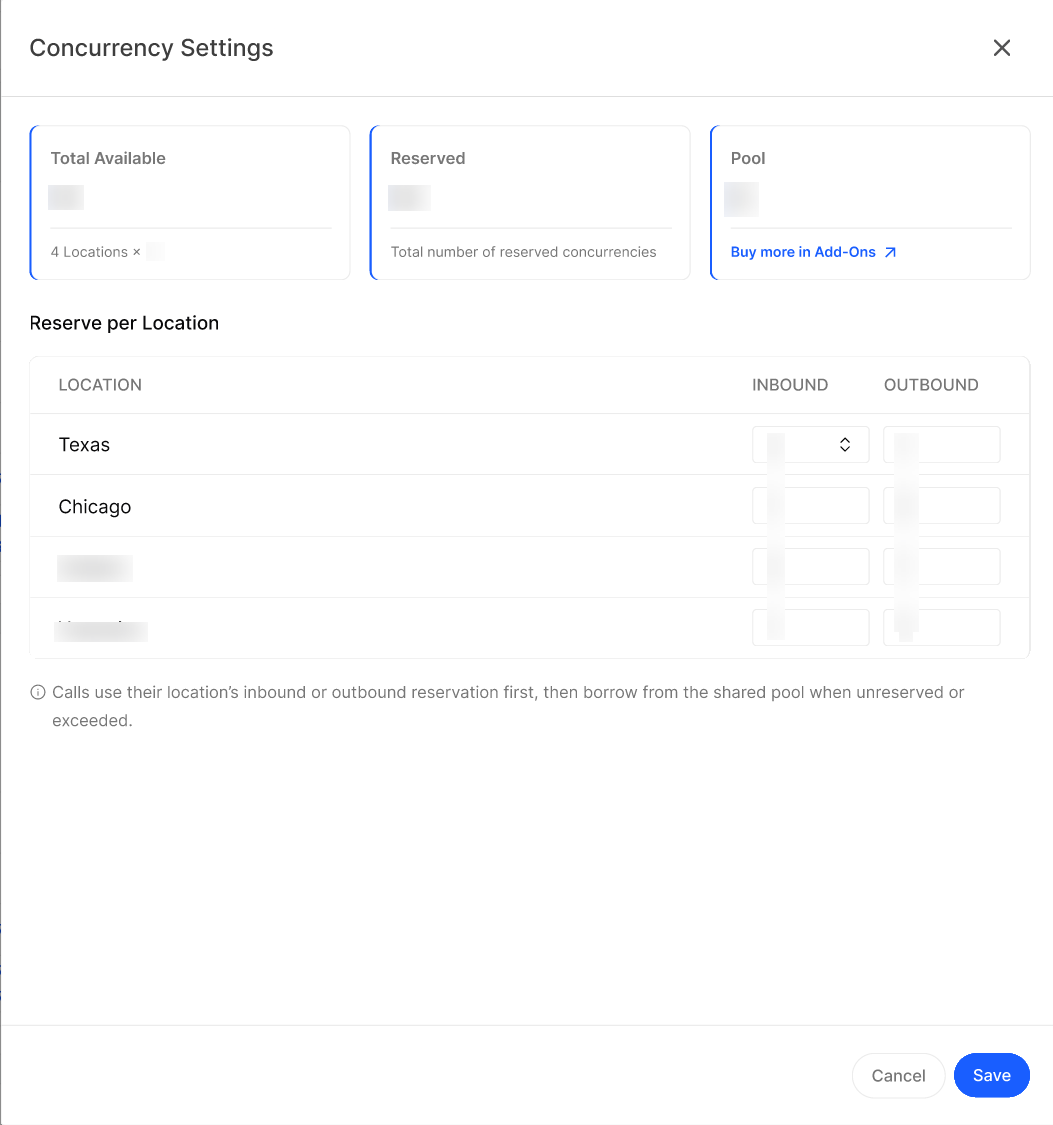
Enter an Outbound number for each location — the calls it can make at the same time.
Check the Reserved and Pool cards.
Select Save.
Example: With 4 locations and 28 total, reserving Houston 5/2, Chicago 4/3, Dallas 4/3 and New York 6/1 uses all 28. The pool is 0, so no location can borrow extra capacity.
Tip: Leave some capacity unreserved so busy locations can borrow from the pool.
Activate the Concurrency Limit add-on
You can activate the add-on from two places:
Concurrency Settings: select Buy more in Add-Ons on the Pool card.
Add-Ons page: open Add-Ons from the menu. See Add-Ons — Review and Activate Optional Services.
In Activate Concurrency Limit, under How many additional concurrent calls do you need?, use − and + to choose how many extra concurrent calls you want.
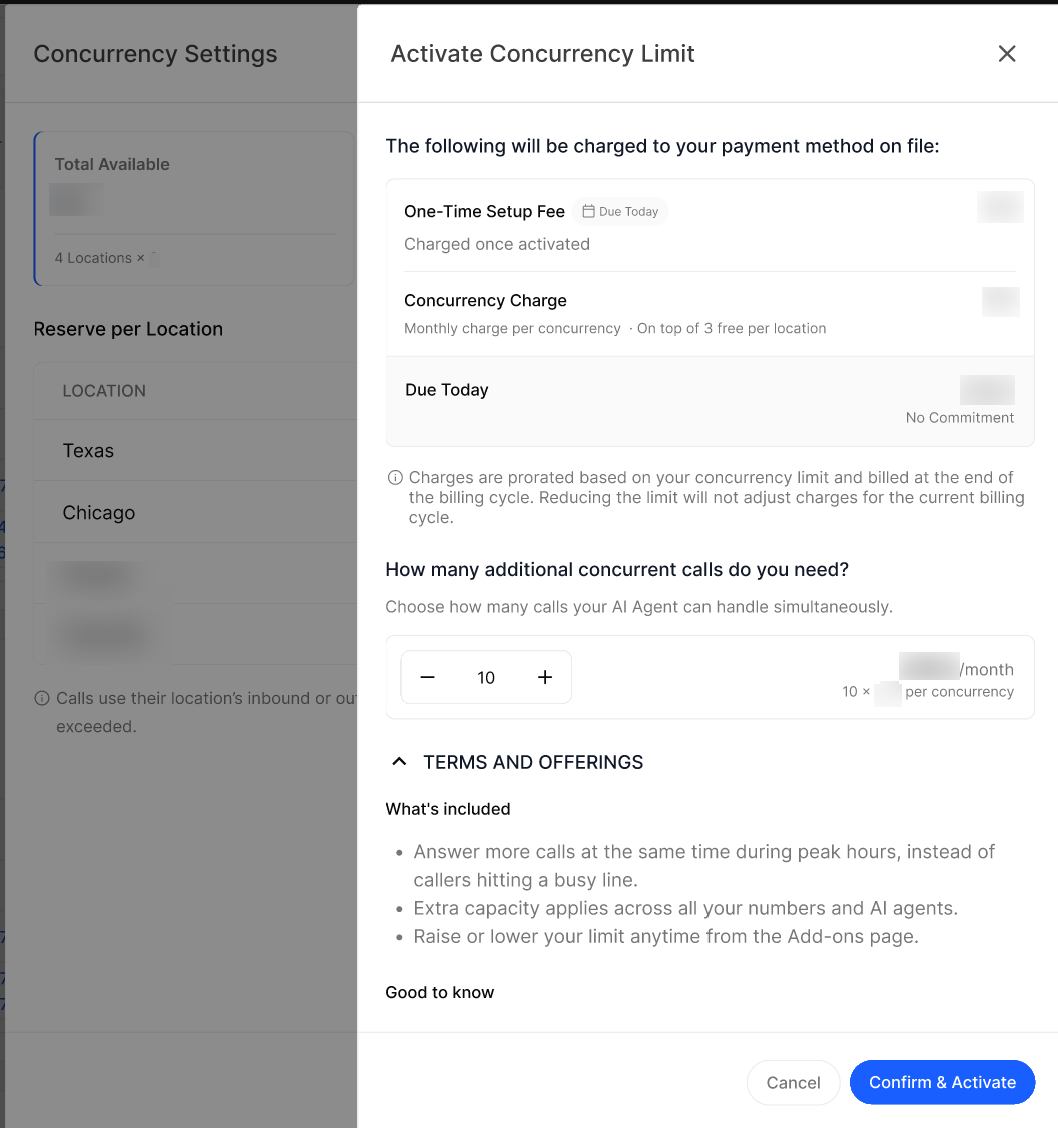
Optional: expand Terms and Offerings to read what's included.
Select Confirm & Activate.
In the Confirm Payment window, review the details and select Yes Sure.
Result: The add-on is active. The extra lines are added to Total Available and apply across all your numbers and AI Agents. You can raise or lower the limit anytime from the Add-Ons page.
Manage concurrency after the add-on is active
Open Concurrency Settings again.
Check that Total Available now includes your add-on lines.
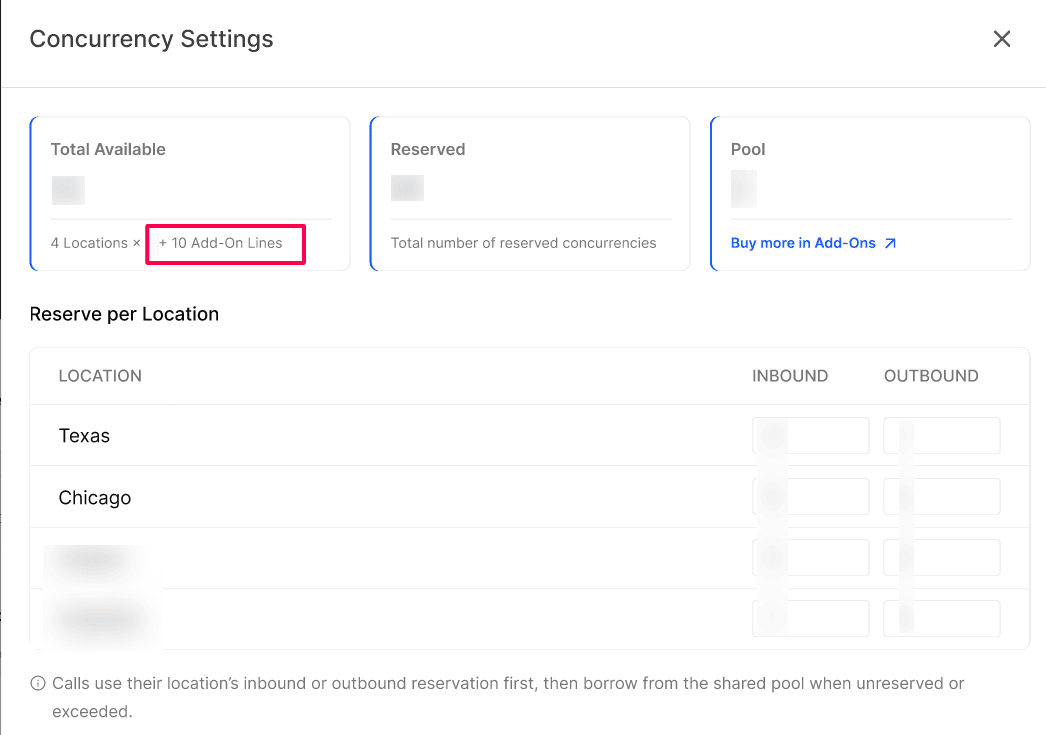
Update the Inbound and Outbound numbers for each location.
Select Save.
Example: 4 locations × 7 + 10 add-on lines = 38. Reserving Houston 6/2, Chicago 5/3, Dallas 5/3 and New York 7/1 uses 32, leaving 5 in the pool for any location that needs extra.
Verify your setup
Reserved matches the sum of all Inbound and Outbound values.
Pool equals Total Available minus Reserved.
After reopening the panel, your saved values are still shown.
Troubleshooting
Frequently Asked Questions
What is concurrency?
What is concurrency?
The number of calls your AI Agent can handle at the same time.
What's the difference between Inbound and Outbound?
What's the difference between Inbound and Outbound?
Inbound is calls the location receives at the same time. Outbound is calls it makes at the same time.
What happens when a location uses up its reservation?
What happens when a location uses up its reservation?
Extra calls borrow from the shared pool. If the pool is empty, the call can't be handled at that moment.
Where can I activate the Concurrency Limit add-on?
Where can I activate the Concurrency Limit add-on?
From Buy more in Add-Ons in Concurrency Settings, or from the Add-Ons page.
Can I change the number of add-on lines later?
Can I change the number of add-on lines later?
Yes. Raise or lower your limit anytime from the Add-Ons page, then update your location reservations.
Related Articles
Was this helpful?
Still need help? Ask the team