How Do You Activate Integration Credentials?
Set up integration credentials to synchronize between Kickcall and connected services
Written By Maruf Ansari
Last updated 9 days ago
Your AI agent can only book appointments, look up records or create tickets when it is connected to the systems your Business already uses. Integrations is where you activate those connections with valid credentials.
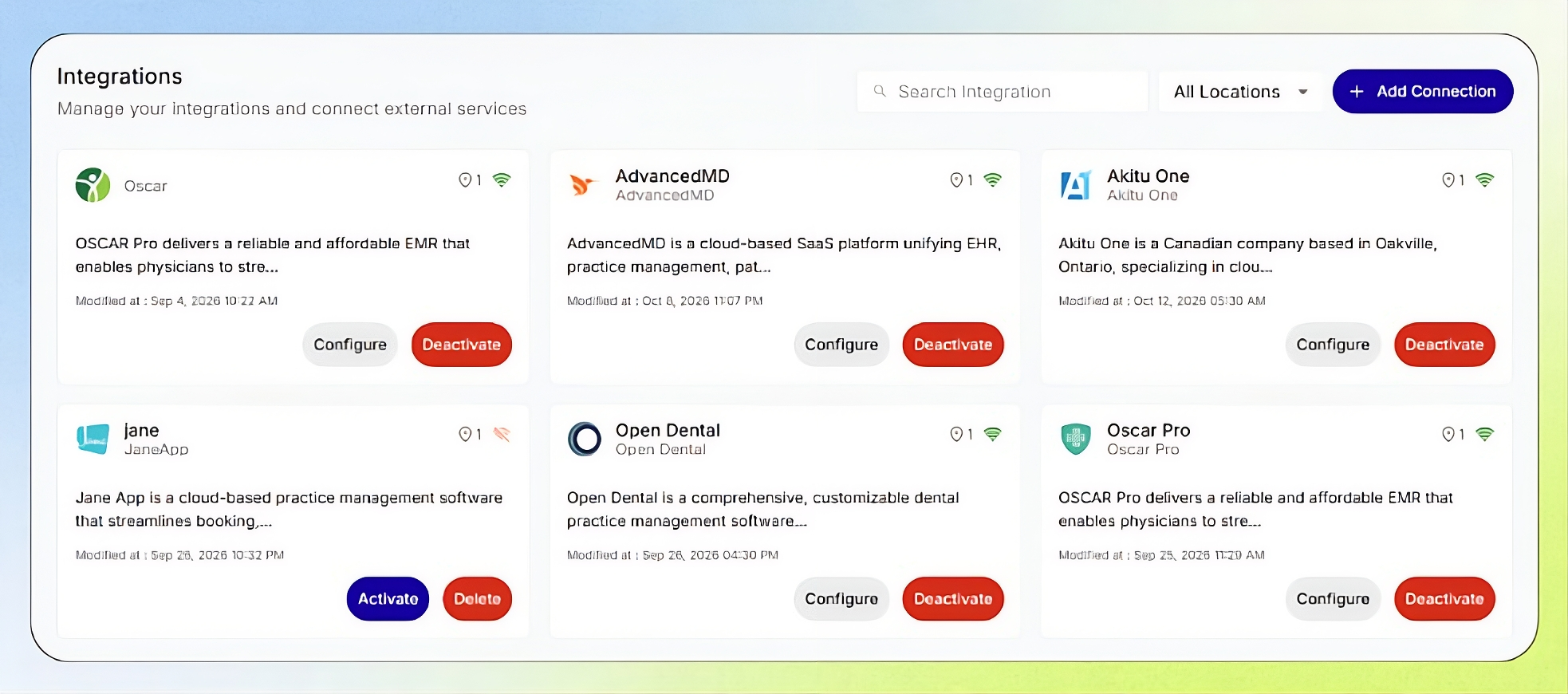
Integrations Overview
The Integrations page connects your Business to third-party platforms, such as EHR, practice management, scheduling, and CRM systems. Integration credentials enable the AI agent to read and write data in the connected platform. Invalid or expired credentials can prevent the agent from accessing the platform and cause sync failures.
This guide helps Business users and Agency team members configure integrations, sync records where supported, and maintain up-to-date data through automatic sync schedules.
Integration Setup: If you are not technically familiar with integrations, or if anything is unclear or you encounter unexpected behavior, please contact your Agency for assistance.
Important notes
Fields differ by integration. The Credentials tab only shows the fields your integration needs.
Wrong values can fail silently. Don't guess credentials. Confirm them with your Agency or the vendor first.
Appointments and open slots are not synced. The agent always fetches them live from the integration during a call, so it sees the latest schedule regardless of when the last sync ran.
Not every integration supports sync. If there's no Sync tab, the integration is action-only: the agent calls the third-party platform live and no records are copied.
The first sync can take a long time on large databases. Run it during non-working hours, ideally started by your Agency so they can monitor it.
Treat credentials like passwords. Share them only through secure channels.
Before you activate an integration
Your Agency has assigned the integration to your Business. Only assigned integrations appear under Integrations.
You have the credentials the third-party platform issues. For example, an API key, an API username and password with a Base URL, an OAuth login, or extra IDs such as a Tenant, Business or Branch ID.
You know which Business location the connection belongs to.
Need the credentials? Each integration has its own process for issuing API keys, OAuth access or required IDs. Contact your Agency for the setup guide for your integration. They can provide the credentials or help you request them from the vendor.
Activate integration credentials
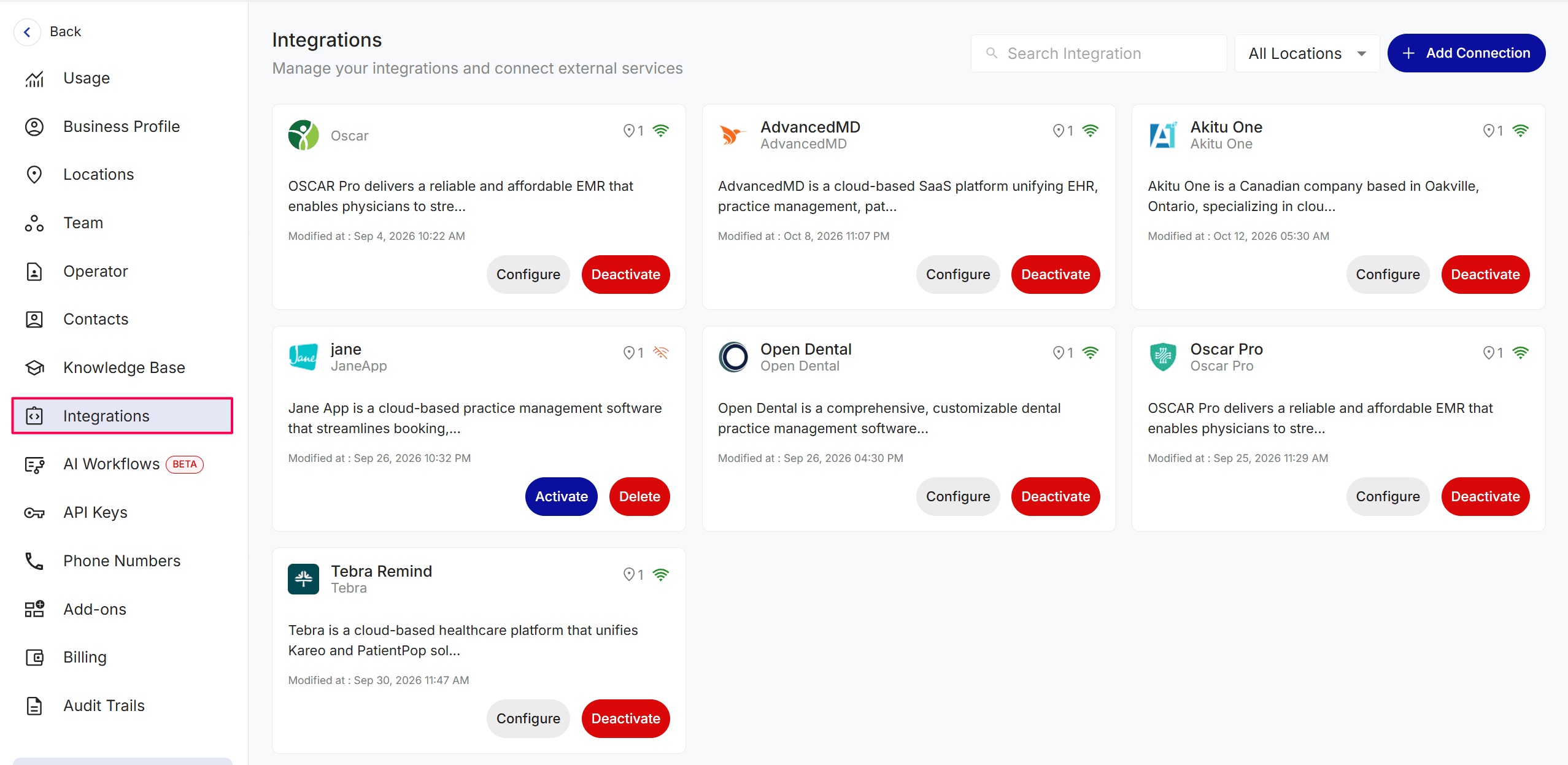
Open Integrations from the Business Portal sidebar and select the integration. It opens on the Credentials tab. If you want to add a new integration click on ‘+ Add Connection‘ in the top right corner.
Click Edit in the top-right of the API Credentials card.
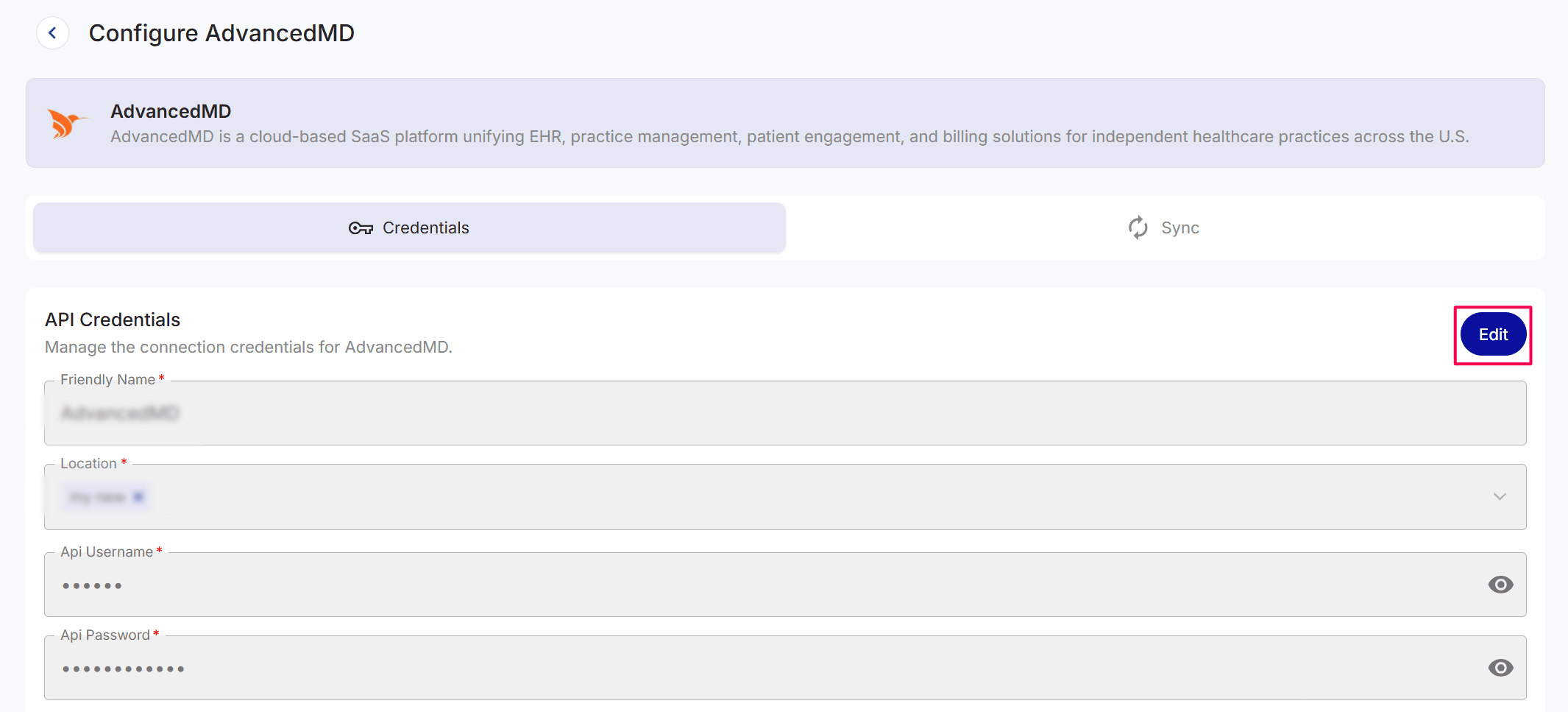
Enter a Friendly Name, select the Location, and enter the credentials your integration requires. For OAuth integrations, sign in to the third-party platform and grant access.
Save your changes at the bottom. When the credentials are validated, the integration becomes active and the Sync tab unlocks (if supported).
Credential Reference
Only enter fields required by your integration. Ask your Agency for the provider-specific guide if a value is unclear.
Run the initial sync (if supported)
Open the Sync tab. Click Start Initial Sync.
Wait for the run to finish, then review it in Sync Logs.
Sync: If you are not technically familiar with sync settings, or if you encounter unexpected behavior during a sync or notice unexpected results in Sync Logs, please contact your Agency for assistance.
Understand sync logs
Expected result
The integration shows as active and the Sync tab is available (if supported).
Sync Logs shows a Success run with a Total close to the number of records in the third-party platform.
The Sync Schedule shows your chosen frequency.
Troubleshooting
Recovery
Wrong or expired credentials: click Edit on the Credentials tab, enter the correct values, save, then run Run Sync Now to confirm.
Records synced incorrectly: fix them in the third-party platform and run another sync so Kickcall picks up the changes.
Repeated failures: contact your Agency with the Date & Time of the failed run from Sync Logs.
Frequently Asked Questions
What credentials do I need to activate an integration?
What credentials do I need to activate an integration?
It depends on the integration. The most common are an API Key, an API Username + Password + Base URL, or an OAuth sign-in. Some also need a Business, Tenant or Branch ID. The Credentials tab only shows the fields your integration needs, and your Agency can share the setup guide.
Does sync copy appointments and open slots?
Does sync copy appointments and open slots?
No. The agent always fetches appointments and open slots live from the integration during a call, so it sees your current schedule regardless of the sync schedule.
Why don't I see a Sync tab?
Why don't I see a Sync tab?
Not every integration supports sync. If the tab is missing after the integration is active, the agent uses the third-party platform live during calls and no records are copied into Kickcall.
My sync keeps failing — what should I check first?
My sync keeps failing — what should I check first?
Check the Credentials tab. Expired API keys, changed passwords and revoked OAuth access are the most common causes. Update them and run Run Sync Now. If it still fails, contact your Agency with the failed run's date and time.
Related articles
Was this helpful?
Still need help? Ask the team