How Do You Store and Review Call Data in Kickcall Worksheets?
Set up a worksheet to capture call data in custom tables and review the stored information
Written By Maruf Ansari
Last updated 9 days ago
Stop copying call details into spreadsheets by hand. A Worksheet is a table your AI Agent fills in during calls — notes, requests, appointment details or any field you define — so your team can follow up from one place.
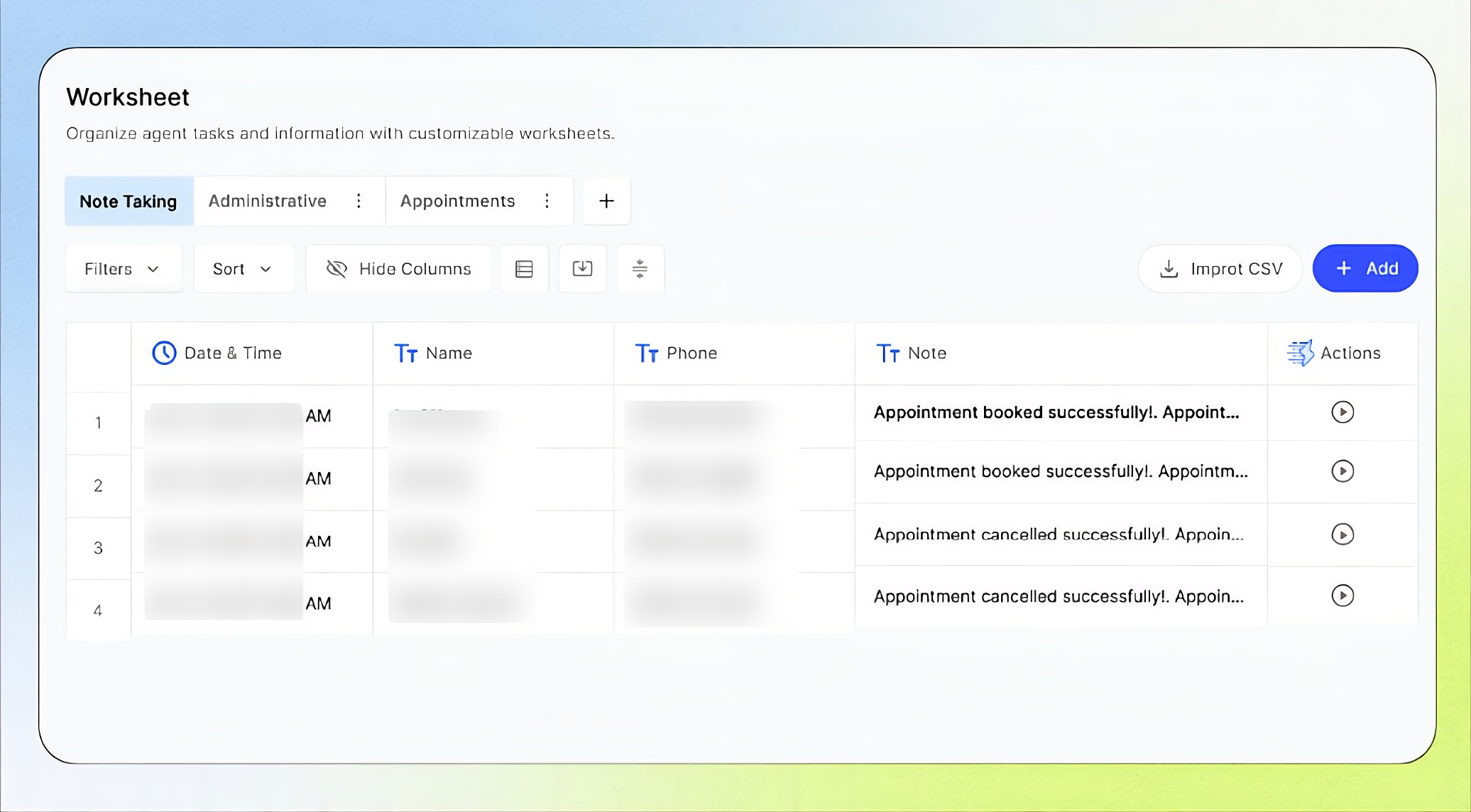
Worksheet Overview
The Worksheet feature in the Business Portal allows you to create configurable tables that your AI agent fills in during calls to capture information such as notes, customer requests, and appointment details. You can create multiple Worksheets for different purposes, define columns for the information to collect, and manage, filter, or import rows.
Worksheets are assigned to the agent through Note Taking or Custom Task nodes in Agent Builder. Clear column descriptions help ensure the agent captures information in the correct format.
This guide is intended for Business users and administrators who set up or manage Worksheets.
What Worksheet does
A Worksheet stores information captured during a conversation in a structured format.
You can create different Worksheets for different scenarios, such as:
Note Taking.
Administrative requests.
Appointment information.
Customer details.
Order details.
Complaints and follow-ups.
Preferred callback times.
Other structured information from calls.
The AI Agent writes information to the Worksheet when the Worksheet is connected to the relevant Agent Builder workflow.
Important notes
Every new Agent automatically receives a Note Taking Worksheet.
You can rename the default Worksheet, add columns, or create additional Worksheets.
You can create multiple Worksheets for one Agent.
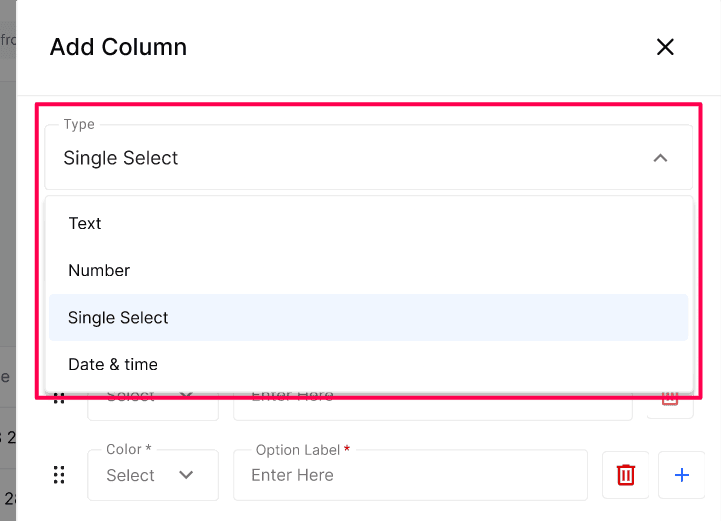
The Agent currently writes only to Text columns.
Number, Single Select, and Date & Time columns are manual today.
Required Text fields can make the Agent collect the value before the action is completed or the row is written.
Worksheets can contain sensitive information such as customer details, appointment information, notes, and administrative requests.
Understand Worksheet structure
A Worksheet is a configurable table attached to an Agent.
Default columns include:
Date & Time
Name
Phone
Note
You can add custom columns for the information your business needs to track.
The Agent decides which Worksheet to write to based on how the Worksheet is connected in Agent Builder, such as through a Note Taking or Custom Task node.
Before you start
Decide what data you need from each call and its format.
To have the Agent write to a new Worksheet, a Note Taking or Custom Task node must point to it in the edit conversational flow.
Rows can hold personal details. Only collect what you need.
Add a column
Open Agent → Worksheet and select the Worksheet tab.
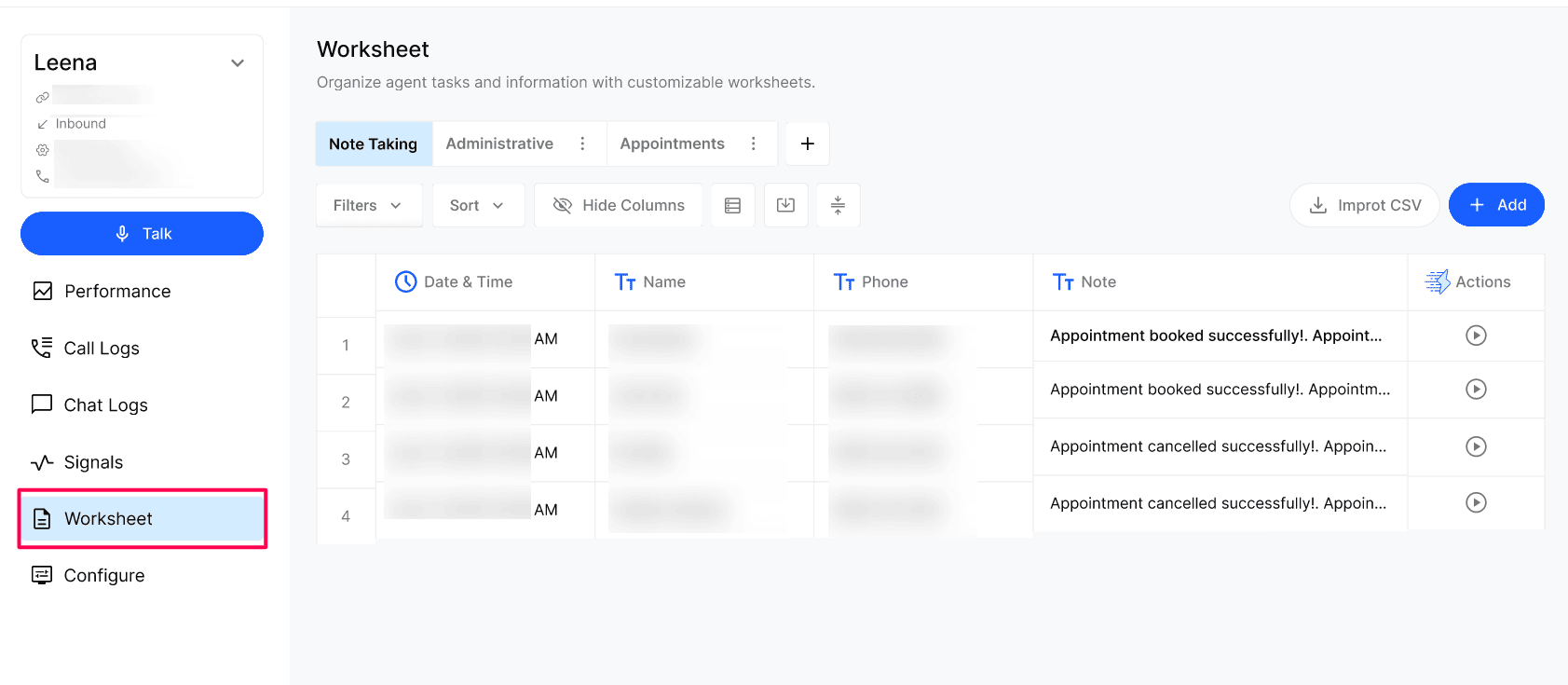
Select Add → Column, choose a Type and enter a Name.
Fill in the type-specific settings below, then select Create.
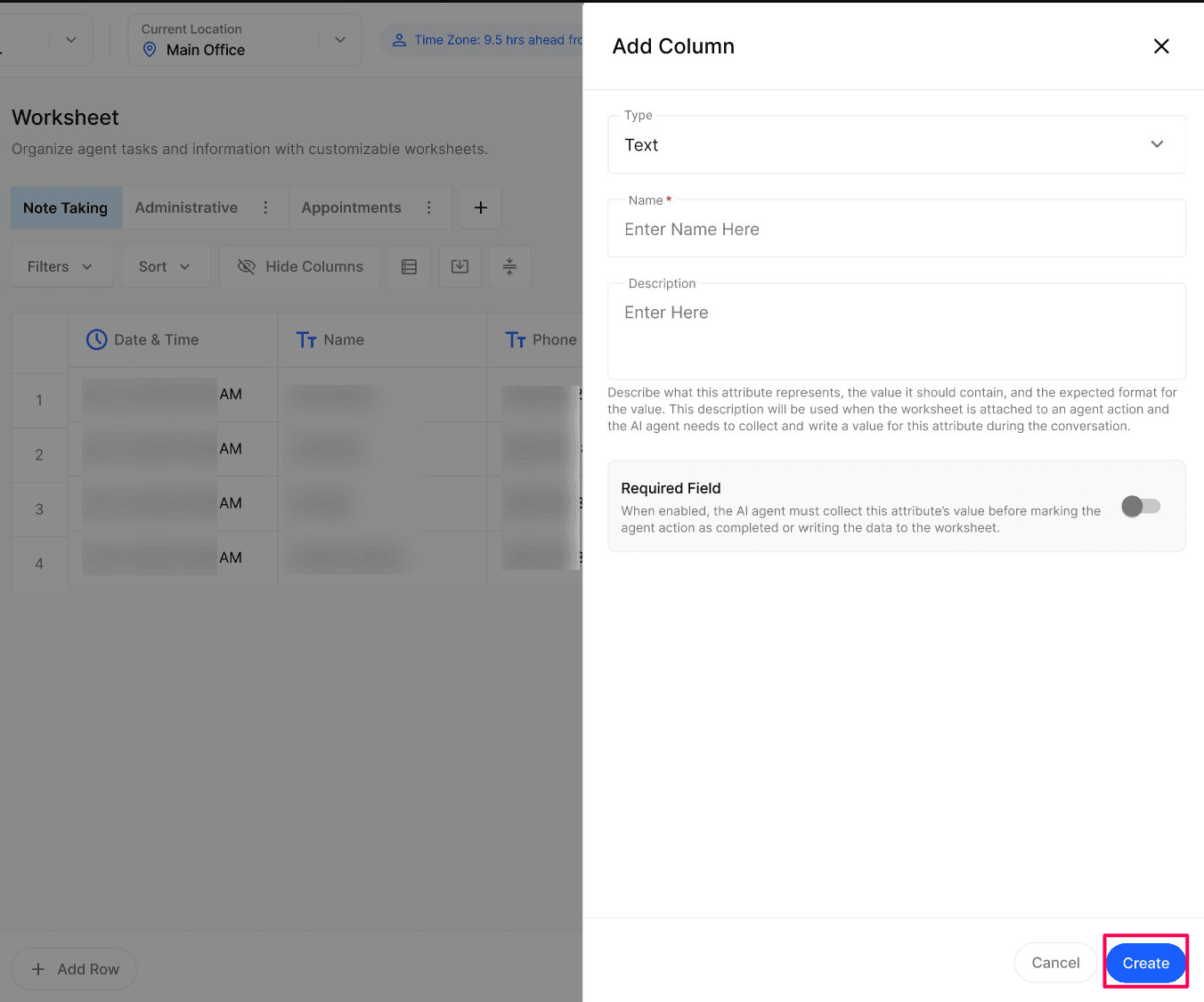
Column type reference
Manage rows
Use Filter, Sort and Hide Columns to focus on what matters.
Use Import CSV to bulk-load existing records.
Use Add or Add Row to enter rows by hand.
Open a row to see its details and the call it came from.
Notify team members about new notes
You can choose who hears about each note the Agent takes, so the right person follows up without checking the Worksheet.
Open the Agent Builder and select the Note Taking node linked to the Worksheet.
In Notify Member Via, pick one or more members under Email, SMS/Text Messages, or both.
Select Save on the node, then save and publish the Agent.
Members are chosen from your Team. SMS notifications need a phone number and SMS consent for that member.
Expected result
The new column appears in the Worksheet. After calls, the Agent writes values into Text columns; your team fills the rest.
Verify the result
Make a test call that triggers the Note Taking or Custom Task node linked to the Worksheet.
Confirm a new row appears with the Text columns filled in the expected format.
Open the row and check it links to the right call.
Best use cases
Worksheets are especially useful for:
Organizing structured notes from calls: Convert conversations into consistent, organized records using predefined fields instead of manually copying details into spreadsheets. This makes information easier to search, review, filter, and use for follow-up actions.
Storing appointment information: Collect appointment-related details, such as the requested date and time, appointment type, booking status, and rescheduling or cancellation requests, making it easier for your team to review and manage them
Capturing lead details: Record information about potential customers, such as their name, contact details, services they are interested in, and reasons for reaching out, so your team can follow up with qualified leads.
Recording order or patient information: Store relevant details such as order references, service requests, patient inquiries, or other information needed for administrative processing. Ensure sensitive information is handled according to your organization's privacy and data-handling requirements.
Recording complaints and follow-up requests: Document customer complaints, reported issues, requested callbacks, and actions needed to resolve concerns, helping your team track outstanding requests.
Logging administrative questions that require human review: Capture questions or requests that the AI agent cannot resolve independently, along with relevant details, so the appropriate team member can review and respond.
Collecting addresses or preferred callback times: Record customer addresses, preferred contact methods, and suitable callback times so your team can coordinate follow-ups more efficiently.
Troubleshooting
Recovery or rollback
Correct a wrong cell directly in the grid, or use Clear on Single Select and Date & Time cells. After changing a description, run another test call.
Frequently Asked Questions
What is a Worksheet in Kickcall?
What is a Worksheet in Kickcall?
A Worksheet is a structured data table where the AI Agent can store information captured during calls.
Can I create more than one Worksheet for a single Agent?
Can I create more than one Worksheet for a single Agent?
Yes. You can create multiple Worksheets for different scenarios, such as Note Taking, Administrative queries, and Appointments.
Which columns can the Agent fill in?
Which columns can the Agent fill in?
Only Text columns. The other types are for your team to work the row after the call.
Can I add custom columns to a Worksheet?
Can I add custom columns to a Worksheet?
Yes. Select Add → Column, choose a type, enter a name, configure the field, and select Create.
What should a Text column description say?
What should a Text column description say?
What the value is, what it should contain and its format. The Agent reads it to collect the value.
What does the Required Field toggle do?
What does the Required Field toggle do?
It requires the Agent to collect the value before the Agent action is marked complete or the row is written to the Worksheet.
Do I have to create a Worksheet before the Agent can take notes?
Do I have to create a Worksheet before the Agent can take notes?
No. A new Agent automatically receives a Note Taking Worksheet. You can rename it, add columns, or create another Worksheet if needed.
Can I add rows without a call?
Can I add rows without a call?
Yes. Use Add or Add Row, or Import CSV for many rows.
Can someone be told when the Agent takes a note?
Can someone be told when the Agent takes a note?
Yes. In the Note Taking node, use Notify Member Via to choose which team members get an email, a text message, or both.
Does Worksheet trigger other follow-ups automatically?
Does Worksheet trigger other follow-ups automatically?
Apart from note notifications, not yet. Wider follow-up automation (such as messages to callers or CRM sync) is on the roadmap. Send an enhancement request if you have a use case.
Related articles
Was this helpful?
Still need help? Ask the team