How Do You Create, Test, and Connect a Business Knowledge Base?
Add business information, test knowledge-base responses, and connect the content to an agent
Written By Maruf Ansari
Last updated 9 days ago
The Business Knowledge Base lets you maintain shared business information in one central place and connect it to multiple AI agents. When you update a connected knowledge pack, the change is available to the connected agents automatically.
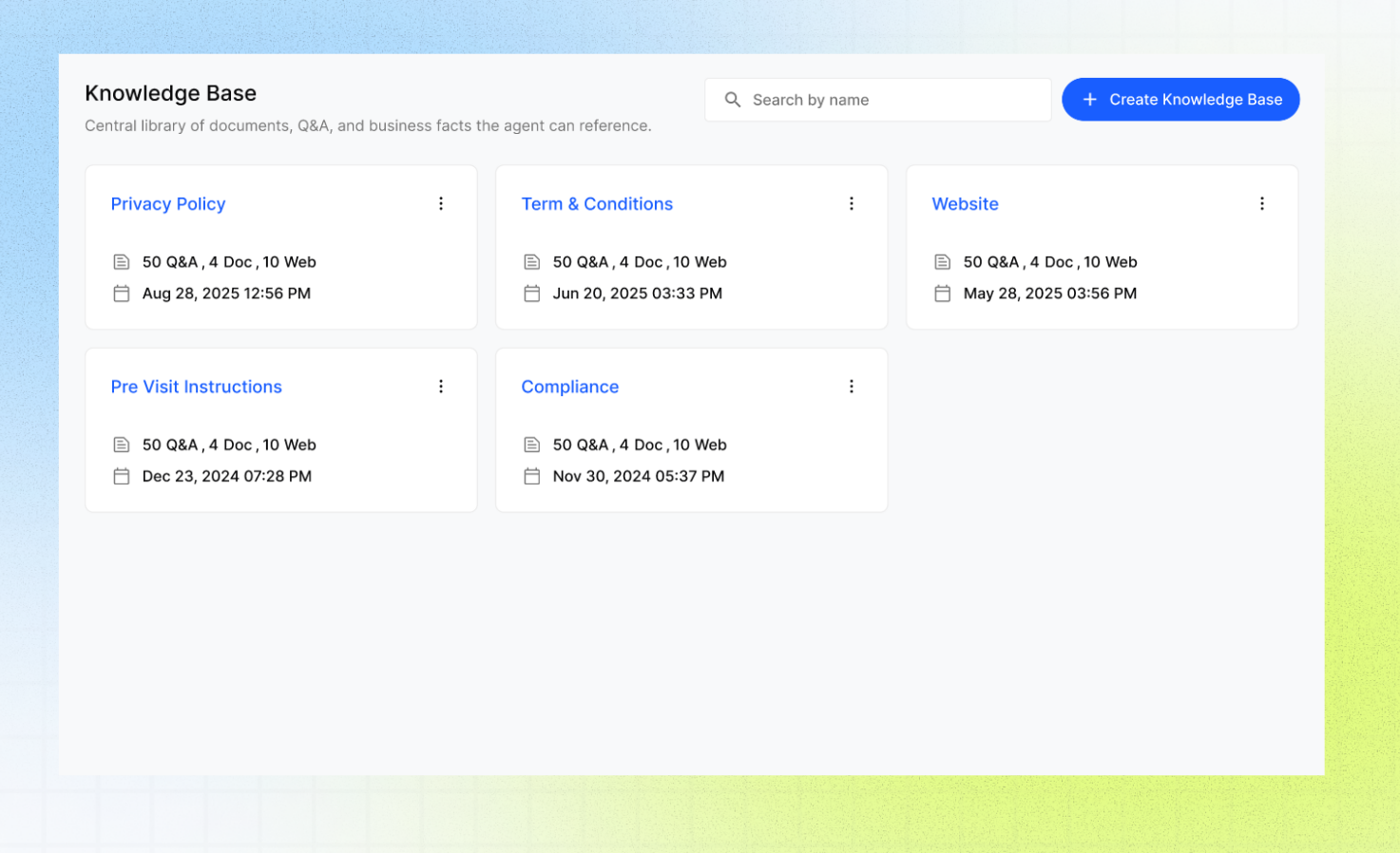
By the end of this guide, you will know how to create a knowledge pack, add information from Q&A, websites, or documents, test the answers, and connect the pack to an agent.
Business Knowledge Base or Agent-Only Knowledge?
Note: Do not put location-specific information into a shared pack unless every connected agent should use it.
Prepare the following details before creating a knowledge pack:
Business Information: Details about the business, including relevant public URLs/web pages and PDF or reference documents.
Pack Details: A clear topic or purpose for the pack.
Access: Access to the Business Portal.
Important Content Rules for a knowledge pack:
Keep one main topic per knowledge pack and use clear Q&A format for key information.
Avoid duplicate content across packs.
Keep business/staff hours in Locations or relevant integrations, not the knowledge base.
Test after major changes and review AI-generated/scraped content before connecting it to live agents.
Open the Business Knowledge Base
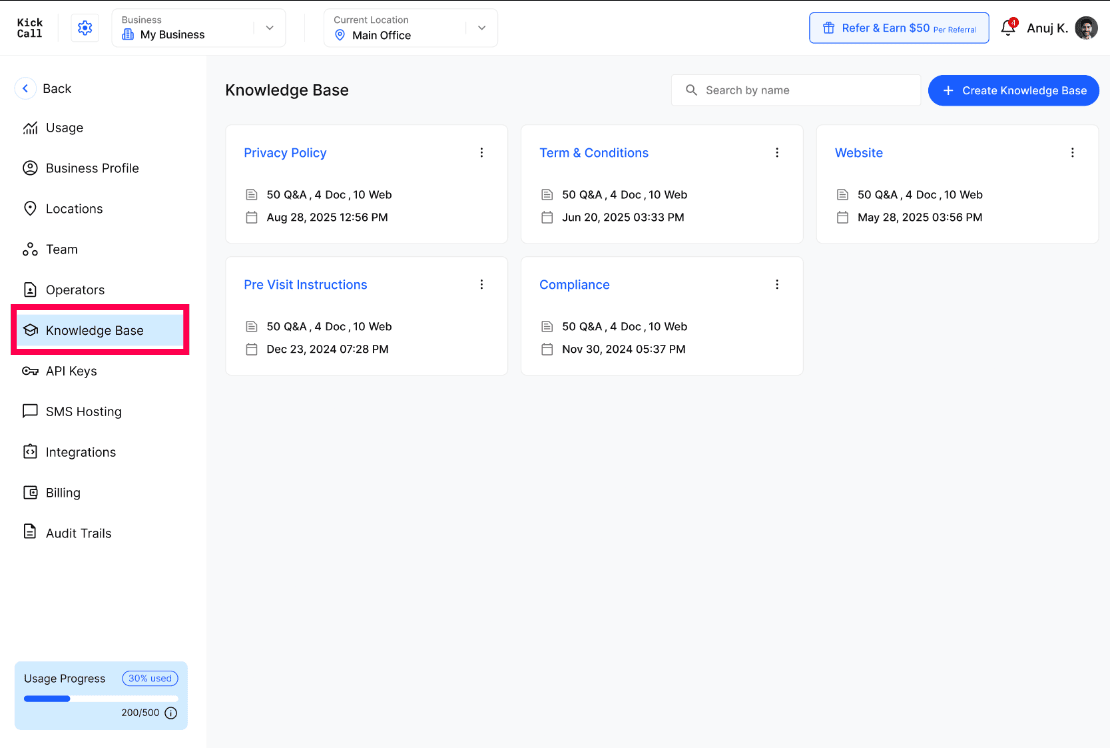
Open the Kickcall Business Portal.
Select Knowledge Base from the left-side menu.
Review the existing knowledge packs in the grid.
The grid can show pack names, Q&A counts, document and web sources, and last-updated information.
Create a knowledge pack
Click + Create Knowledge Base.
Enter a clear and descriptive name. Examples: Privacy Policy, Pre-Visit Instructions, Website FAQs, General Services, etc.
Open the new pack.
Add content using one or more of the available source types.
Add content to a knowledge pack
1. Add Q&A content
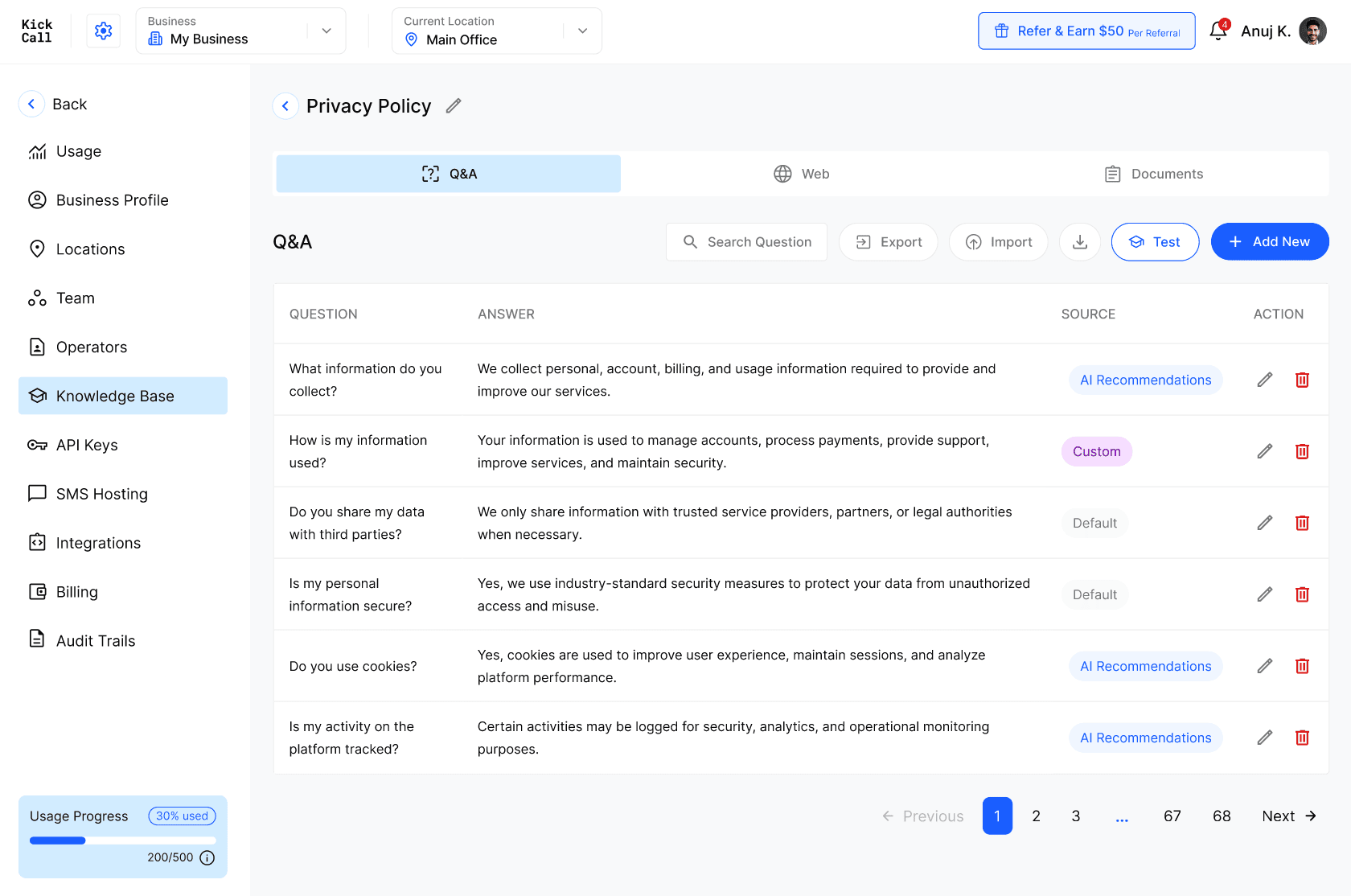
Use Q&A content for short, direct answers.
Available Q&A sources include: Default, Custom, AI Recommendations, Website
You can also use Import and Export for bulk editing.
Recommended Q&A format:
Question: Do you offer same-day appointments? Answer: Add the approved business answer.
Question: What should a caller bring? Answer: Add the approved business instructions.
Tip: Use one question and one clear answer per entry. Avoid combining several unrelated questions into one answer.
2. Add website content
Use web sources when the information is published on a public website.
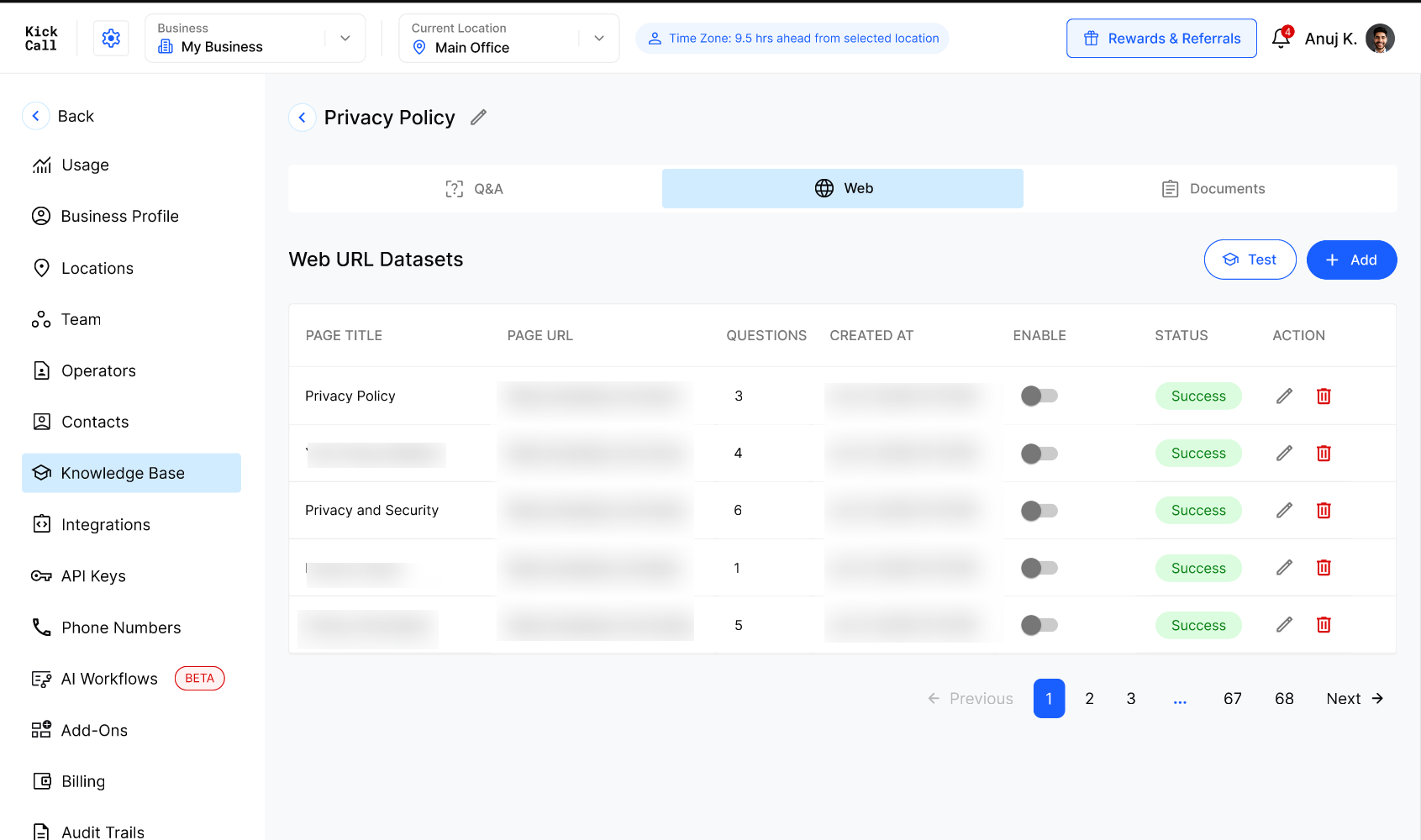
Open the Web tab.
Select Add, Enter the public website or page URL. Select Scrap Website or Scrap URL.
Start the scrape.
Review the generated Q&A content.
3. Add documents
Use the Documents tab to upload PDFs or other reference files.
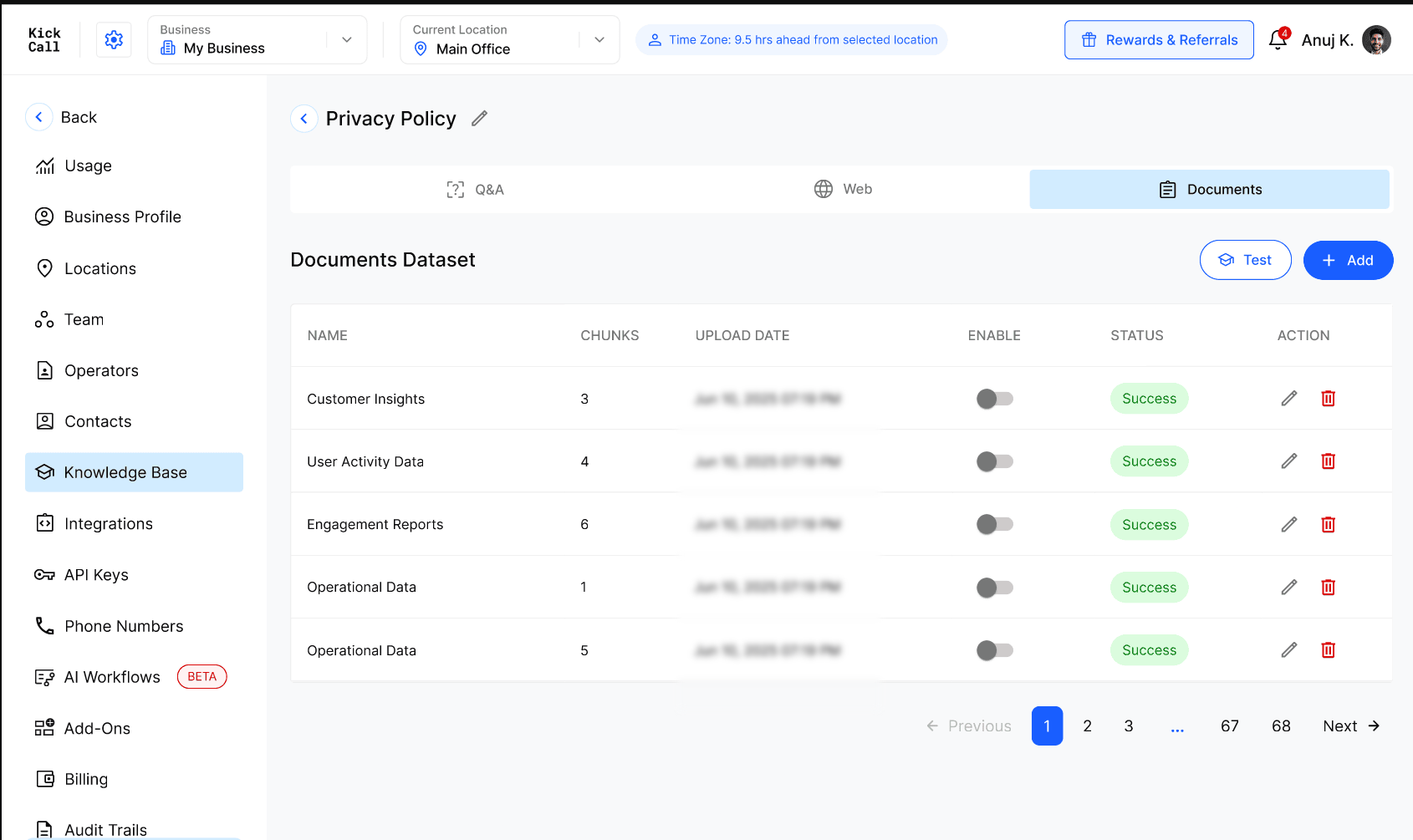
Open the Documents tab
Select Add and upload the documents.
Kickcall splits uploaded documents into searchable chunks. Review the resulting content to make sure the important information is complete and understandable.
Test the pack before connecting it to live agents.
Test the knowledge pack
Test the pack before connecting it to live agents.
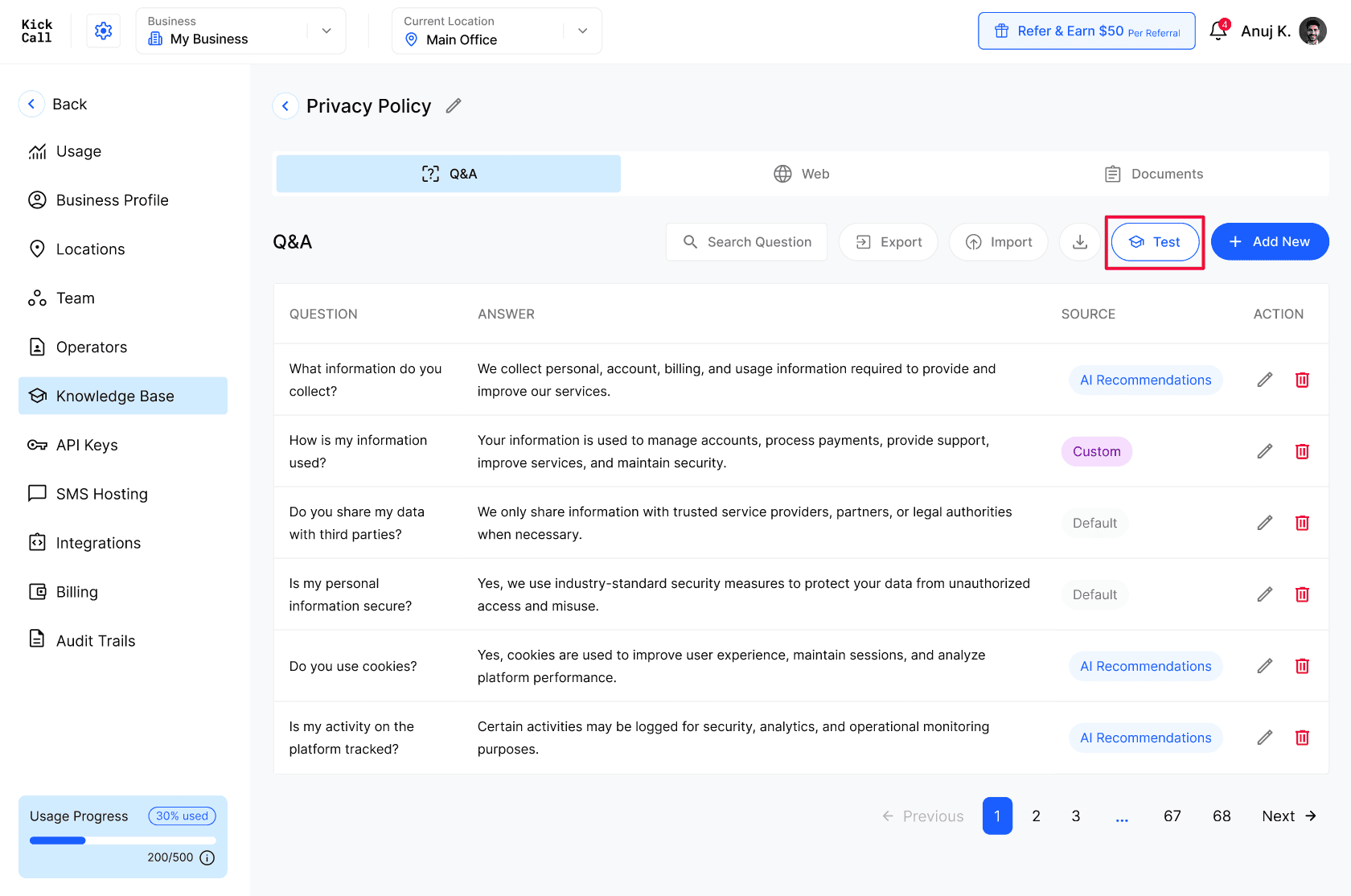
Open the knowledge pack. Open the relevant content tab.
Click Test in the top-right corner.
Review the returned answer.
Correct the source content if the answer is missing, incomplete, or incorrect.
Repeat the test until the answers are acceptable.
A knowledge pack is ready to connect when:
Important questions return accurate answers.
Answers do not contain outdated or duplicated information.
Business-wide content is separated from location-specific content.
Website and document content has been reviewed.
The pack passes Retrieval Testing.
Connect a business knowledge pack to an agent
Open the agent. Select Configure.
Open Knowledge. Select the Business Knowledge tab.
Select the knowledge pack you want to connect.
Save or confirm the connection if prompted.
Test the agent with questions from the knowledge pack.
Updates to a connected Business Knowledge Base automatically propagate to connected agents. See Agent Knowledge for the connect step in detail.
Troubleshooting
Frequently Asked Questions
What is the Business Knowledge Base, in one line?
What is the Business Knowledge Base, in one line?
The Business Knowledge Base is a place to build knowledge packs once at the Business level and plug them into any agent — ideal when you have multiple locations or multiple agents.
How is the Business Knowledge Base different from the Knowledge tab inside an agent?
How is the Business Knowledge Base different from the Knowledge tab inside an agent?
The Business Knowledge Base is where shared content lives. The agent's Knowledge tab is where you connect those Business Knowledge Base packs to that agent (and optionally add knowledge that only applies to that agent).
If I update a pack in the Business Knowledge Base, do all connected agents update too?
If I update a pack in the Business Knowledge Base, do all connected agents update too?
Yes. Update the Business Knowledge Base pack once and every agent that has it connected uses the new content immediately. That's the whole point of maintaining shared knowledge here.
Can one agent use multiple Business Knowledge Base packs?
Can one agent use multiple Business Knowledge Base packs?
Yes. An agent can connect to as many Business Knowledge Base packs as it needs — for example Privacy Policy + Terms & Conditions + Pre Visit Instructions all on the same agent.
Should I put everything in one giant Business Knowledge Base pack?
Should I put everything in one giant Business Knowledge Base pack?
No. Split by topic. Smaller, focused Business Knowledge Base packs are easier to maintain, easier to reuse across agents, and easier for retrieval to pull clean answers from.
Should I put business hours or staff hours in a Business Knowledge Base pack?
Should I put business hours or staff hours in a Business Knowledge Base pack?
No. Business hours come from Locations and staff hours come from your connected integration. Duplicating them in a Business Knowledge Base pack causes the agent to give conflicting answers.
What format should I prioritize inside a Business Knowledge Base pack?
What format should I prioritize inside a Business Knowledge Base pack?
Q&A. It is by far the most reliable format. Use Web as a secondary source (it converts pages into Q&A pairs). Use Documents only as a last resort for reference material you cannot reasonably break into Q&A.
How do I check that a Business Knowledge Base pack will answer correctly before connecting it to live agents?
How do I check that a Business Knowledge Base pack will answer correctly before connecting it to live agents?
Open the pack from the Business Knowledge Base and click Test on any tab. Ask the question the way a real caller would in Retrieval Testing, and confirm the answer is correct. Fix any gap before connecting the pack.
Related Articles
Was this helpful?
Still need help? Ask the team