How do I send Kickcall system emails from my own domain?
Configure SMTP credentials and branded sender details in Kickcall, then check that a system email arrives from your chosen email address and name
Written By Maruf Ansari
Last updated 9 days ago
When system emails arrive from a generic Kickcall address, Businesses are more likely to mark them as spam or distrust them. SMTP setup lets you send every system email — notifications, OTP login codes, verifications and other transactional messages — from your own domain instead.
SMTP Setup Overview
SMTP Setup allows Agency administrators to connect their email provider to Kickcall so platform-generated emails are sent using the Agency's branded domain instead of the default Kickcall sender. You can configure SMTP credentials, set the sender name and email address, and verify that system emails are delivered correctly. Proper configuration helps maintain brand consistency, improve email deliverability, and ensure important communications, including login OTPs, reach recipients successfully.
Important notes
Most providers require SPF, DKIM and sometimes DMARC records on your domain so emails are not marked as spam. Complete your provider's domain verification before going live.
Incorrect credentials will stop all system emails, including login OTPs, from sending.
Before you start
An account with an SMTP-capable email provider (for example Mailgun, AWS SES, ZeptoMail, SendGrid, Postmark or Brevo).
An SMTP user or API key created in that provider, and your sending domain verified with them.
Your SMTP username, password, host address, domain, port, From email and From name.
Configure SMTP
Open Configuration → SMTP.
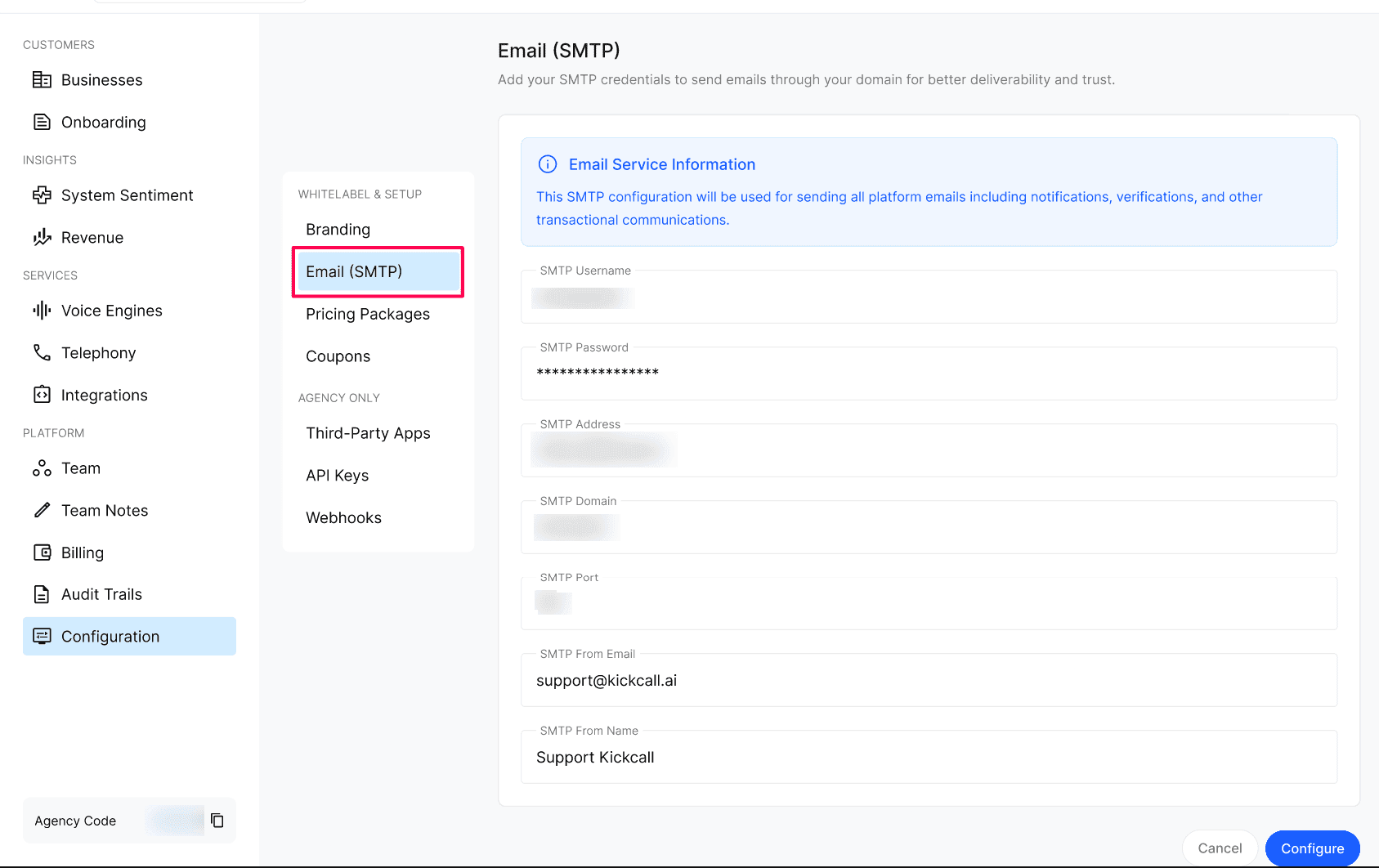
Enter the SMTP Username and SMTP Password from your email provider.
Enter the SMTP Address (host), SMTP Domain and SMTP Port.
Enter the SMTP From Email and SMTP From Name recipients will see.
Select Configure to save.
Configuration reference
Expected result
After saving, all platform emails — login OTPs, invitations, onboarding emails, billing notifications and other transactional messages — are sent through your configured SMTP, showing your From email and From name.
Verify the result
Trigger a system email, such as a login OTP or a test user invitation.
Check the inbox for the email and confirm it arrives from your configured From email and From name.
Confirm the email is not flagged as spam.
Troubleshooting
Frequently Asked Questions
Which emails are sent through this SMTP?
Which emails are sent through this SMTP?
All system-generated emails — login OTPs, user invitation notifications, onboarding emails, billing notifications and any other transactional communications.
What happens if my SMTP credentials are wrong?
What happens if my SMTP credentials are wrong?
Emails will fail to send. Re-check the username, password, host and port from your provider's dashboard and update the configuration.
Do I need to verify my domain with the email provider?
Do I need to verify my domain with the email provider?
Yes. Most providers require SPF, DKIM and sometimes DMARC records on your domain so emails are not marked as spam. Follow your provider's domain verification steps before going live.
Can I change the SMTP later?
Can I change the SMTP later?
Yes. You can update the SMTP credentials any time from this screen — the new settings apply to all emails sent after the update.
Related articles
Was this helpful?
Still need help? Ask the team