How do I configure business package inclusions and overage in Kickcall?
Set business package prices, usage allowances, overage rates, and optional phone or integration charges in Kickcall, then verify the plan details
Written By Maruf Ansari
Last updated 6 days ago
Every Business you onboard needs a clear plan that defines what it gets and what it pays. Business Packages let you build those plans — minutes, locations, storage, AI chat and integrations — and set the overage rates that apply once a Business goes beyond its included quota.
Business Packages Overview
Business Packages allows Agency administrators to create and manage pricing plans for their Businesses. You can define package inclusions such as AI call minutes, warm call minutes, messages, AI chat messages, locations, and storage, along with overage rates for additional usage. You can also configure optional charges for multilingual support, premium support, phone numbers, and integrations. Existing packages can be duplicated, edited, archived, or expanded. Accurate package configuration helps ensure Businesses are billed correctly and receive the services included in their plans.
Important notes
Packages are required even if billing is managed outside Kickcall — they are how the platform tracks per-business usage and keeps quotas, overage and integration entitlements consistent.
Edits to an existing package apply going forward; bills are calculated at month-end using the latest package configuration.
Archiving a package prevents it from being assigned to new Businesses but does not remove it from Businesses already using it.
Phone Number Charges and Integration charges are optional and must be turned on to take effect.
Phone-number charges vary by country, number destination, and carrier rates. Surcharge Amount is fixed per-number markup on carrier cost.
Integration charges are taken from the Reseller Price set for each integration in My Integrations, rather than entered directly on the package.
Add a new package
In the Agency Portal, open Configuration → Pricing.
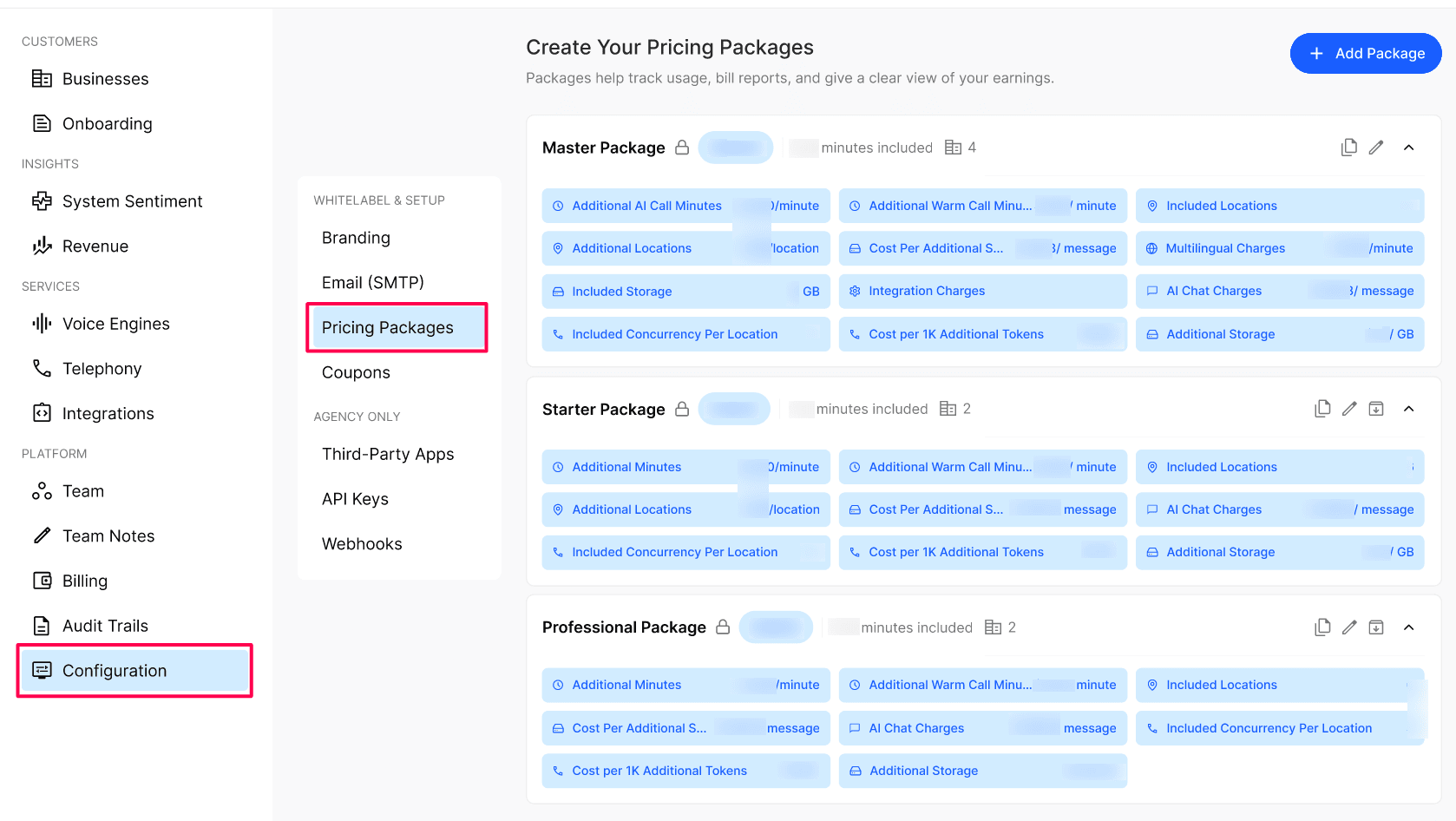
Select + Add Package to open the package panel.
Enter a Package Name, set the Public toggle, and enter the monthly Base Price.
For each usage category, enter the included quantity and cost per additional unit: AI Call Minutes, Warm Call Minutes, SMS Segments, AI Chat Messages, Locations, Storage (GB), AI Tokens & Concurrency per location.
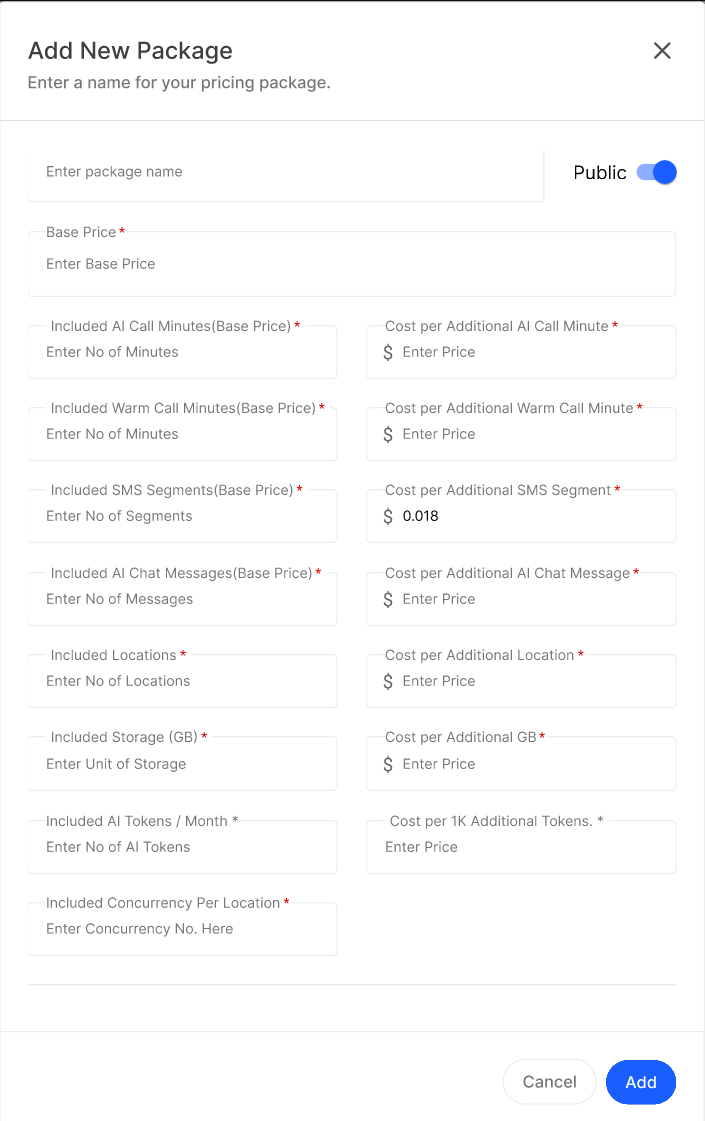
Enter inclusions and overage rates: Included AI Call Minutes and Cost per Additional AI Call Minute; Included Warm Call Minutes and Cost Per Additional Warm Call Minute (a warm call is any call handled by a live agent or operator before or after AI escalation); Included Messages and Cost Per Additional Messages (covers SMS sent or received on the Business's behalf); Included AI Chat Messages and Cost per Additional AI Chat Message; Included Locations and Cost per Additional Location; Included Storage (GB) and Cost per Additional GB; Included AI Tokens/Month & Cost per 1k Additional Tokens.
Enable only the optional charges that apply: Multilingual Charges, Premium Support Per Location, Phone Number Charges, and Charge Additional for Integration.
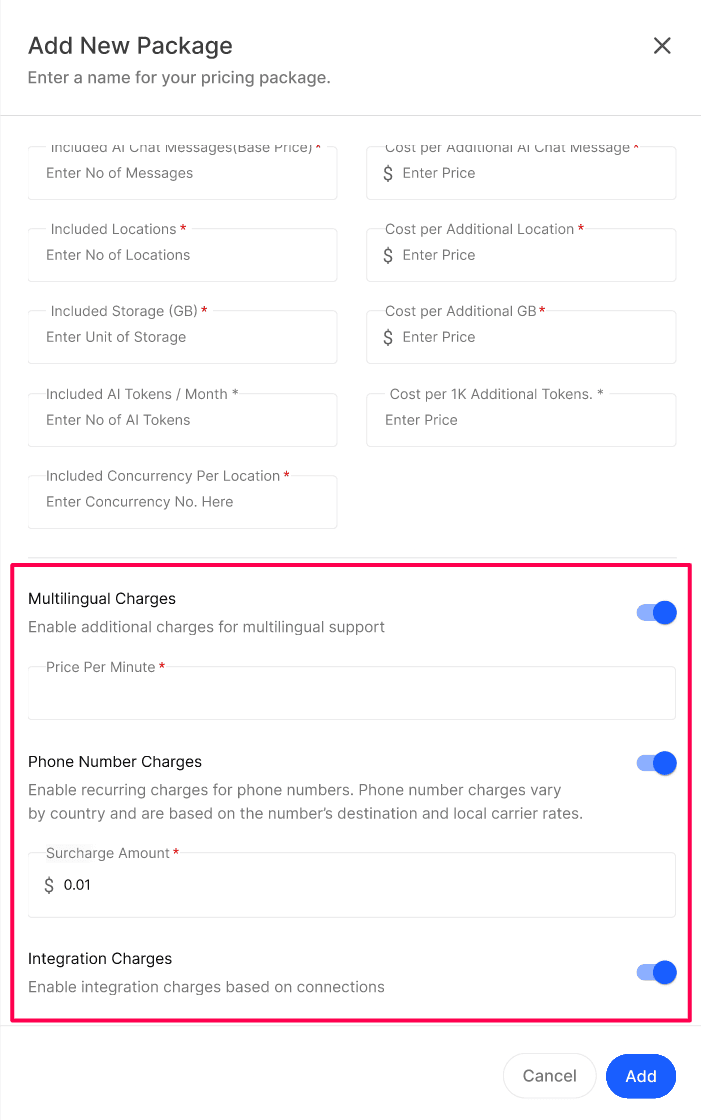
If Phone Number Charges is enabled, enter the Surcharge Amount as the fixed per-number fee added to carrier cost.
Review all package values and select Add.
Manage an existing package
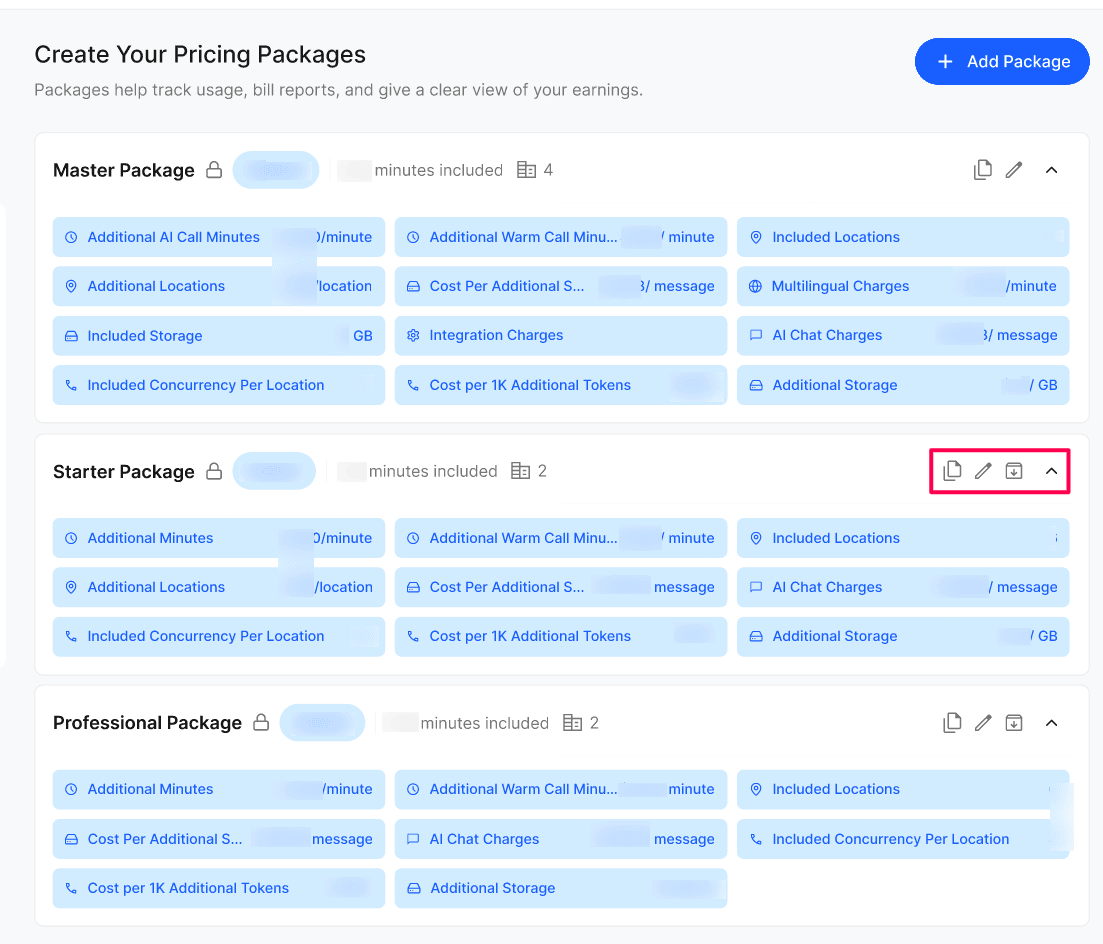
Use Duplicate to copy a package as a starting point.
Use Edit to change pricing or inclusions. Confirm the effective date and billing impact before saving.
Use Expand to review inclusions and overage rates inline.
Use Archive to retire a package so it cannot be assigned to new businesses, according to the source.
Expected result
The new package appears in the package list with its configured price and summary, and it becomes available for assignment to a Business.
Verify the result
Expand the new package row and confirm all inclusions and overage rates match what you entered.
If Public, confirm it appears as a self-select option during a test onboarding.
Assign the package to a test Business and confirm its billing information reflects the package's base price and inclusions.
Troubleshooting
Recovery or rollback
To correct a package, select Edit, adjust the fields, and save — changes apply going forward. To stop a package from being assigned to new Businesses without affecting current users, select Archive instead of deleting it.
Frequently Asked Questions
Can I change a package after businesses are using it?
Can I change a package after businesses are using it?
Yes. Edits apply going forward — bills are calculated at month-end using the latest package configuration.
What does the Public toggle do?
What does the Public toggle do?
Public packages are visible to businesses during onboarding so they can self-select. Private packages can only be assigned by the Agency from the business profile.
How is overage calculated?
How is overage calculated?
Usage above the included quota is charged at the per-unit rate set on the package (per minute, per message, per location, per GB).
Do I have to set a price for every optional charge?
Do I have to set a price for every optional charge?
No. Multilingual, Premium Support and Integration charges are optional toggles — enable only the ones you want to bill for.
How are Phone Number Charges billed?
How are Phone Number Charges billed?
When Phone Number Charges is enabled, the business pays the recurring cost for every phone number assigned to it. The carrier cost depends on the number's country and destination. You can also add a flat Surcharge Amount per number that is added on top of the carrier cost.
What does the Surcharge Amount cover?
What does the Surcharge Amount cover?
Related articles
Was this helpful?
Still need help? Ask the team