How Do I Choose In-App and Email Notifications in the Kickcall Agency Portal?
Choose which Kickcall Agency Portal events alert you in-app, by email or both, and manage your personal preferences without affecting teammates.
Written By Anand Raj
Last updated 6 days ago
Get alerted to the platform events that matter to your role and skip the rest. Notification Preferences let you turn each Agency Portal event on or off, separately for In-App and Email. Changes save as soon as you flip a toggle.
Notification Preferences Overview
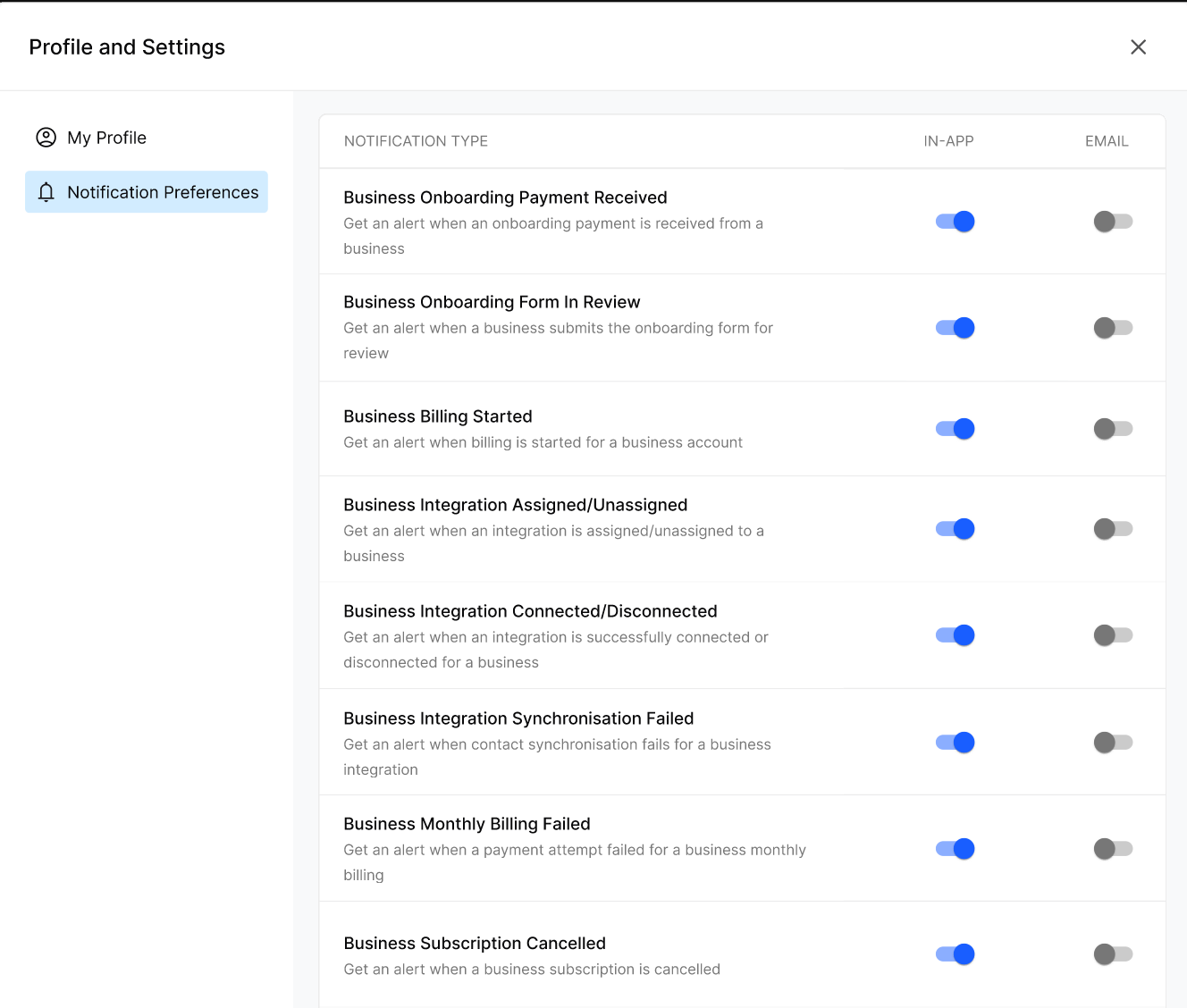
Notification Preferences allows Agency users to manage how they receive notifications about important platform activities. You can enable or disable In-App and Email notifications individually for each notification type, choosing to receive alerts through either channel, both, or neither. In-App notifications appear under the bell icon in the Agency Portal, while email notifications are sent to the address listed in My Profile. These preferences are managed individually by each user and help ensure important updates, such as payment failures or integration sync issues, are not missed.
Important notes
There is no Save button. Each toggle saves immediately.
Your choices don't change what your teammates receive.
Before you start
Check that the email on your My Profile screen is correct if you plan to use email alerts.
Set your notification preferences
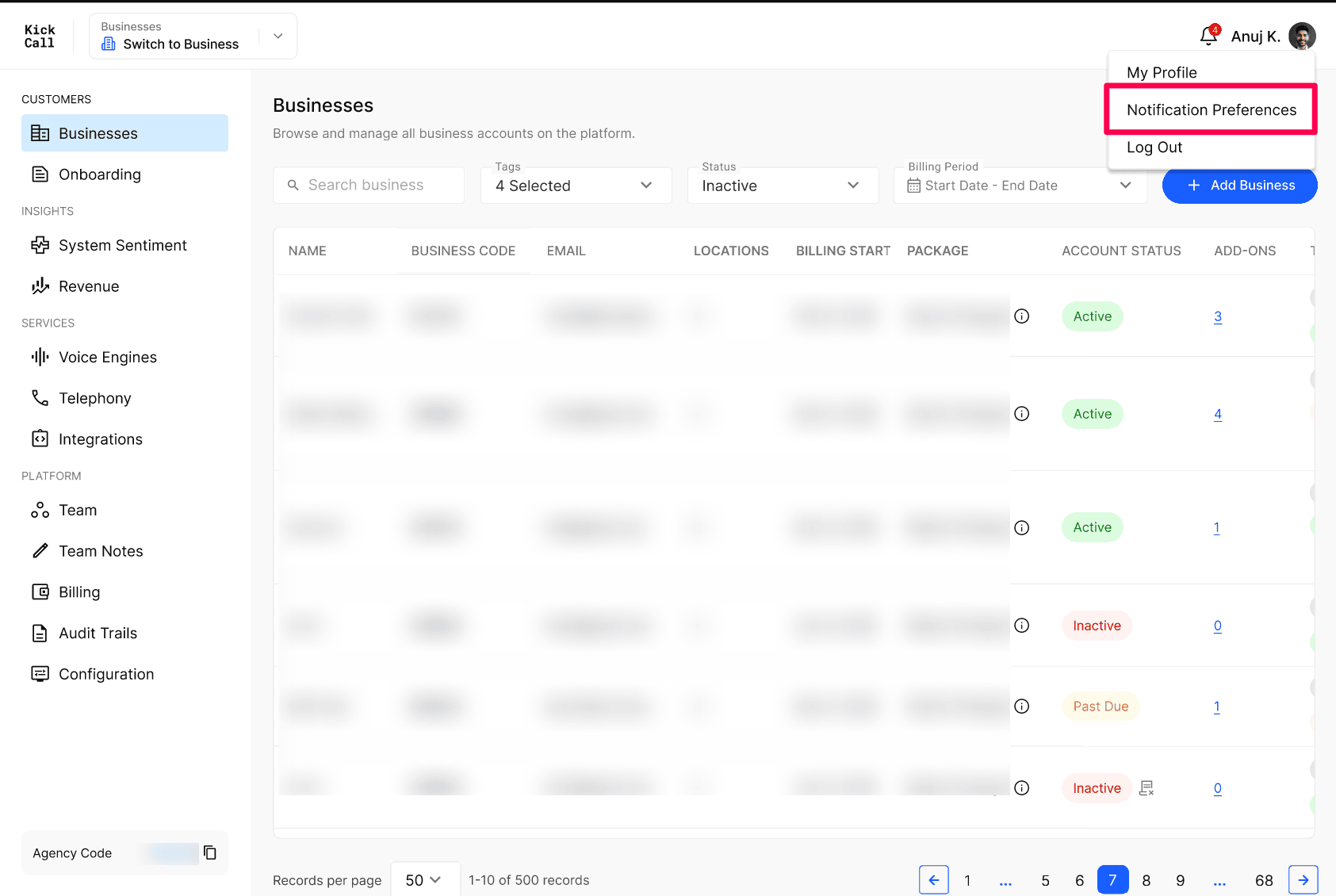
In the top-right of the Agency Portal, select your profile picture or name, then select Notification Preferences. The Profile and Settings panel opens with Notification Preferences selected.
For each notification type, turn the In-App and Email toggles on (blue) or off (grey). You can mix and match — for example, keep Payment charge failed on both channels but Engine update available in-app only.
Close the panel when you're done.
In the top-right of the Agency Portal, select your profile picture or name, then select Notification Preferences. The Profile and Settings panel opens with Notification Preferences selected.
For each notification type, turn the In-App and Email toggles on (blue) or off (grey). You can mix and match — for example, keep Payment charge failed on both channels but Engine update available in-app only.
Close the panel when you're done.
Expected result
The next time a selected event happens, you receive the alert only on the channels you turned on.
Troubleshooting
Frequently Asked Questions
Do my notification preferences apply to other agency users?
Do my notification preferences apply to other agency users?
No. Notification preferences are per-user. Each agency user controls their own toggles, and changing yours does not affect what your teammates receive.
Where do in-app notifications appear?
Where do in-app notifications appear?
In-app notifications appear under the bell icon in the top-right of the Agency Portal. A badge on the bell shows the number of unread alerts.
Which email address are email notifications sent to?
Which email address are email notifications sent to?
Email notifications are sent to the email address listed on your My Profile tab. To change it, update your account email there first.
Do I need to click Save after changing a toggle?
Do I need to click Save after changing a toggle?
No. Each toggle is saved automatically the moment you change it, so you can close the Profile and Settings panel as soon as you're done.
Related Articles:
Was this helpful?
Still need help? Ask the team