How do I manage and update AI voice engines in Kickcall?
Compare Kickcall voice engines, review release details, and choose which existing businesses receive an engine update from the Agency Portal.
Written By Maruf Ansari
Last updated 9 days ago
Your businesses' AI agents run on voice engines, and Kickcall keeps improving those engines over time. The Voice Engines screen is where you see every engine available to your agency, check which version each business runs, and decide when to roll out a new release — without disrupting calls already in progress.
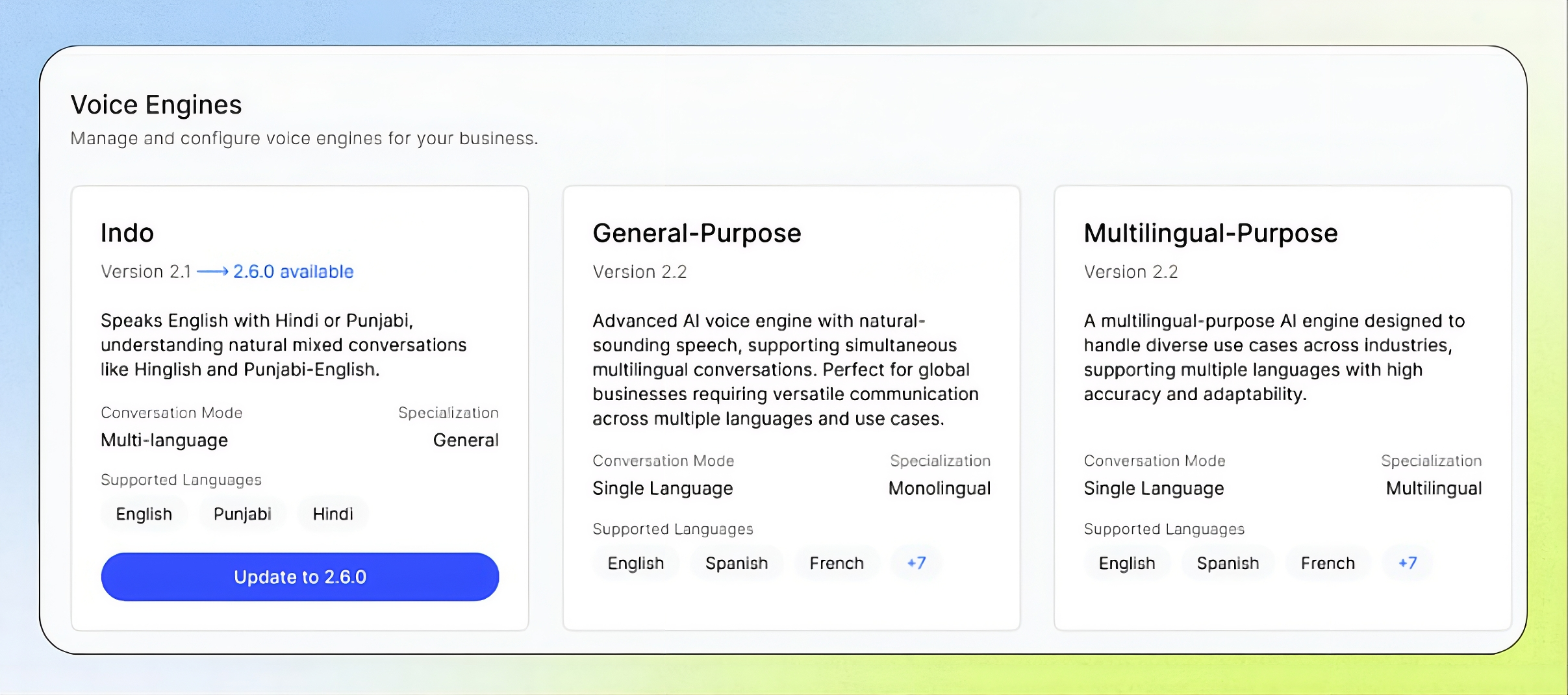
Voice Engines Overview
Voice Engines allows Agency administrators to manage the AI engines used by their businesses’ agents. You can view available engines, check their versions and supported languages, review release changes, and apply updates to selected businesses individually or in bulk. Always review the update details and selected businesses before applying changes to avoid updating businesses that should remain on their current engine version.
Important notes
Only one engine can be assigned to a business at a time.
Updates are not automatically applied to existing businesses.
All businesses in the bulk-update dialog are selected by default. Review the selection before confirming.
Ongoing calls finish on their starting version; only new calls use the updated version.
Engine updates can change Agent behavior. Review several calls after rollout.
Rollback is not self-service; contact Kickcall support to revert a business's engine version.
New businesses onboarded after the update use the new version; excluding existing businesses from bulk rollout does not establish an older-version default for new businesses.
Available engines
Each card shows the engine name, current version, a short description, language support type, specialization and the supported languages.
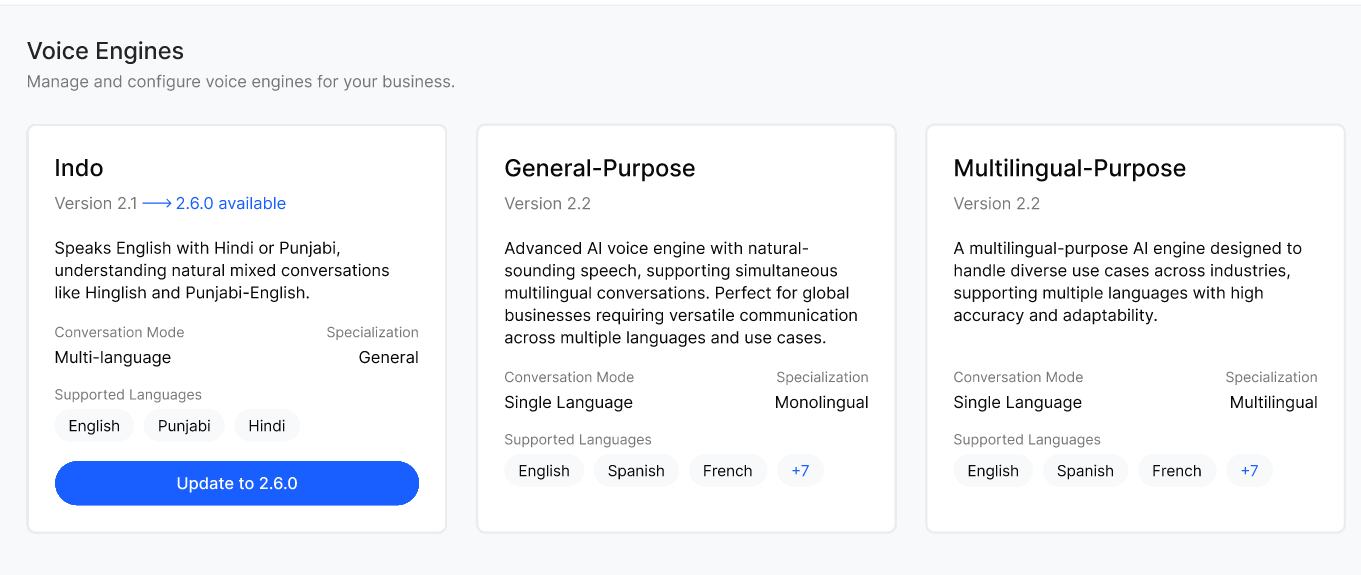
General-Purpose: Single-language engine with 40+ languages to choose from. Highest accuracy when the business operates in one language at a time.
Indo: Built for the Indian-English community. Handles natural mixed conversations like Hinglish and Punjabi-English.
Multilingual-Purpose: Multilingual (simultaneous) engine. Auto-detects the caller's language and can switch within a call.
Before you start
Identify the engine and businesses you intend to update. Review the release notes and prepare representative test-call scenarios, especially for Agents tuned to an older version.
Apply an engine update
Kickcall ships engine updates from time to time — improvements in accuracy, latency, language support, accent handling and voice quality. When a new version is released for an engine your agency uses, an Update available button appears on that engine's card in the Voice Engines list.
Go to Voice Engines
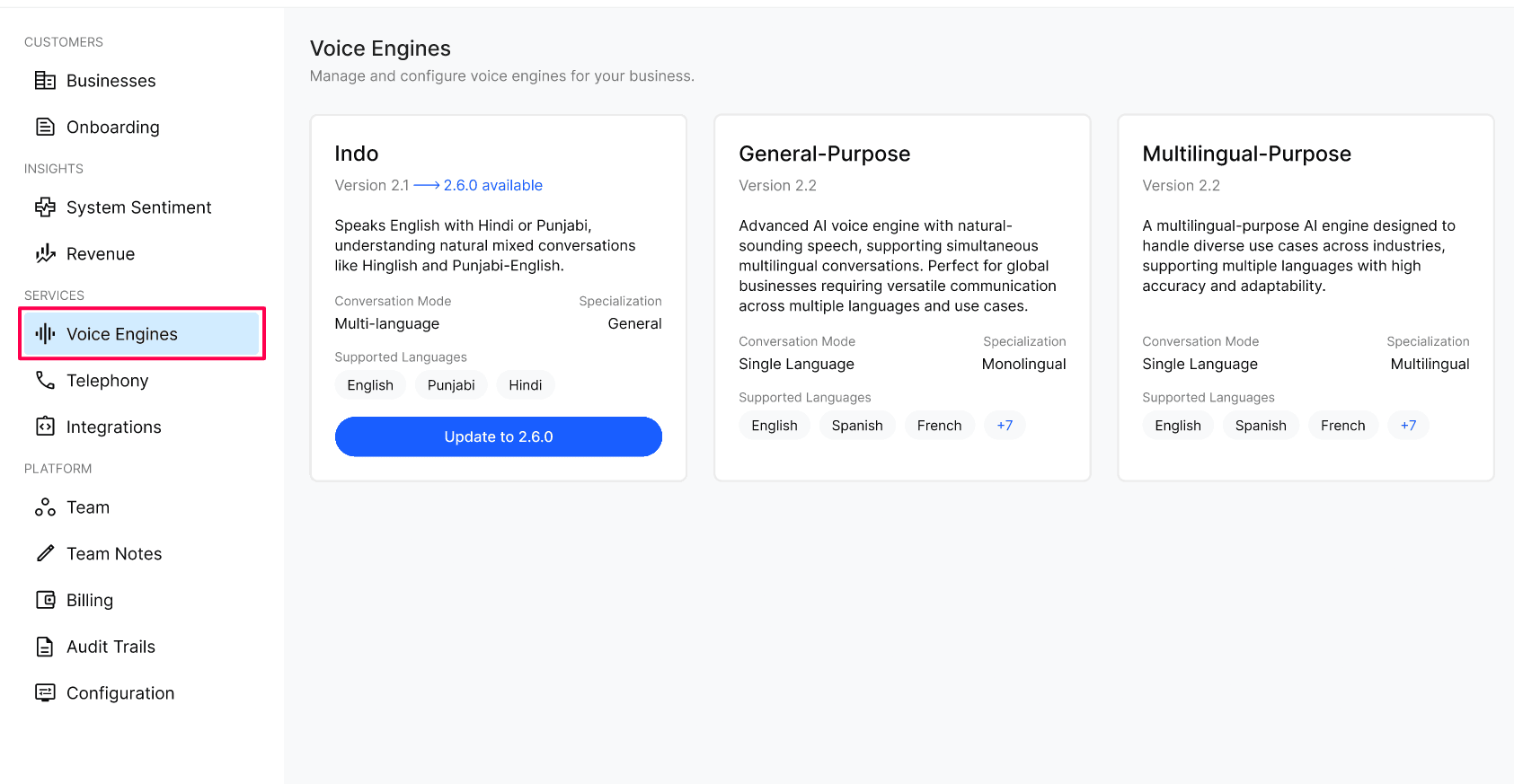
On the Voice Engines list, select Update available on the engine card to open the release dialog.
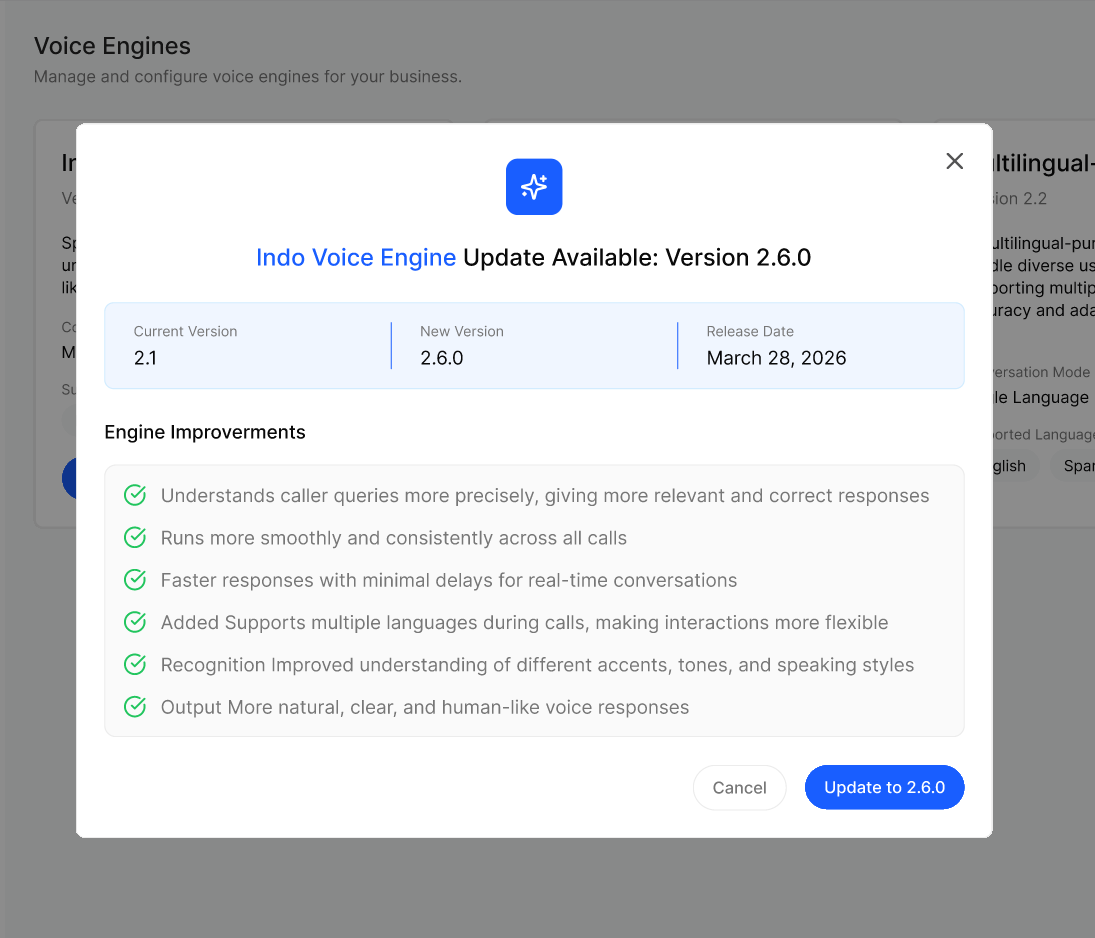
Review the Current Version, New Version, Release Date, and the Engine Improvements checklist (accuracy, latency, languages, accents, voice naturalness, etc.).
Select Update to X.Y.Z to proceed, or Cancel to stay on the current version.
By default, all businesses are selected. Uncheck any business you want to leave on the older version.
Select Yes, Update All to roll the new version out to the selected businesses, or select No to skip the bulk update.
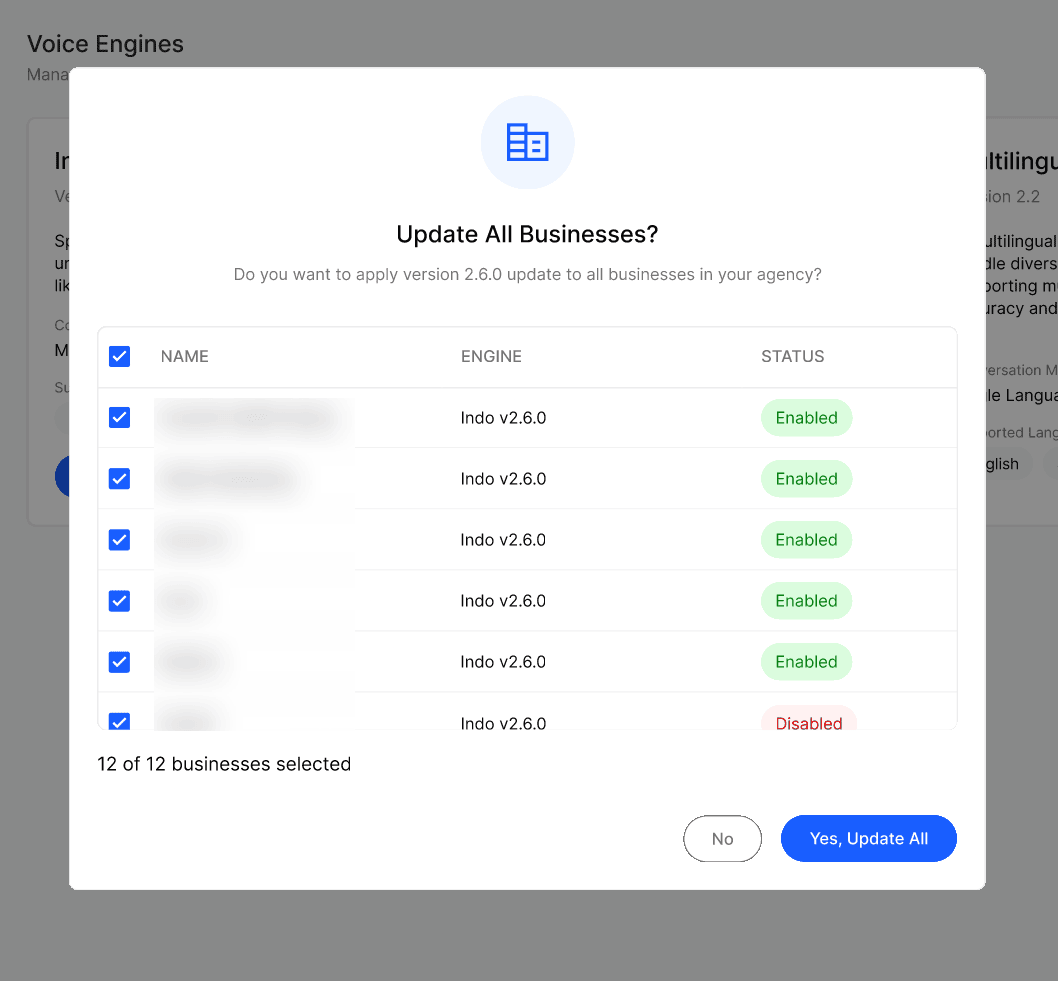
If you skip the bulk update, you can still update individual businesses later from each business's Voice Engine screen.
Configuration reference
Expected result
The engine card shows the new version number as current. Businesses you selected in the Update All Businesses dialog now run the new version; businesses you left unchecked remain on the previous version.
Verify the result
Reopen the Voice Engines list and confirm the engine card shows the new version with no Update available button for that engine.
Open a business you updated from Business Voice Engine and confirm its engine version matches the new release.
Place a test call to that business's agent and confirm it completes normally.
Troubleshooting
Recovery or rollback
Rollbacks are not self-serve. If you need to revert an engine version for a business after an update, contact the Kickcall support team.
Frequently Asked Questions
Will updating an engine interrupt ongoing calls?
Will updating an engine interrupt ongoing calls?
No. Calls already in progress finish on the engine version they started with. Only new calls placed after the update use the new version.
Do I have to update every business at once?
Do I have to update every business at once?
No. The Update All Businesses dialog lets you cherry-pick which businesses get the new version. You can also skip the bulk update entirely and update businesses one by one from each business's Voice Engine screen.
Can a business stay on an older engine version forever?
Can a business stay on an older engine version forever?
Yes. Engines are never auto-updated. A business stays on its current version until you choose to update it.
Will the update affect my agents' performance?
Will the update affect my agents' performance?
Most updates improve performance, but agents that were tuned against an older engine version may behave slightly differently on a new version. We recommend reviewing a few calls after rolling out an update.
Do new businesses automatically use the latest engine version?
Do new businesses automatically use the latest engine version?
Yes. Any business onboarded after an update is created on the latest available version of the engine you assign to it.
Can I roll back to a previous engine version?
Can I roll back to a previous engine version?
Rollbacks are not self-serve. If you need to revert an engine version for a business, contact the Kickcall support team.
Related articles
Was this helpful?
Still need help? Ask the team