How Do I Find Businesses and Review Account Actions in the Kickcall Agency Portal?
Find Kickcall businesses with search and filters, review status, tags and add-ons, and understand account actions before making a change
Written By Maruf Ansari
Last updated 9 days ago
Find the right Business, review its billing context and prepare its account for handover. Businesses is the Agency directory for searching accounts, applying internal tags, inspecting add-ons and opening Business configuration or the Business Portal.
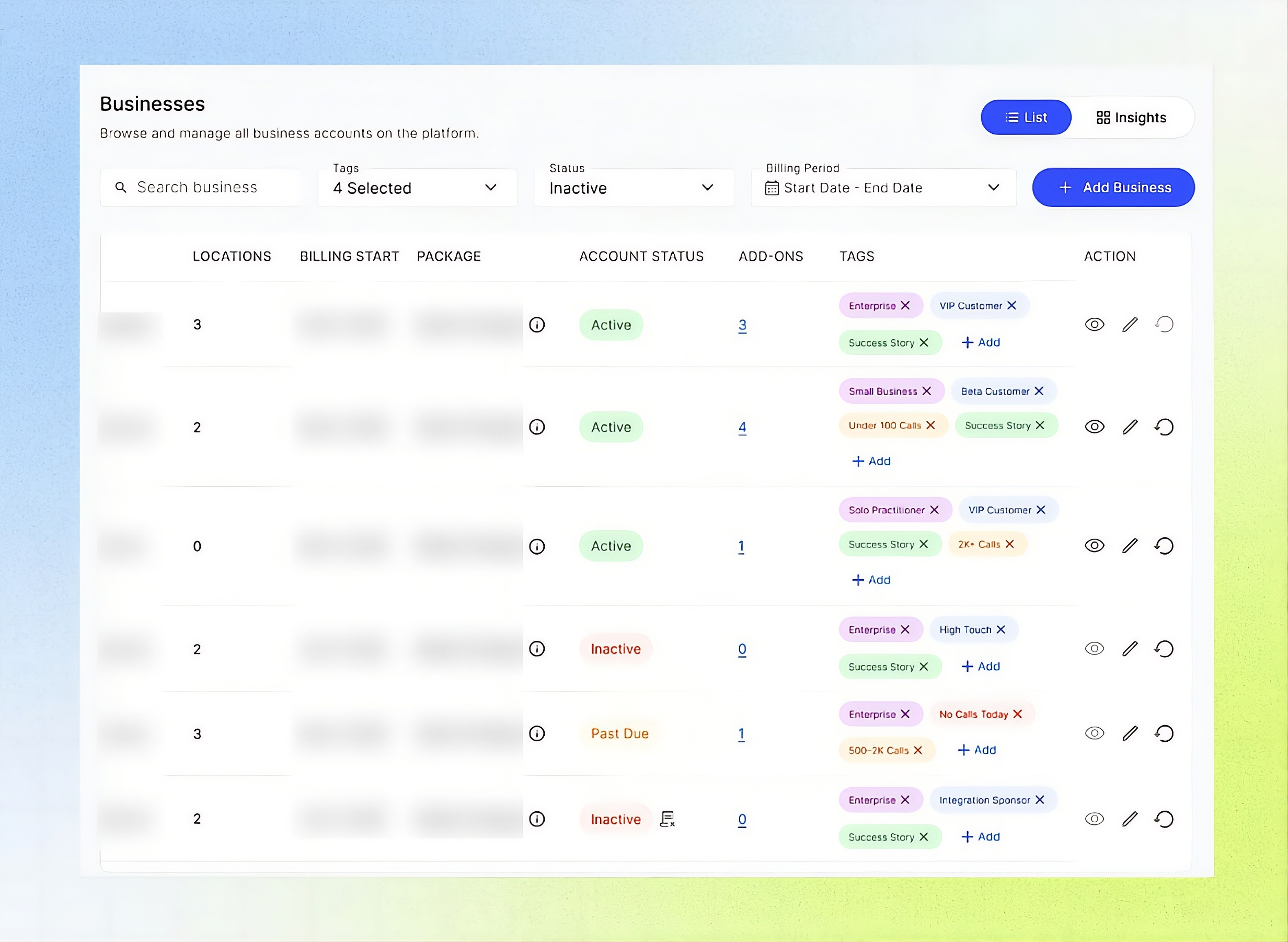
Businesses Overview
Businesses allows Agency users to view and manage all connected Business accounts in one place. The module provides a List View to find and review Businesses using their names and unique, system-generated Business Codes, and an Insights View to monitor business performance through charts and churn analytics. This helps Agency teams manage Business accounts and track important trends.
Important notes
Use Business Onboarding for live Businesses. Reserve + Add Business for exploration, internal tests and demos; onboarding collects billing, locations, owner and telephony details for go-live.
Reset & Start Billing is irreversible and available only once. It deletes test call logs, worksheets, recordings, configuration change history, and AI governance and compliance logs. Testing minutes remain billed to the Agency; resetting does not reverse usage charges. Billing starts when you confirm the reset.
Tags are internal to the Agency. The Agency add-on history view is read-only; activation and deactivation happen in the Business Portal. Impersonation is recorded in the Business Audit Trails.
Before you start
Know the business name or email, or the relevant tag/status/date range.
For live-client setup, use the Business Onboarding workflow rather than creating a live account directly from the Businesses list.
Before any reset, verify the exact business and confirm an authorized owner has approved the action.
Find a business and review its row
In the Agency Portal sidebar, open Businesses and select List View if it is not already selected.
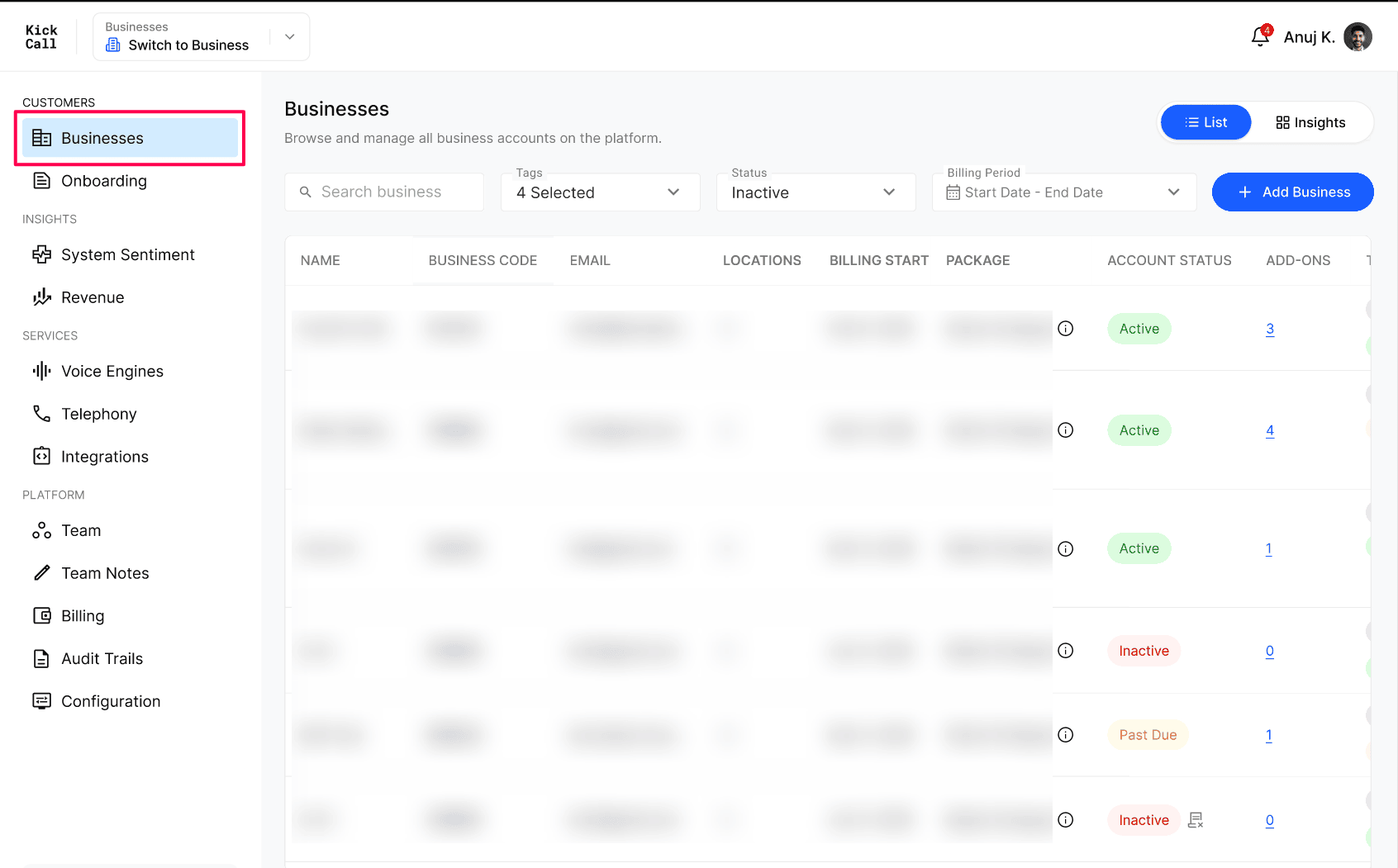
Search by business name or email in Search business.
Narrow results with the Tags, Status, or Billing Period filters as needed.
Review the business’s Name, Business Code, Email, Locations, Billing Start, Package, and Account Status.
Choose a row action only after confirming the business identity and intended task.
Row action reference
Apply or remove internal tags
In the row’s Tags column, select + Add to open Add Tags to Business; the Business name is pre-filled.
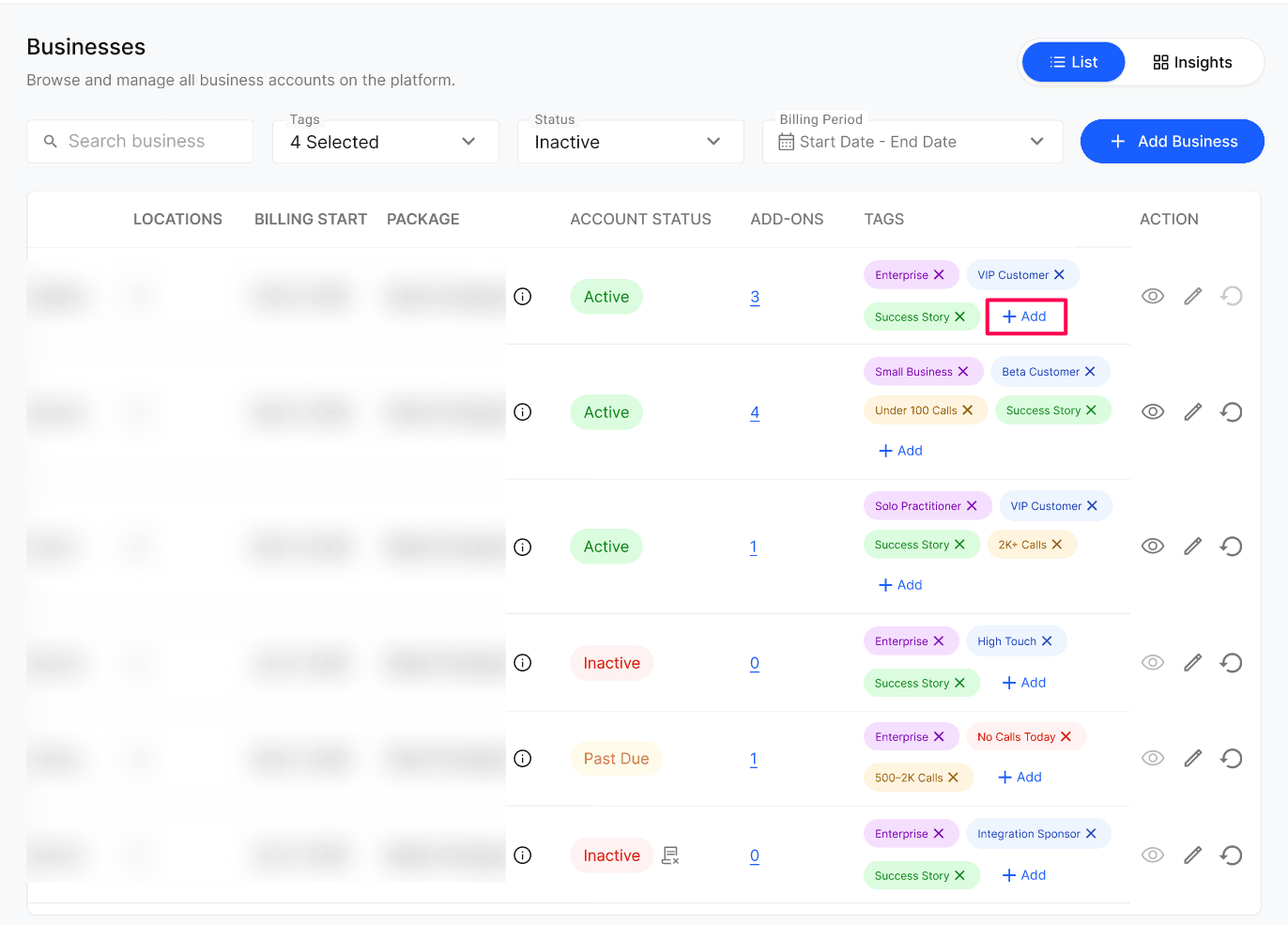
Open the Tags dropdown and select the tags. Selected tags appear as chips.
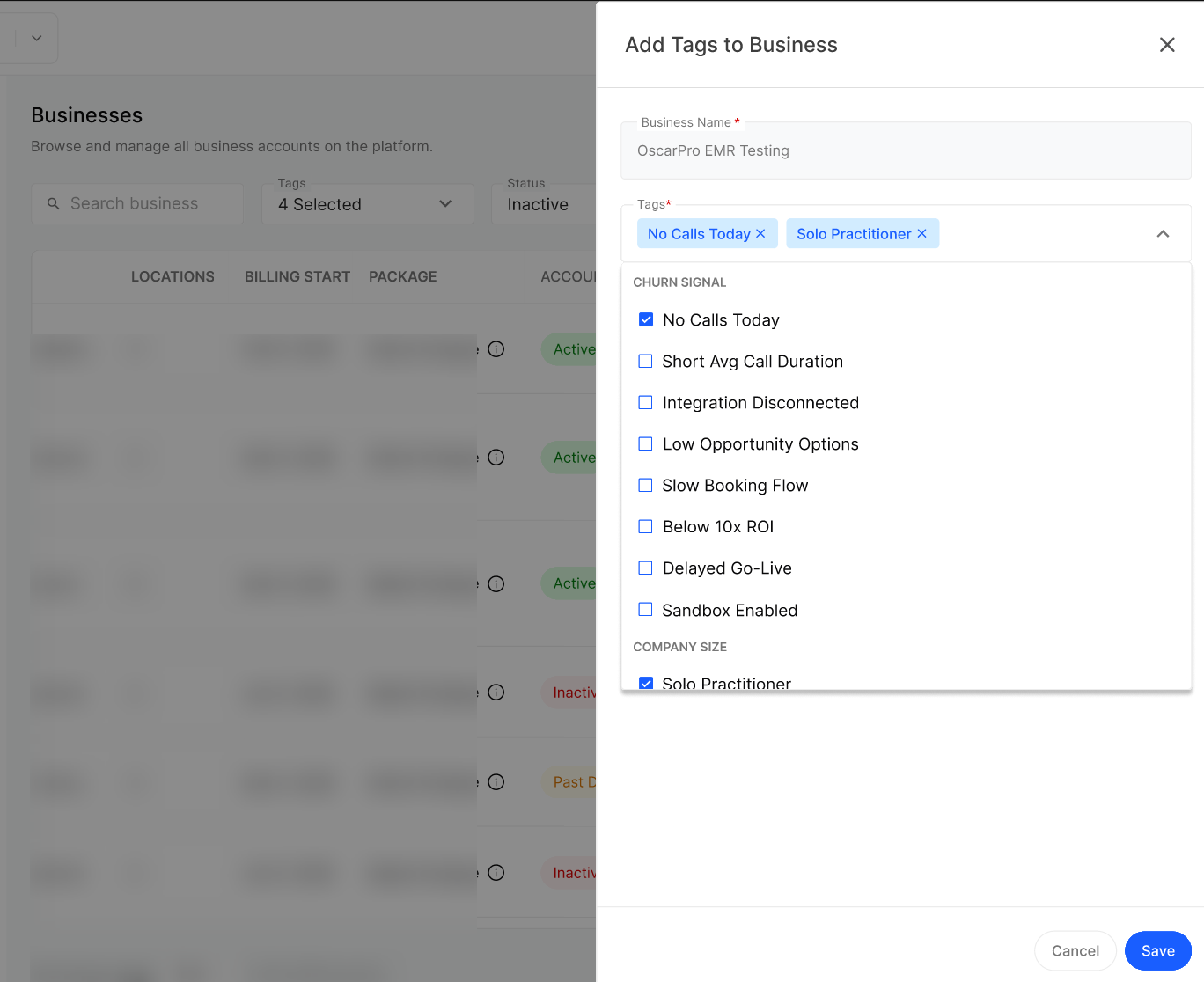
Remove a chip with × in the panel or row, or untick its dropdown entry. Select Save in the panel.
Verify the saved tags appear on the row, then use the Tags filter to review the matching Businesses.
Use consistent categories to prioritise risk, distribute High Touch and Low Touch work, and find Beta Customer or Success Story accounts. Directory tags are manually applied; system churn signals in Business Insights are evaluated automatically.
Review add-on history and cancellation context
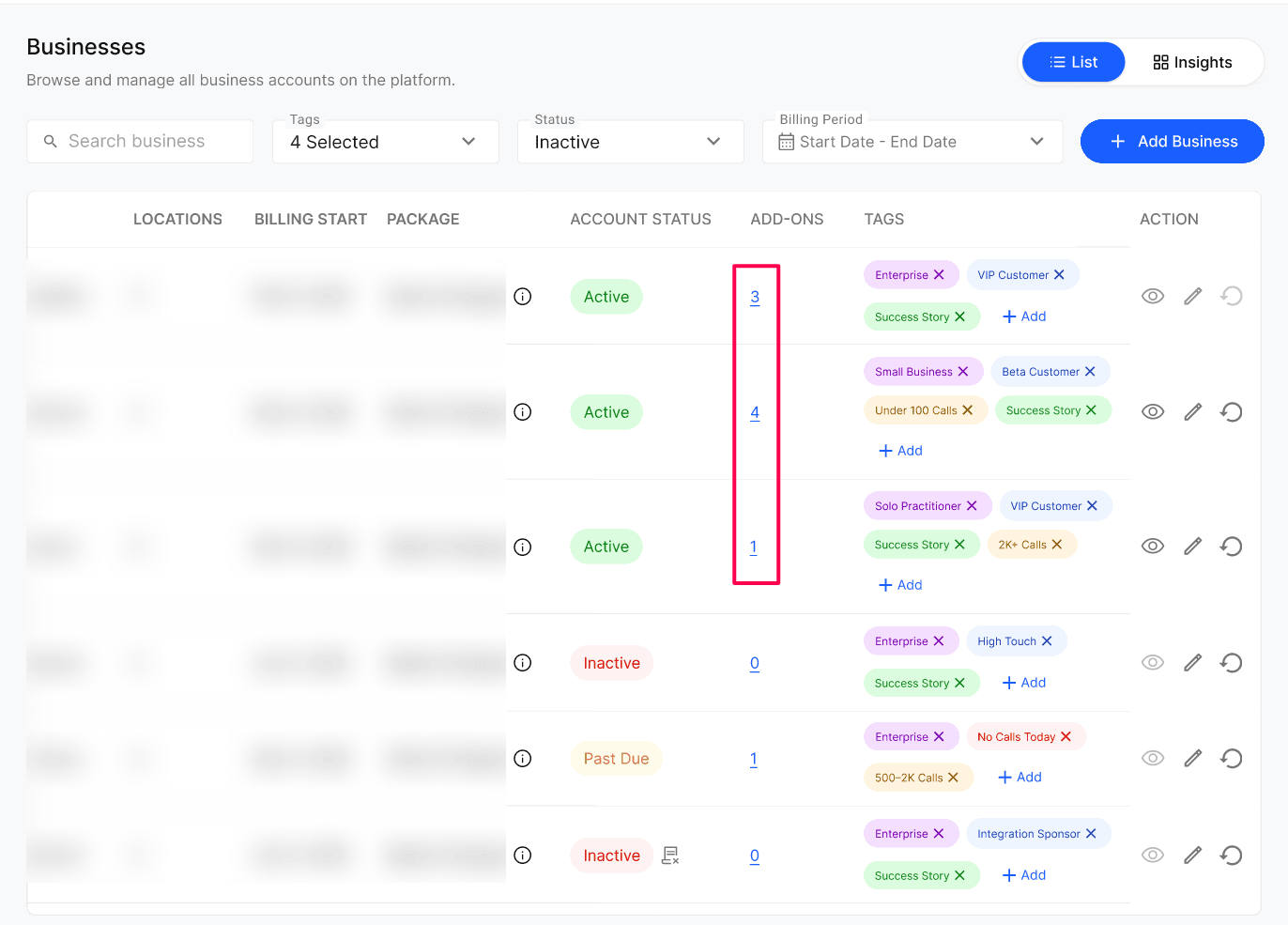
Select the Add-ons column to open Billing History. Its badge counts active add-ons; the panel includes all add-ons the Business has activated.
Review Add-on Name, Activated On and Status (Active or Inactive). Examples include Priority Support, SMS on Existing Business Number, A2P 10DLC Registration and AI Workflow, where made available through Add-on Pricing.
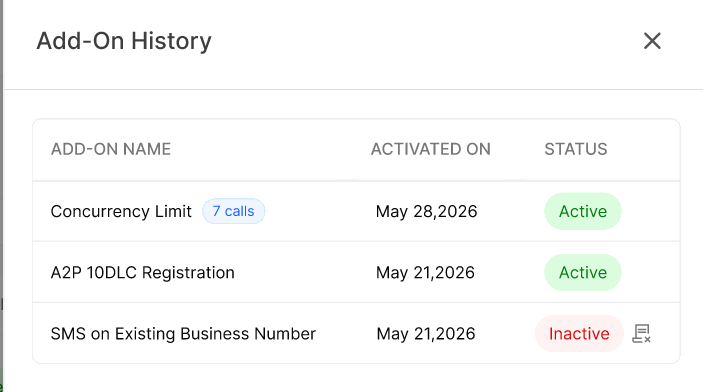
Hover over or select an Inactive status to review Deactivated On, the cancellation reason and optional free-text feedback.
Open a Business for support or configuration
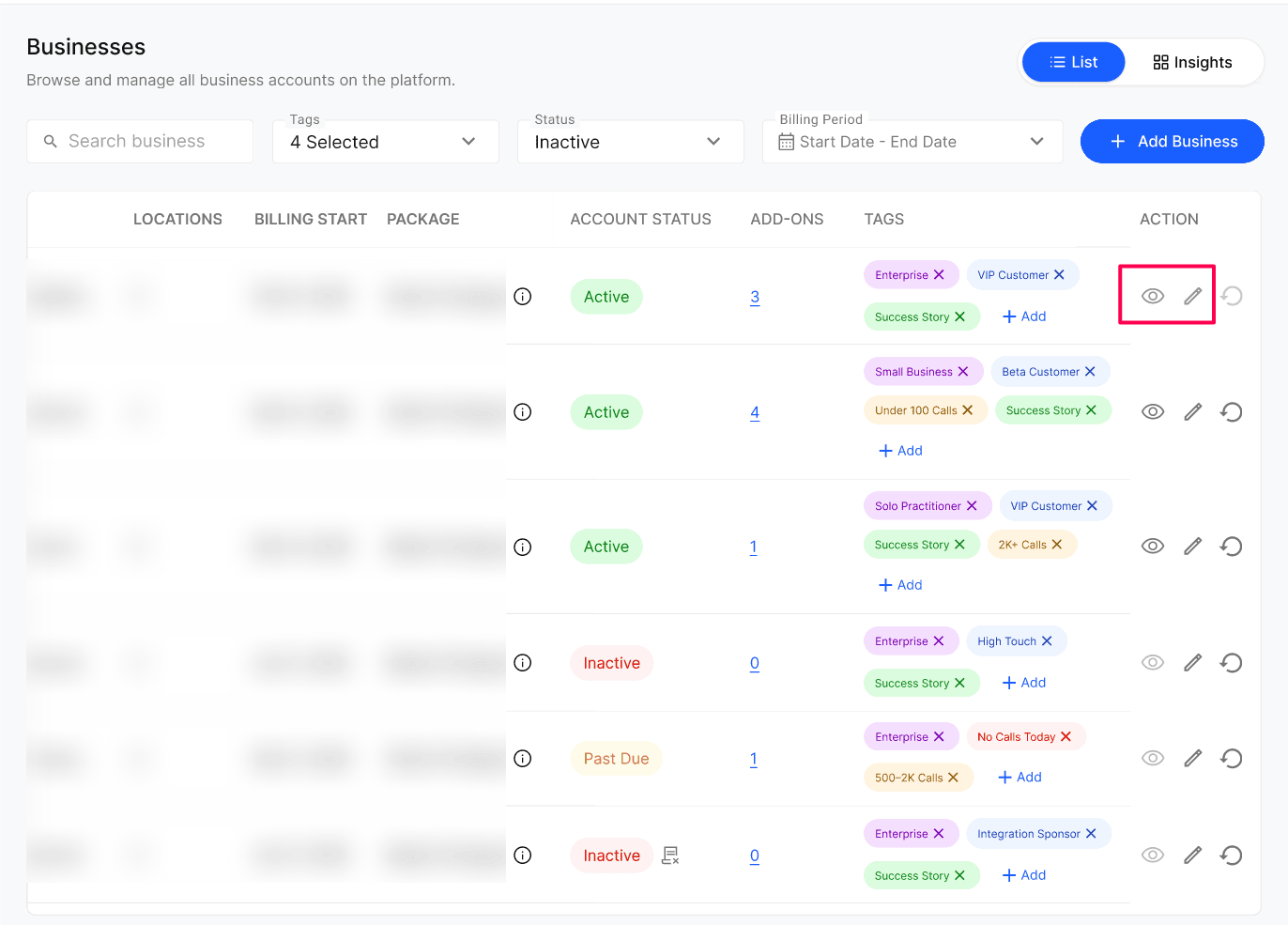
Select View (eye icon) to impersonate the Business and open its Business Portal. The Business Audit Trails records the Agency user’s name and timestamp.
Select Edit (pencil icon) to open the detail page for profile and configuration changes, including contact information, locations, Agents and integrations. Follow Manage Business Details & Configurations for each task.
Reset test activity and start billing
Complete testing and verify the account is ready for delivery before go-live.
Select Reset & Start Billing (circular arrow icon) and review the confirmation modal’s deletion list.
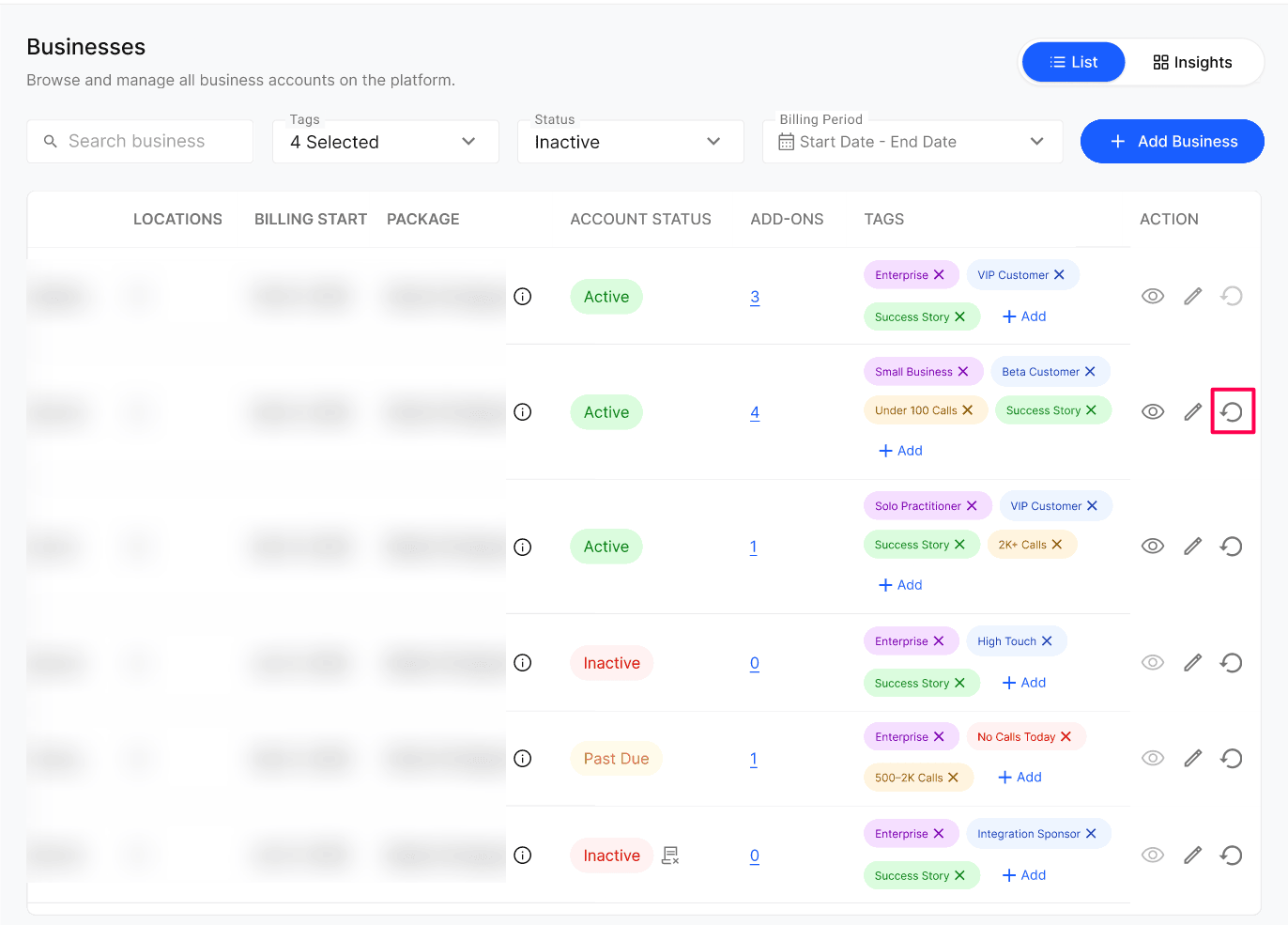
Enter the exact Business name in Business name, then select Reset & Start Billing.
Verify the billing start and disabled reset icon. Do not repeat the action; it cannot be undone.
Expected result
You can find the intended account, see saved tags and add-on history, and open the appropriate support or configuration view. A confirmed reset clears test activity and starts the Business billing cycle without reversing Agency usage charges.
Verify the result
Check the Business Code after filtering or opening the account.
Reopen the tag panel or Billing History to review the intended account’s saved tags and add-on details.
After impersonation, review the Business Audit Trails for the Agency user and timestamp.
If you performed the one-time handover reset, check the Billing Start value and disabled reset action.
Troubleshooting
Recovery or rollback
Correct a mistaken tag through the tag panel and verify the row again. Reset & Start Billing cannot be reversed; never use it as a routine cleanup tool. For an unintended reset, contact Kickcall Support with the Business Code and action time rather than promising data recovery.
Frequently Asked Questions
Will the business owner know when I impersonate them?
Will the business owner know when I impersonate them?
Yes. The session is logged in the business's Audit Trails with your agency user's name and timestamp, so there is full transparency.
Can I create a live business from + Add Business?
Can I create a live business from + Add Business?
Technically yes, but it's not recommended. Use the Business Onboarding form for any live business — it captures all the details required for billing, telephony and go-live. Keep + Add Business for internal test, demo or exploration accounts.
Why can I reset a business only once?
Why can I reset a business only once?
Reset is a one-time handover step between the build/test phase and go-live. Since the Reset & Start Billing button also marks the official start of the business's billing cycle, it can only be triggered once — allowing repeated resets would also reset the billing start date and break billing continuity.
Can the business see the tags I apply to it?
Can the business see the tags I apply to it?
No. Tags are internal to your agency and are only visible inside the Agency Portal. Nothing appears in the Business Portal.
How do I remove a tag?
How do I remove a tag?
Click the × on the tag chip directly in the Tags column of the row, or open + Add and untick it in the dropdown, then click Save.
Are churn signal tags applied automatically?
Are churn signal tags applied automatically?
Yes. Churn signal tags are applied automatically based on the signals identified in Businesses Insights. Your team can also add or update these tags manually after reviewing and confirming the signal.
What does the Add-ons number on a business row mean?
What does the Add-ons number on a business row mean?
It is the count of currently active add-ons on that business. Click the number to open Add-Ons History and see every add-on that has been activated or deactivated.
Can I activate or deactivate an add-on for a particular Business from the Agency Portal?
Can I activate or deactivate an add-on for a particular Business from the Agency Portal?
No. Add-ons are managed inside the Business Portal. The agency view is read-only and shows status, activation dates and deactivation reasons so your team can support the account.
Why does an add-on show Inactive in Add-Ons History?
Why does an add-on show Inactive in Add-Ons History?
The business cancelled the add-on from their portal. Hover over the tooltip to see the deactivation date, cancellation reason and any feedback the business provided.
What does the cancellation icon next to a business mean?
What does the cancellation icon next to a business mean?
It means the business cancelled its own subscription. Hover over or click the icon to see the reason they selected and any feedback they provided.
Where does the cancellation reason and feedback come from?
Where does the cancellation reason and feedback come from?
They are captured from the cancellation flow in the Business Portal. When a business owner cancels, they choose a reason from a dropdown and can type additional feedback; that same information is surfaced in the agency All Businesses list.
Why don't I see the cancellation icon on every Inactive business?
Why don't I see the cancellation icon on every Inactive business?
The icon only appears when a business self-serves the cancellation. It is not shown if the account was set to Inactive or Archived by an agency user, or if it became inactive because of a failed payment.
Related articles
Was this helpful?
Still need help? Ask the team