How Do You Investigate Access and Configuration Changes in Kickcall?
Use business audit trails to investigate recorded access and configuration changes
Written By Maruf Ansari
Last updated 9 days ago
When an AI agent starts behaving differently, a Location disappears, or a setting changes unexpectedly, you need to know exactly who made the change and when. Audit Trails gives you a time-stamped history of every login, access and configuration change on your Business so you can investigate issues in minutes instead of guessing.
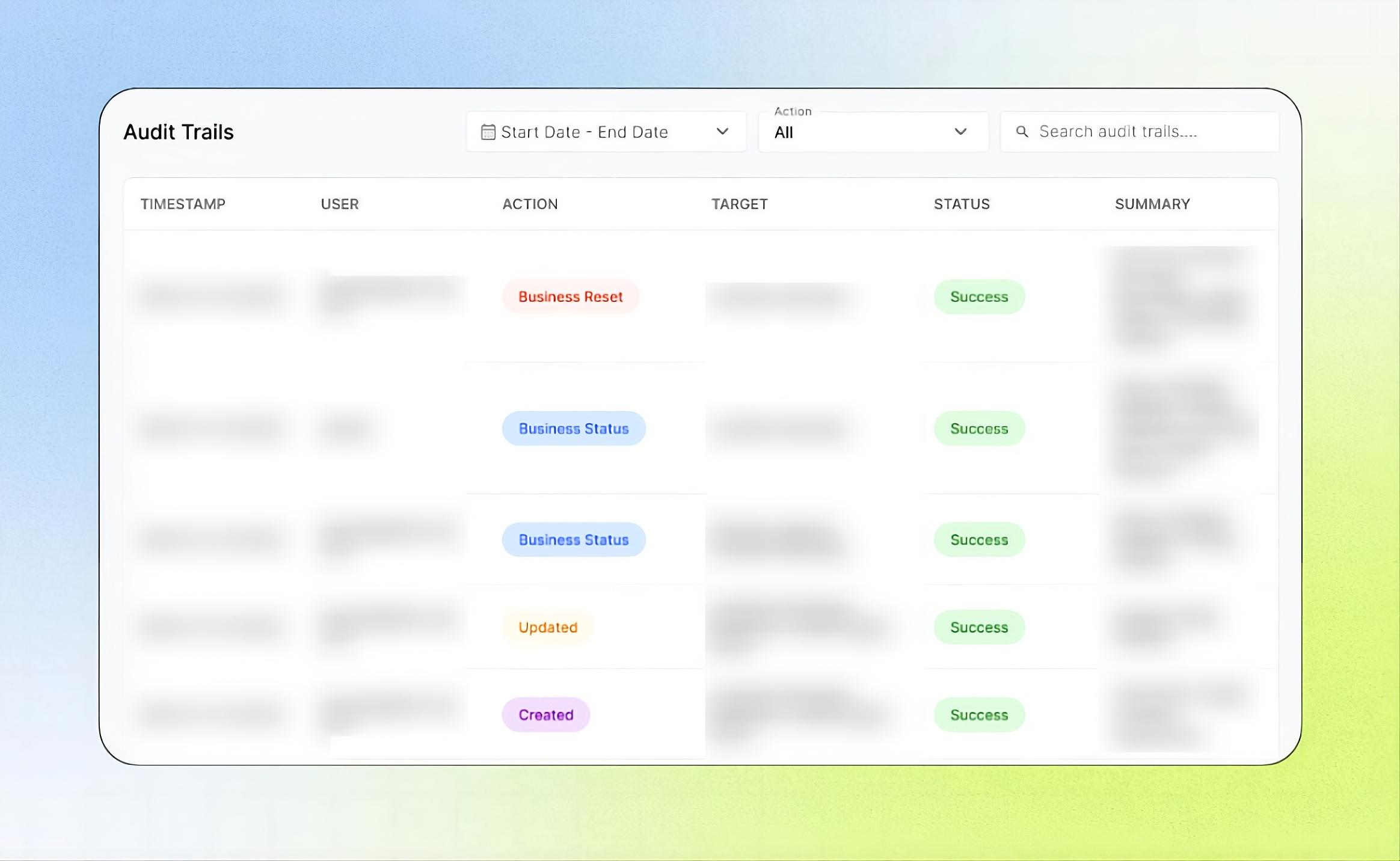
Audit Trails Overview
Audit Trails is an automatically maintained, chronological activity log in the Business Portal that records changes made to AI agents, Locations, Operators, integrations, Agency access, and Guardian AI activity. Entries cannot be edited or deleted by Business users, Agencies, or admins, providing a reliable record for investigating changes, reviewing account activity, and identifying unexpected logins or repeated failures. Users can filter entries by date or action to trace activities back to the responsible user. This guide is intended for Business users and owners who need visibility into account activity
Before you start
You need access to the Business Portal.
Have the approximate event time, affected feature, and relevant user or account details available.
Important notes
Note: Audit Trail entries cannot be edited or deleted by anyone. If an entry looks wrong, it reflects what actually happened, use it as the starting point for your investigation.
Audit Trails records activity, it does not undo changes. To reverse a change, update the setting itself.
Not every event is tracked yet. Tracking is being expanded over time; to request a new event type, contact your Agency.
Find an event
Open Audit Trails from the Business Portal sidebar.
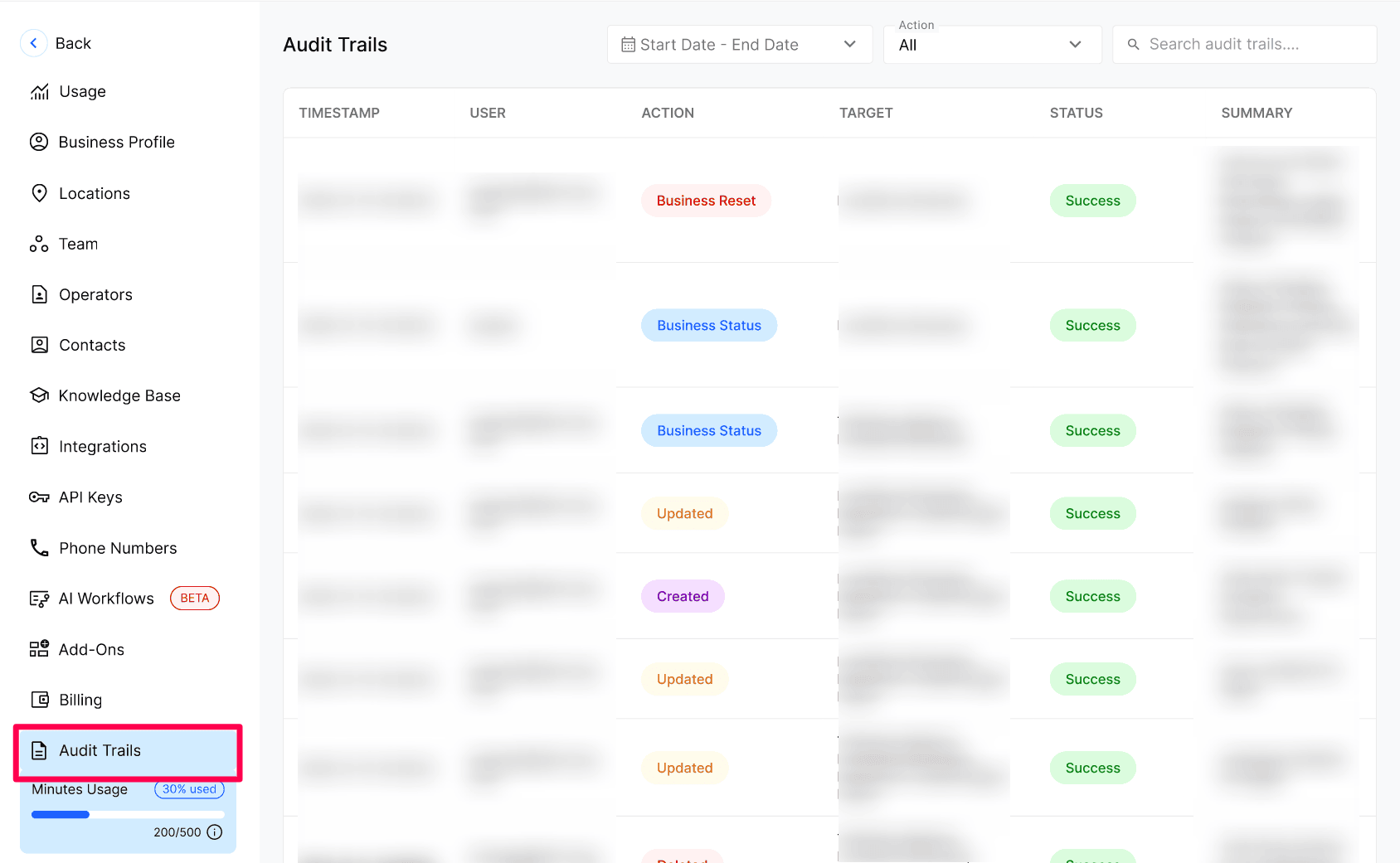
Select a date range that includes the event. Use the action filter and search box to narrow the results.
Review the timestamp, user, target, status, and summary.
Compare related entries before and after the event to understand the sequence.
Understand the columns
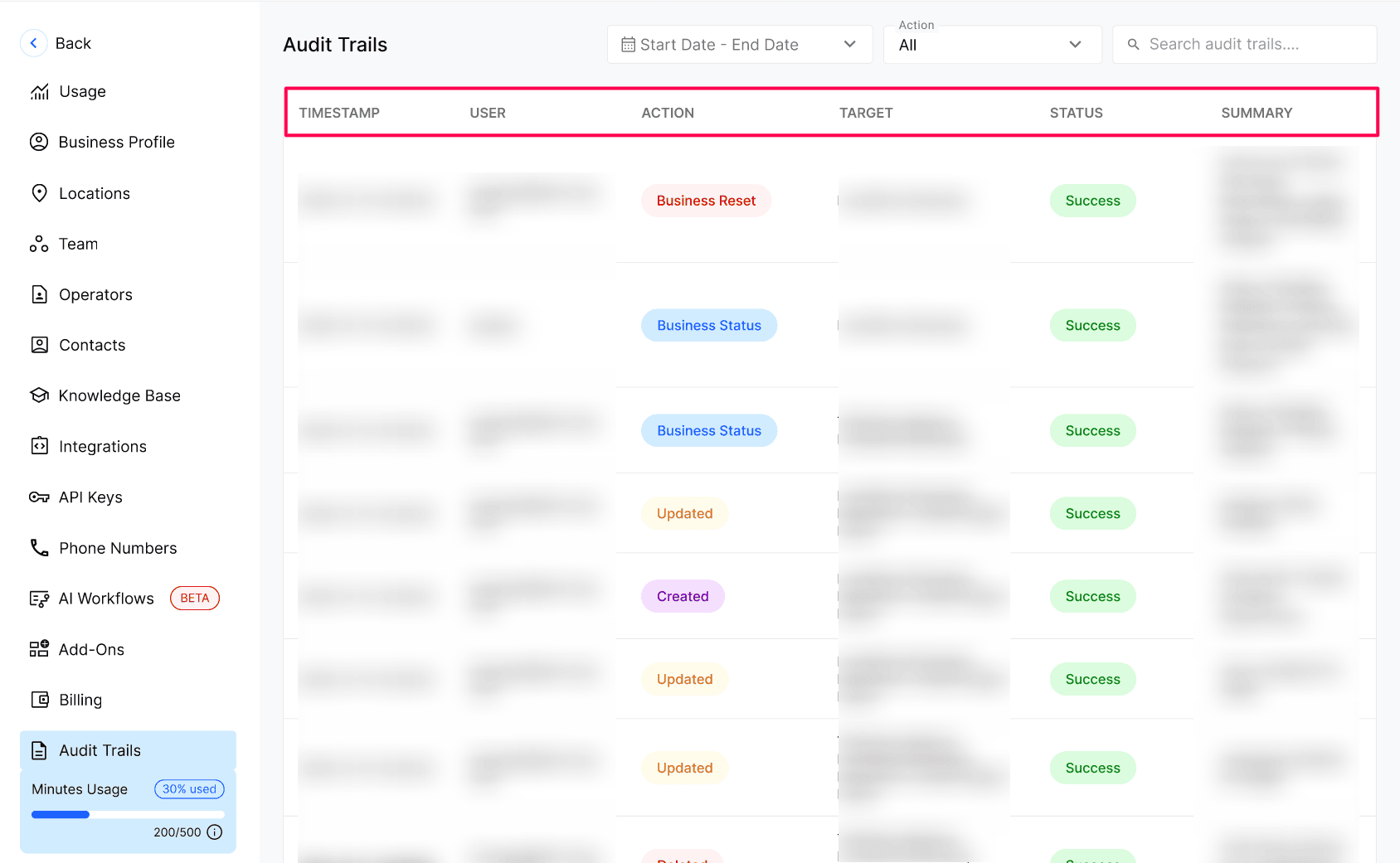
Understand tracked activity
Who the "User" can be
Business user: someone on your team, shown by email.
Agency user: someone from your Agency who accessed your Business.
System: an automatic platform action, such as pausing your Business after a failed payment.
Guardian AI: an automated AI agent that logs in to your Business, reviews calls, configuration, agent behavior and integrations, and reports issues to your Agency. Every action it takes is logged here for full transparency.
Verify your findings
Make a small, safe change. For example, update a Location's description and save it.
Return to Audit Trails and set the date range to today.
Confirm a new entry appears with your email, the Updated action and the Location as the target.
Troubleshooting
Recovery
Audit Trails cannot reverse a change. To recover:
Use the entry's Target and Summary to identify what changed.
Open that setting (for example, the Agent or Location) and correct it. For agent changes, you can compare and restore earlier releases from Versions.
Return to Audit Trails to confirm your correction was logged.
If you are not technical or the change involves agent workflows, raise a ticket with your Agency instead of editing it yourself, include the timestamp, user and target.
Frequently Asked Questions
Can anyone edit or delete Audit Trail entries?
Can anyone edit or delete Audit Trail entries?
No. Entries are system-generated and immutable. No Business user, Agency user or admin can change or remove them.
Will I see when my Agency opened my Business Portal?
Will I see when my Agency opened my Business Portal?
Yes. A Business Checked in entry is recorded every time an Agency user (or Guardian AI) accesses your Business, with the user, target and timestamp.
Who is Guardian AI?
Who is Guardian AI?
Guardian AI is an automated AI agent that logs in to your Business, reviews your records and configuration, and reports issues to your Agency. Because it acts like a user, every login and action it performs appears in your Audit Trails.
Why do some entries show "System" as the user?
Why do some entries show "System" as the user?
"System" means the platform performed the action automatically. For example, pausing your Business or moving it to Past Due after a failed payment.
Can I filter by action type or user?
Can I filter by action type or user?
Yes. Use the Action dropdown to filter by action and the search box to find entries by user or target.
Related articles
Was this helpful?
Still need help? Ask the team