How Do You Check Kickcall Business Usage, Invoices, and Payment Status?
Review business usage, invoice details, and payment status from the Kickcall billing area
Written By Maruf Ansari
Last updated 1 day ago
A failed card or a surprise charge can interrupt your AI agent and your team. Billing shows you what your Business is paying for, what this month will cost, and every past invoice — so you can keep payments current, track add-on and usage charges, and avoid service interruptions.
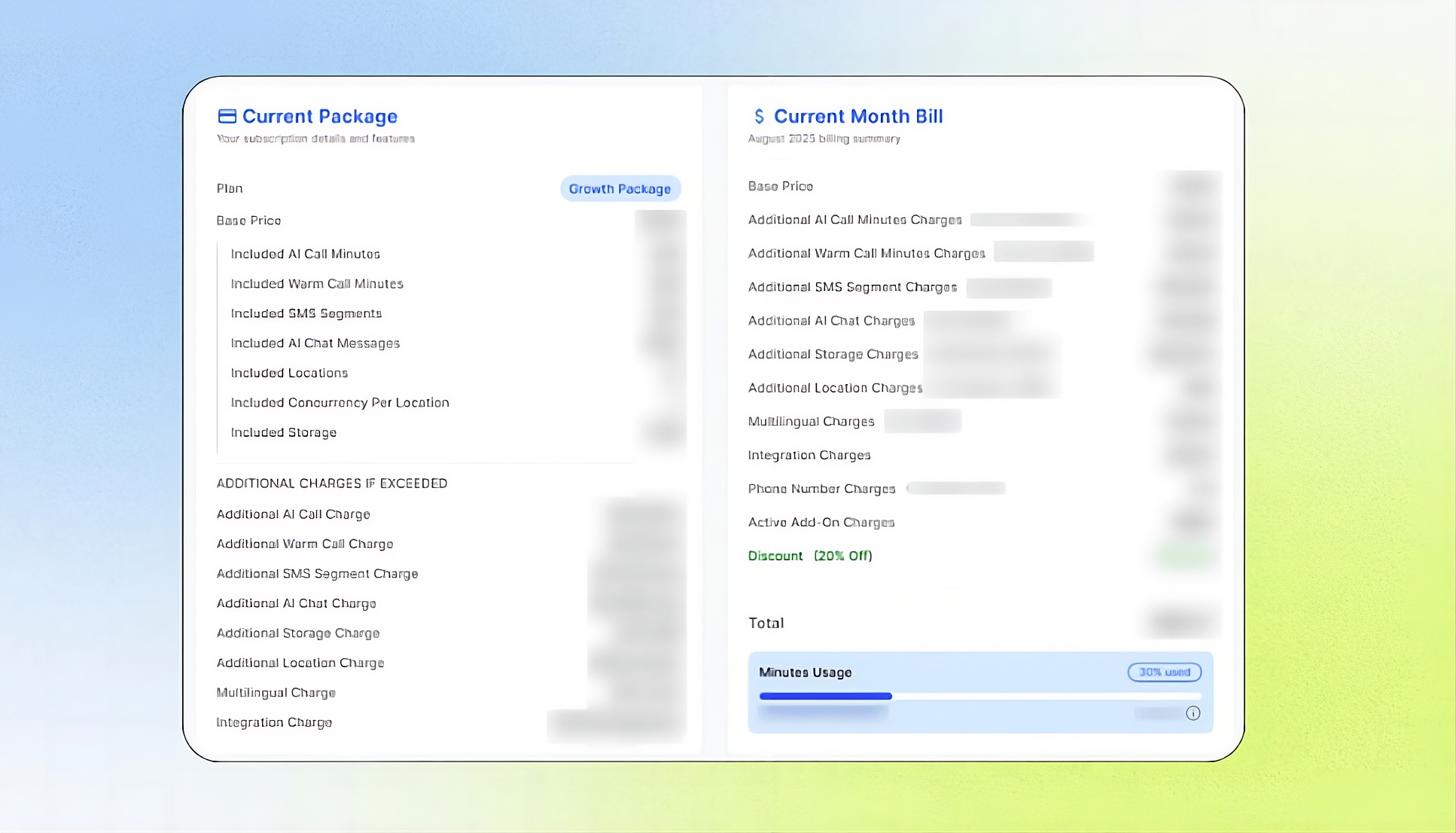
Billing Overview
The Billing page in the Business Portal lets you manage payment methods, review your assigned package, monitor current monthly charges, check active add-on and integration usage costs, and access billing history, including invoices, transactions, and refunds. You can also cancel your subscription, which takes effect immediately and includes a summary of applicable charges.
This guide helps Business owners and users responsible for payments maintain a valid payment method, understand their bills, review past invoices, and resolve failed payments to avoid service disruptions.
By the end of this guide, you will know where to review billing information, how to replace a default card safely, how to understand invoice statuses, and what happens when a payment fails.
Important notes
Kickcall uses a post-paid billing model. The bill is generated on the last day of each month for usage accumulated during that month.
The default card is charged automatically. An active subscription must always have one default card. Add a replacement card and make it the default before removing the old default card.
Package changes must be requested through your Agency.
If a payment remains unresolved, the business status will automatically transition from Active to Past Due, and then to Inactive, during the next billing cycle.
When a business moves to inactive status, it will lose system access, have its integrations disconnected, its phone numbers released, and its business data scheduled for permanent deletion.
Do not wait for the next billing cycle to resolve a failed payment..
Before you start
Make sure you have:
Access to the Business Portal Billing page.
A valid payment card if you are replacing or adding a payment method.
Access to your Agency if you need to change the package or included services.
The relevant billing period or invoice date if you are investigating a charge.
Manage Your Payment Method
Add a Card
Open the Business Portal and navigate to Billing.
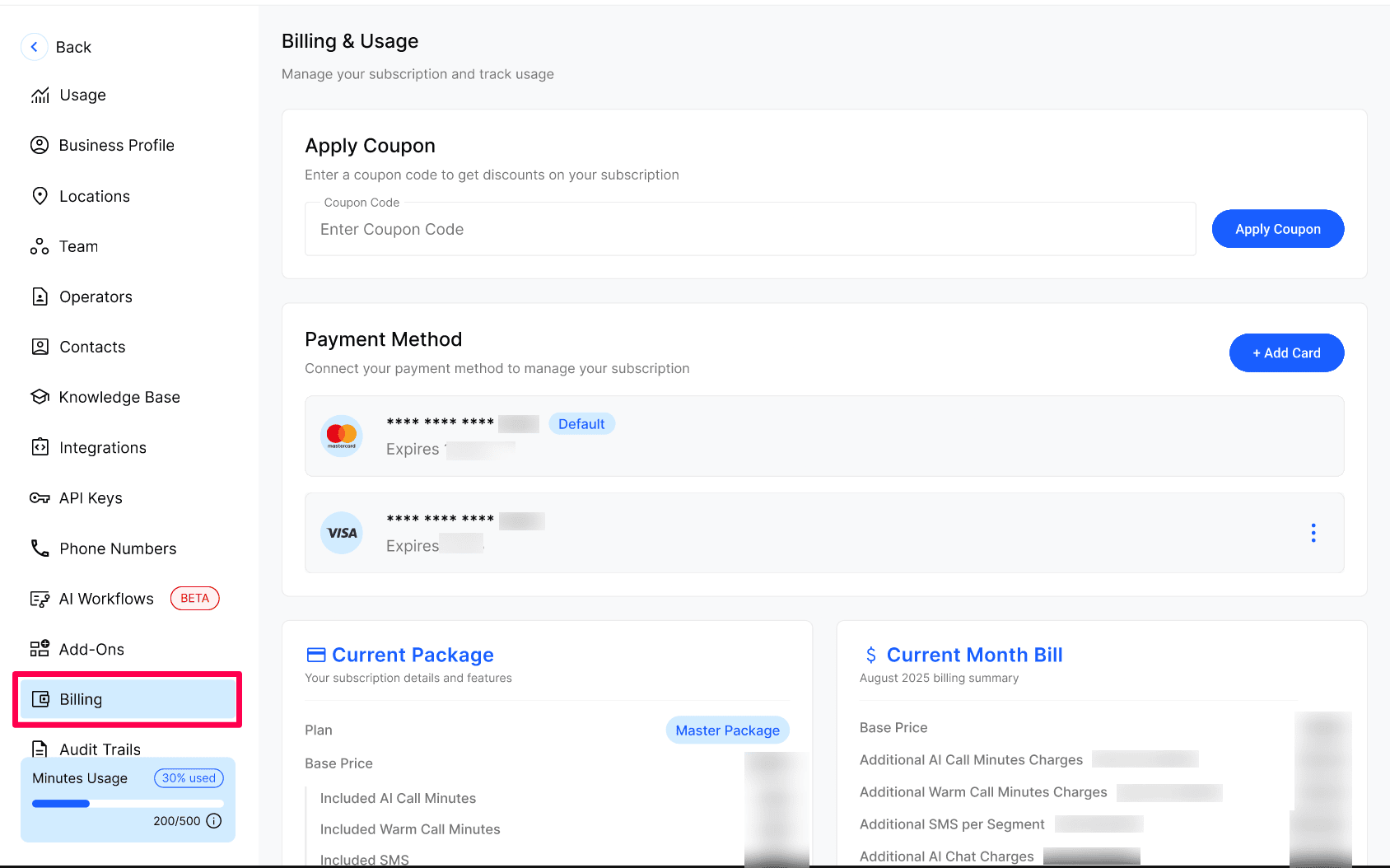
Under Payment Method, review the cards attached to your Business.
Select the option to add a payment method.
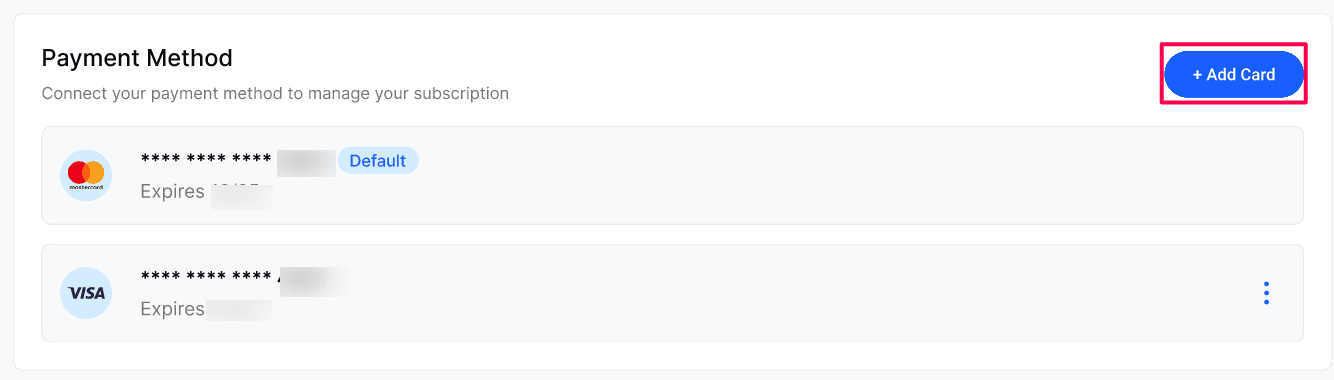
Enter your card details through the secure payment form. Save the new card.
Replace the default card
Add the replacement card. Mark the new card as Default.
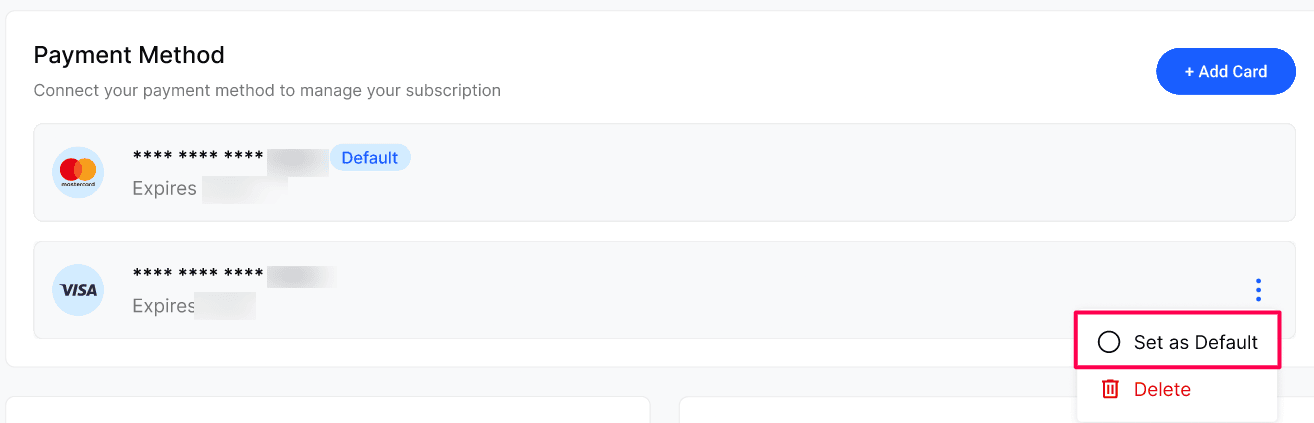
Confirm that the new card is the default payment method.
Remove the old card using the row action menu. If multiple cards are attached, use the row action menu to switch the default card.
Recover from a failed payment
Open Payment Method. Add a valid replacement card or update the existing card.
Trigger an immediate payment retry. Confirm that the payment succeeds.
Confirm that the Business returns to Active.
Review the Current Month Bill & Package
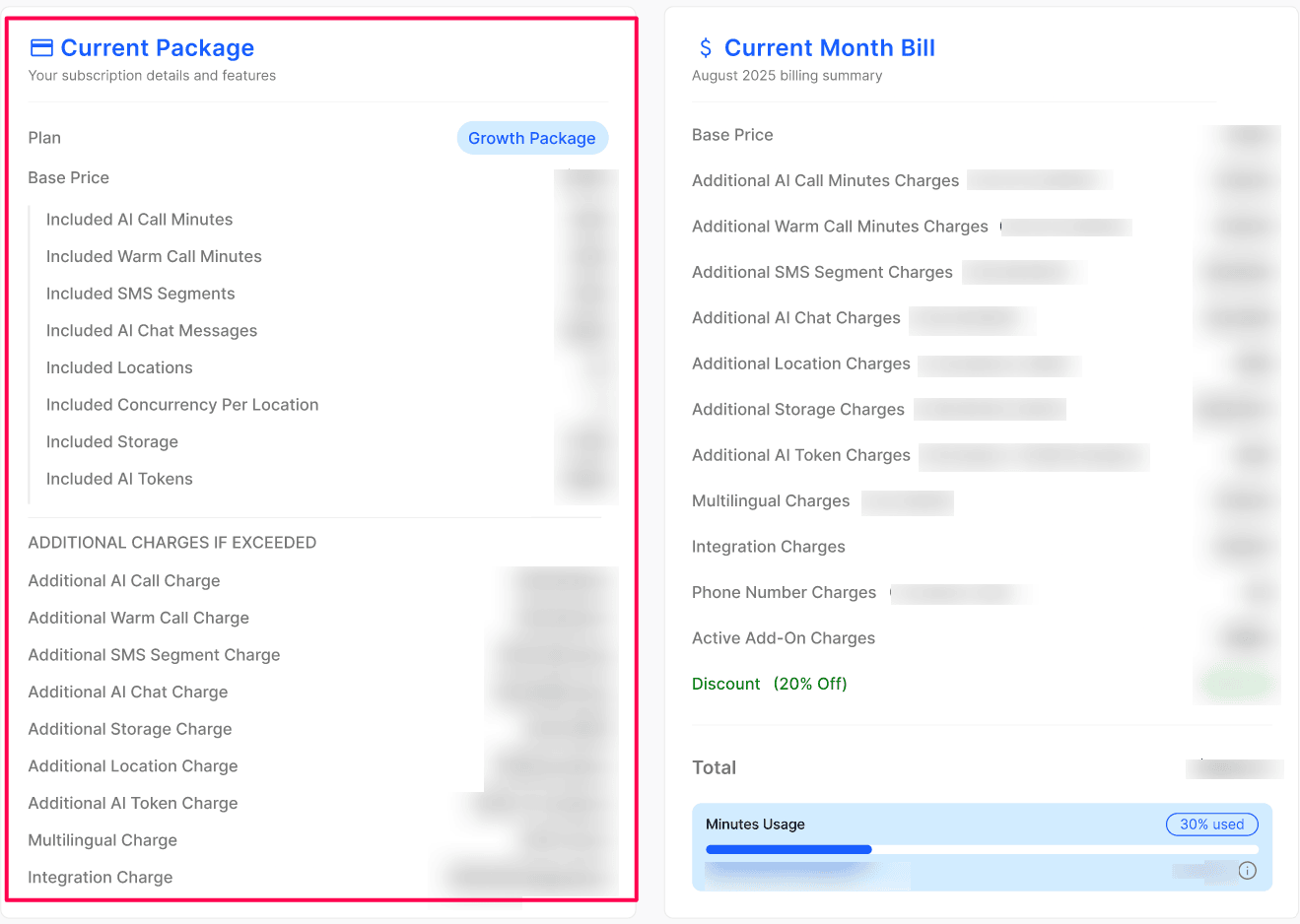
The Current Package section displays the package assigned by your Agency, including the plan name, recurring base price, included AI Call minutes, Warm Call minutes, AI chat messages, SMS Segments, locations, Concurrency per location, storage, AI tokens, etc.
It also outlines additional usage charges that apply when you exceed the package limits, such as extra call minutes, AI chat messages, storage, locations, multilingual usage, integrations, and premium support.
Note: The package is assigned and controlled by your Agency. To upgrade, downgrade or change inclusions, please reach out to your Agency.
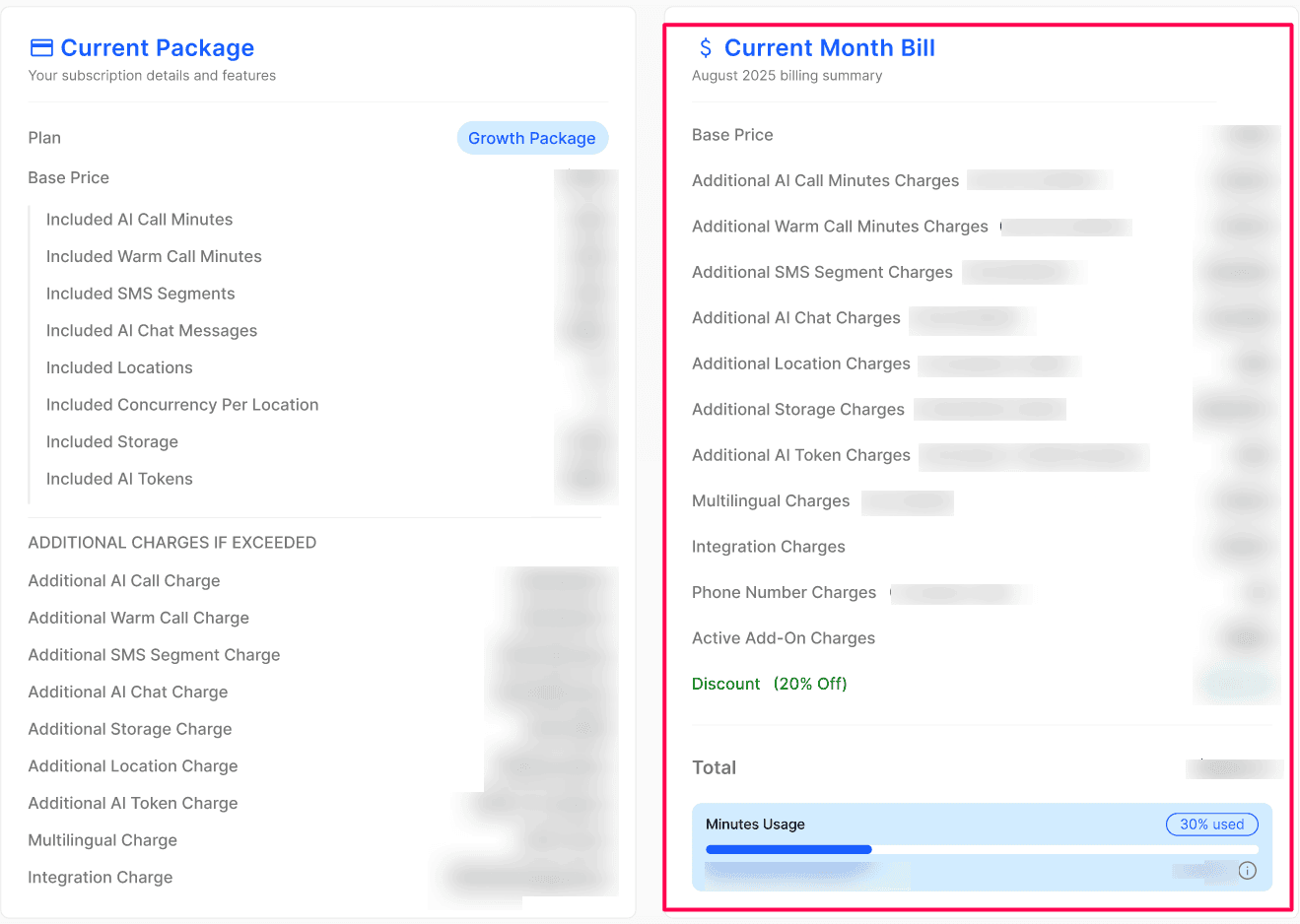
The Current Month Bill section displays the charges accumulated during the current billing cycle, including the base price, additional usage, storage, extra locations, multilingual usage, integration charges, premium support, and applicable discounts.
It also shows the current total, usage progress for included minutes, and remaining minutes. The displayed total is an estimate of the amount expected to be charged at the end of the billing cycle and may change based on additional usage before the cycle ends.
Review Active Add-Ons
Shows pricing and usage for every add-on active in the current billing cycle. Click Manage Add-Ons to open the Add-Ons page.
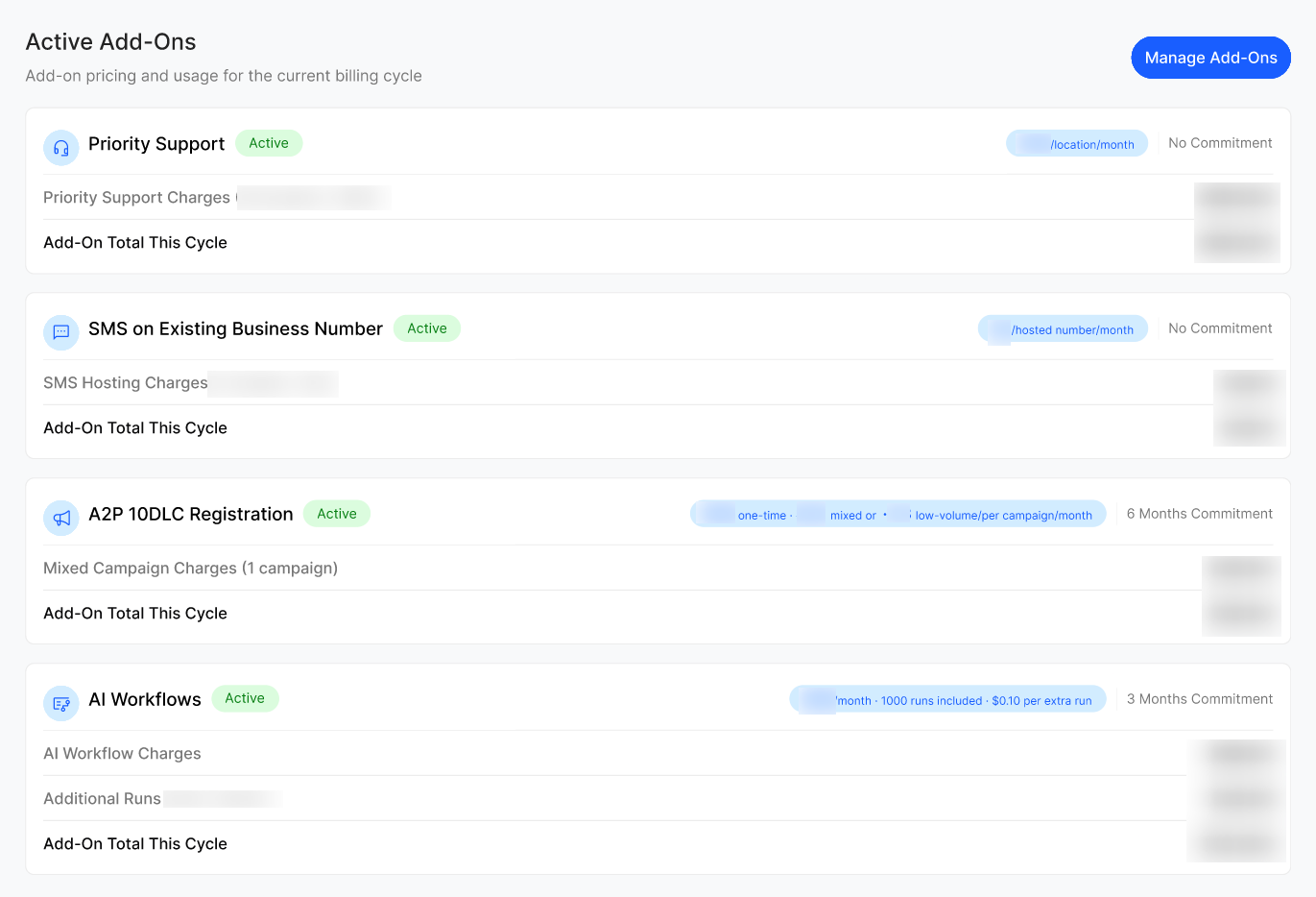
AI Workflow usage: a usage bar shows runs used against the included allowance. Runs above the allowance are multiplied by the per-run rate and listed as Additional Runs. The Add-On Total This Cycle combines the recurring charge with any Additional Runs.
Review Integration Usage Details

The Integration Usage Details section shows costs by connected integration. Calculated as:
Integration price × number of credentials in use
Review this section when you need to identify which integration is contributing to the current bill.
Review Billing History and Download Invoices
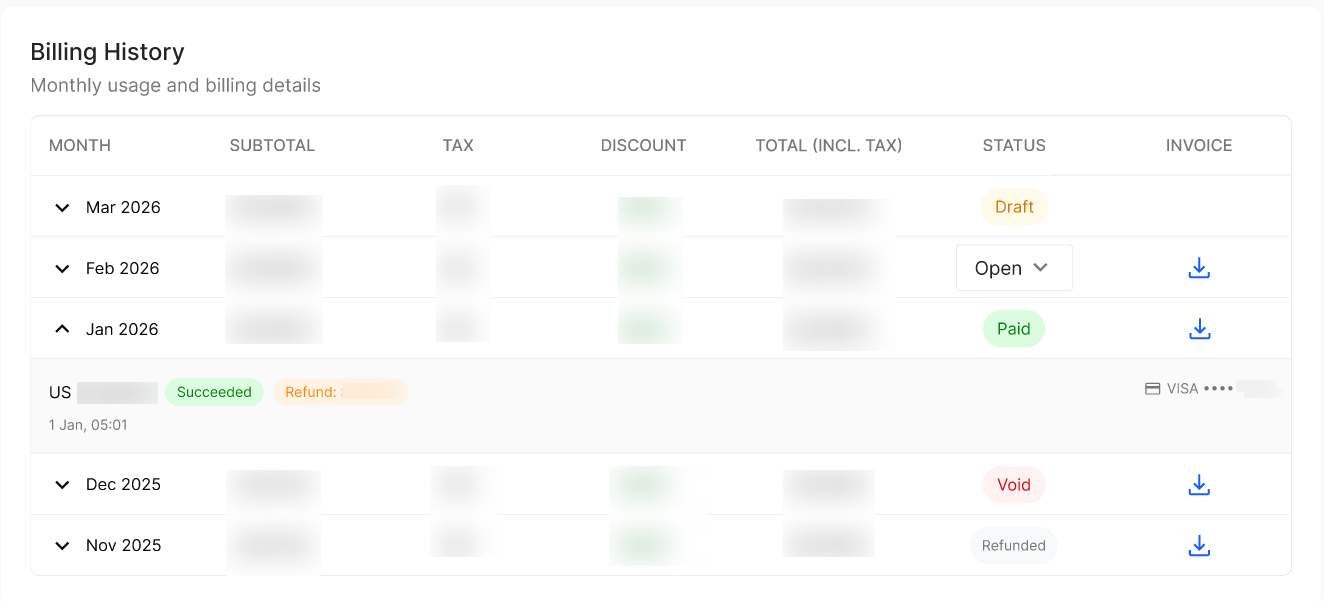
Go to Billing History. Each month shows Subtotal, Tax, Discount, Total (incl. tax) and Status.
Click the arrow icon on a row to see the payment transaction: amount, Succeeded / Failed status, card used, timestamp and any refund.
Click the download icon to get the invoice PDF.
Invoice status reference
What happens if a payment fails
Your Business isn't suspended right away. It follows this lifecycle:
Cancel the subscription
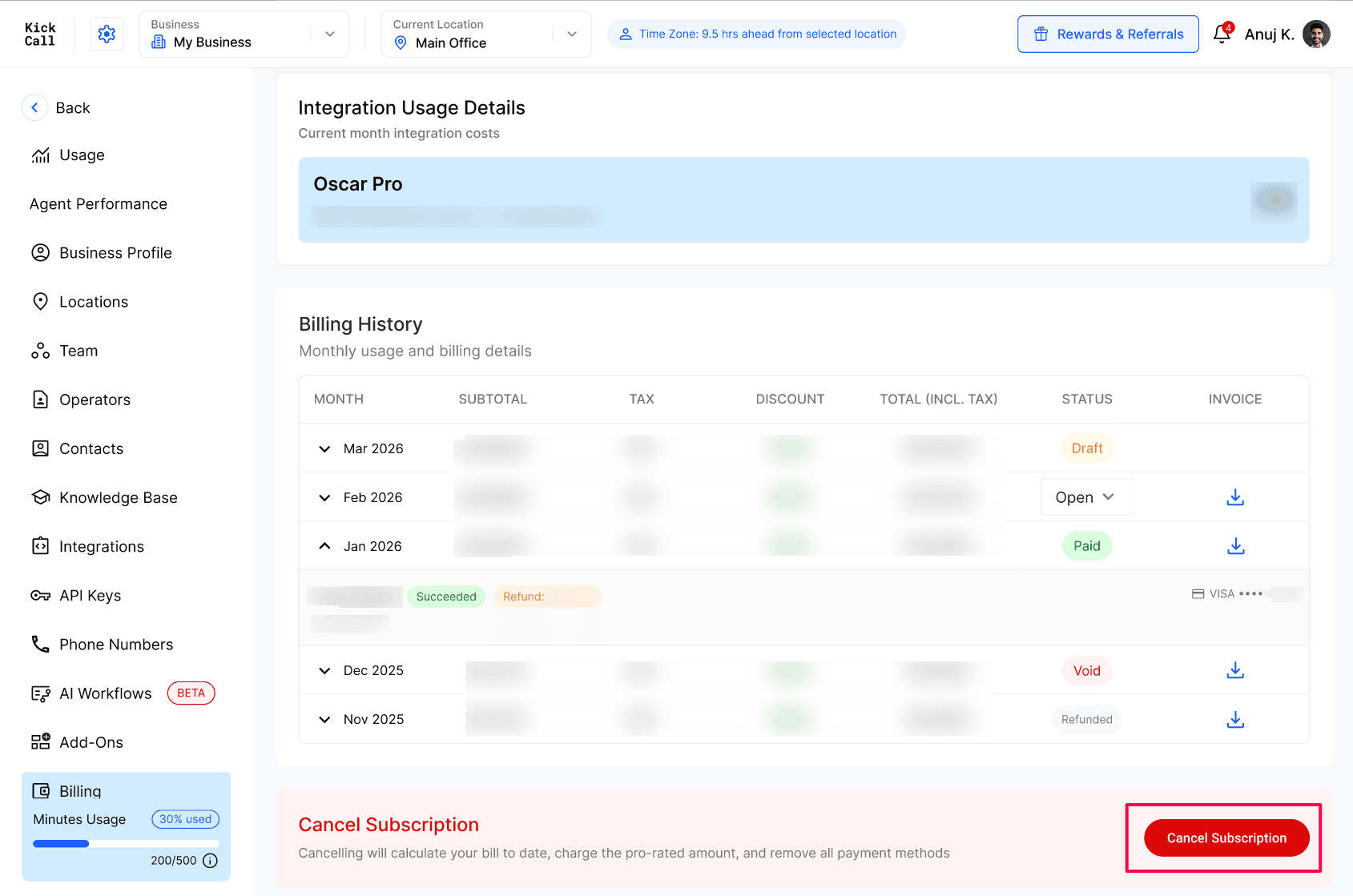
Warning: cancellation takes effect immediately. After 30 days, your Business is archived and all its data is permanently deleted.
Click Cancel Subscription at the bottom of the Billing page.
In the Cancel Subscription? dialog, review the Billing period, Days used, Package Total (prorated for days used), Add-Ons Total and Total.
Select a Reason (required) and add optional Feedback. Your Agency can see both.
Confirm the cancellation.
What happens next:
The Total is charged to your default card right away. Add-ons are charged according to their commitment periods, so an add-on with a remaining commitment can be charged for that commitment, not only the days used.
All saved payment methods are removed.
Your Business becomes Inactive and no customer activity is processed.
You have a 30-day grace period to restore services through your Agency's support. After that, the Business is Archived and its data is permanently deleted.
Expected result
One card is marked Default in Payment Method.
Current Month Bill, Active Add-Ons and Integration Usage Details reflect this month's charges.
Each past month appears in Billing History with a status and downloadable invoice.
Verify the result
Confirm a Default card is shown and hasn't expired.
Compare the Current Month Bill line items with your package, active add-ons and integrations.
Expand last month's Billing History row and confirm the transaction shows Succeeded.
Troubleshooting
Recovery
Failed payment: add a valid card and retry immediately; services resume once paid.
Cancelled by mistake: contact your Agency's support within the 30-day grace period to restore services.
Invoice looks wrong: contact your Agency with the invoice month and transaction details.
If you cancel the subscription accidentally, contact the Agency or Support immediately.
Frequently Asked Questions
When is my Business charged?
When is my Business charged?
On the last day of every month, for usage accumulated during that month, using your default card.
Why can't I remove my only card?
Why can't I remove my only card?
An active subscription always needs a default card. Add the new card, mark it Default, then remove the old one.
What happens if my payment keeps failing?
What happens if my payment keeps failing?
Retries run for 7 days while services continue. Then your Business is Past Due. If it's still unpaid by the next billing cycle, it becomes Inactive, access is blocked, and data is permanently deleted.
Where can I see add-on charges?
Where can I see add-on charges?
In Active Add-Ons on the Billing page. Each add-on shows its pricing, commitment, charge calculation and Add-On Total This Cycle.
What happens if I cancel mid-month?
What happens if I cancel mid-month?
Your package is charged pro rata for the days used and add-ons according to their commitments. The total is charged immediately, saved cards are removed, and your Business becomes Inactive with a 30-day grace period.
Can I download my invoices?
Can I download my invoices?
Yes. Every row in Billing History has a download icon for the invoice.
Related articles
Was this helpful?
Still need help? Ask the team