How do I track agency earnings and unpaid business invoices in Kickcall?
Track agency earnings, compare revenue trends, find businesses with unpaid invoices, and review their billing history in the Kickcall Agency Portal.
Written By Maruf Ansari
Last updated 9 days ago
When you manage dozens of businesses, knowing how much revenue is coming in — and which businesses are slipping into unpaid status — can mean digging through invoices one business at a time. The Revenue module gives you a single screen to track agency-wide trends, see which businesses drive revenue, and check the payment status of any individual business.
Use this page to monitor agency-wide performance, spot businesses that are slipping into Open (unpaid) status, and pull billing history for any business when you need to share invoices or check refunds.
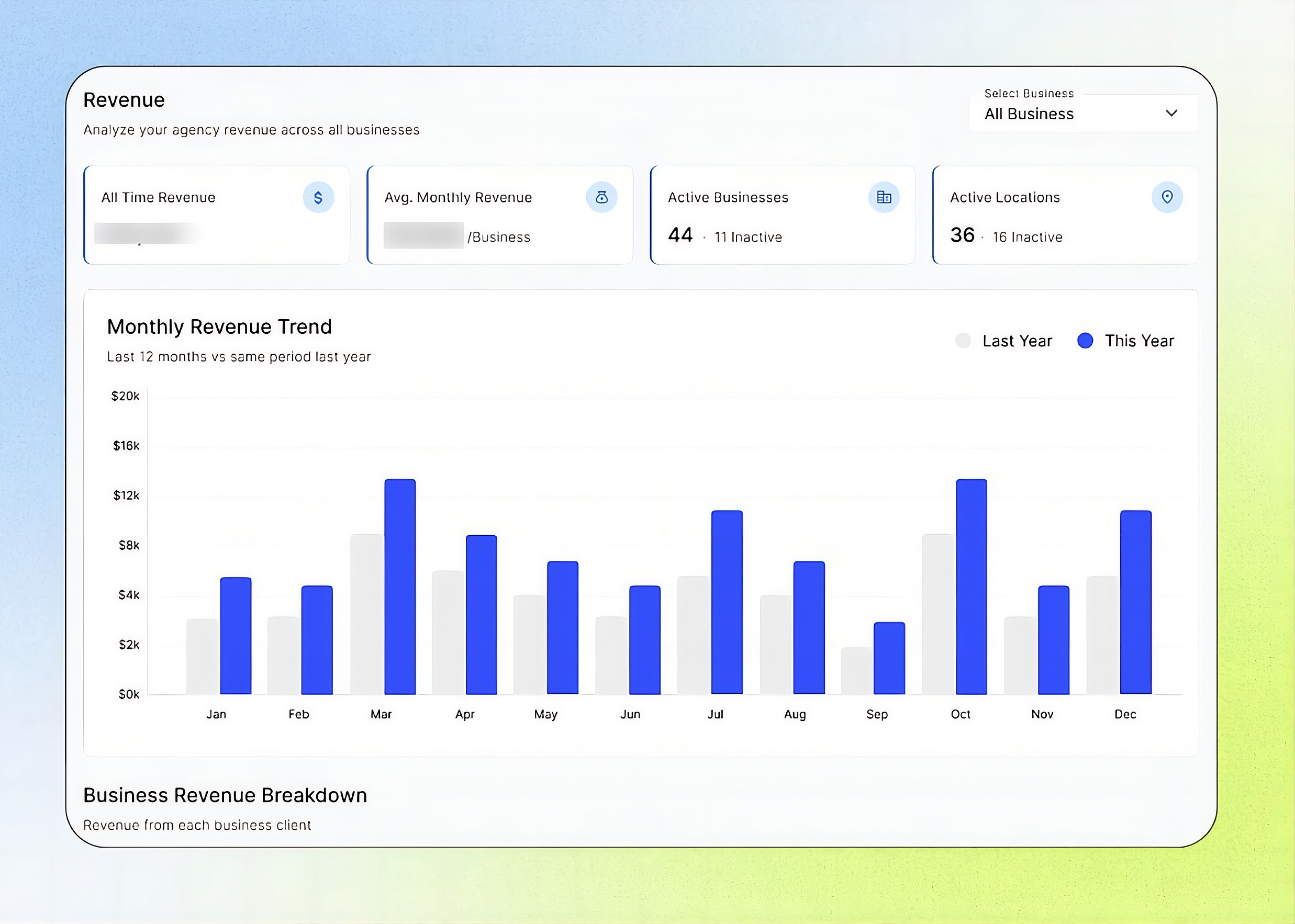
Revenue Overview
The Revenue page in the Agency Portal consolidates billing data across all businesses managed by your Agency. It provides summary totals, month-over-month revenue trends, and a per-business breakdown with access to detailed billing history, including transactions and refunds. You can track overall and monthly revenue, compare this year's performance with the previous year, and identify businesses with outstanding invoices or expired payment cards. Monitoring this information helps your Agency follow up on payment issues and reduce the risk of subscription lapses or service disruptions. This guide is intended for Agency administrators and team members responsible for billing, revenue monitoring, and payment follow-ups.
Important notes
Open means an outstanding unpaid invoice; Paid means the latest invoice is settled.
A payment reported outside the platform may remain Open until reconciled.
Transaction IDs, card brand/last four digits, and refund records are available only for agencies using Kickcall's managed Stripe. External-processor agencies see monthly summaries and invoices.
Refunds are deducted from the month in which they are issued in the Monthly Revenue Trend.
Before you start
You need access to the Agency Portal's Revenue page.
At least one business must have billing activity for data to appear.
Review revenue and identify payment follow-up
Open the Revenue page. Four summary cards show at a glance: All Time Revenue (total revenue collected since the agency started), Avg. Monthly Revenue (average monthly revenue per business), Active Businesses (with the inactive count shown beside it for comparison), and Active Locations (with the inactive count shown beside it).
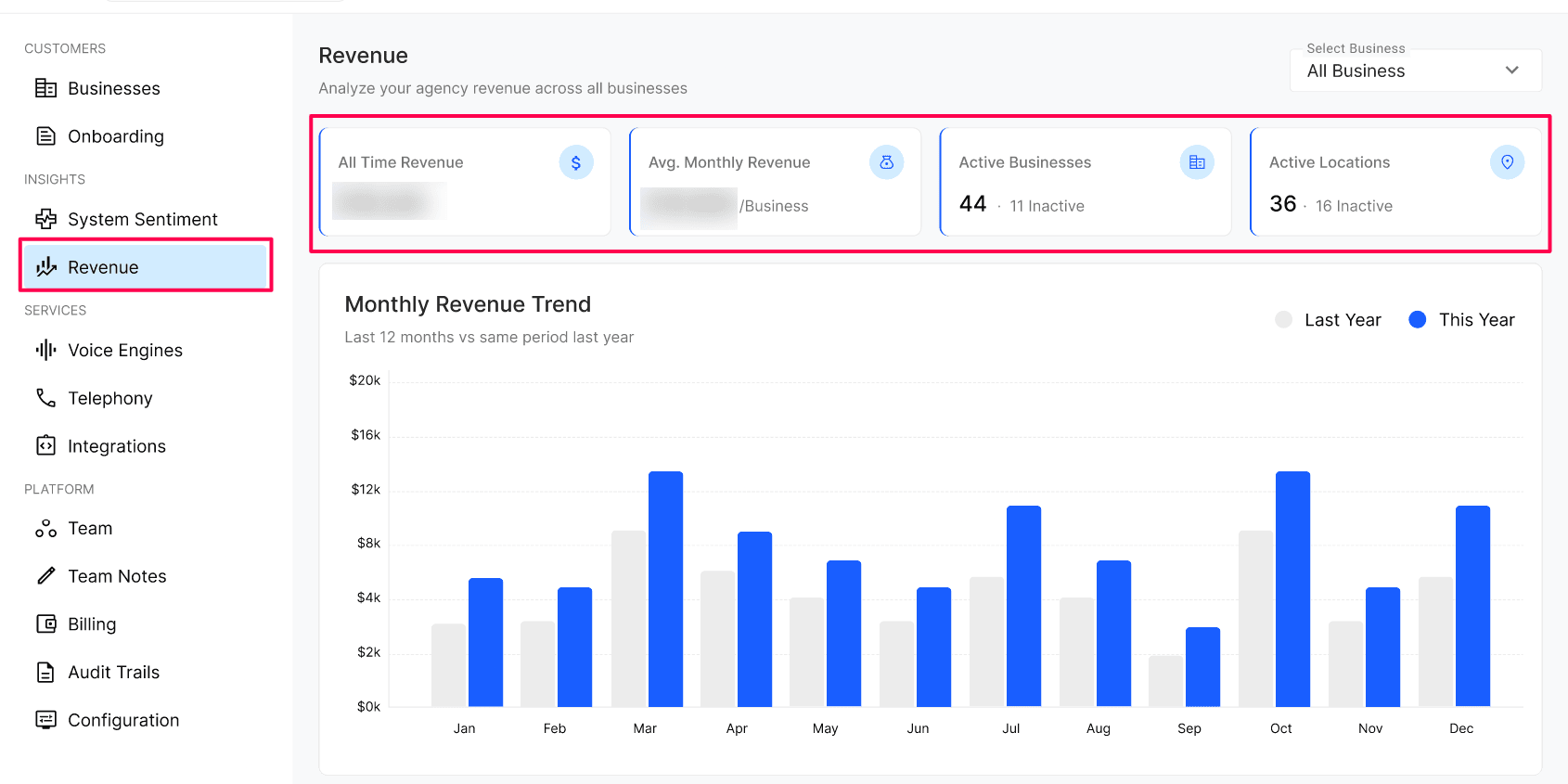
Use the All Business filter in the top-right to view agency-wide results or select a specific business. The summary cards, revenue chart, and breakdown table all update to match your selection.
Review the Monthly Revenue Trend chart, which compares This Year vs Last Year for the last 12 months, side by side for every month (Jan–Dec). Hover any month to see exact figures.
Use the trend chart to spot year-over-year growth, seasonal patterns, and anomalies — a sudden dip in a single month usually means a business churned or has unpaid invoices. Drill into the breakdown table below to confirm.
Find businesses that need follow-up
The Business Revenue Breakdown table lists every business the agency manages, with the financial signals you need to act on.
Review each row: Business Name (with a payment method icon — blue means a healthy card is on file, red means the card is expired, no icon means no card is on file), Package, All Time Revenue, Last Month Revenue, Locations, Last Payment, and Status (Paid in green means the latest invoice is settled; Open in purple means there is an outstanding invoice).
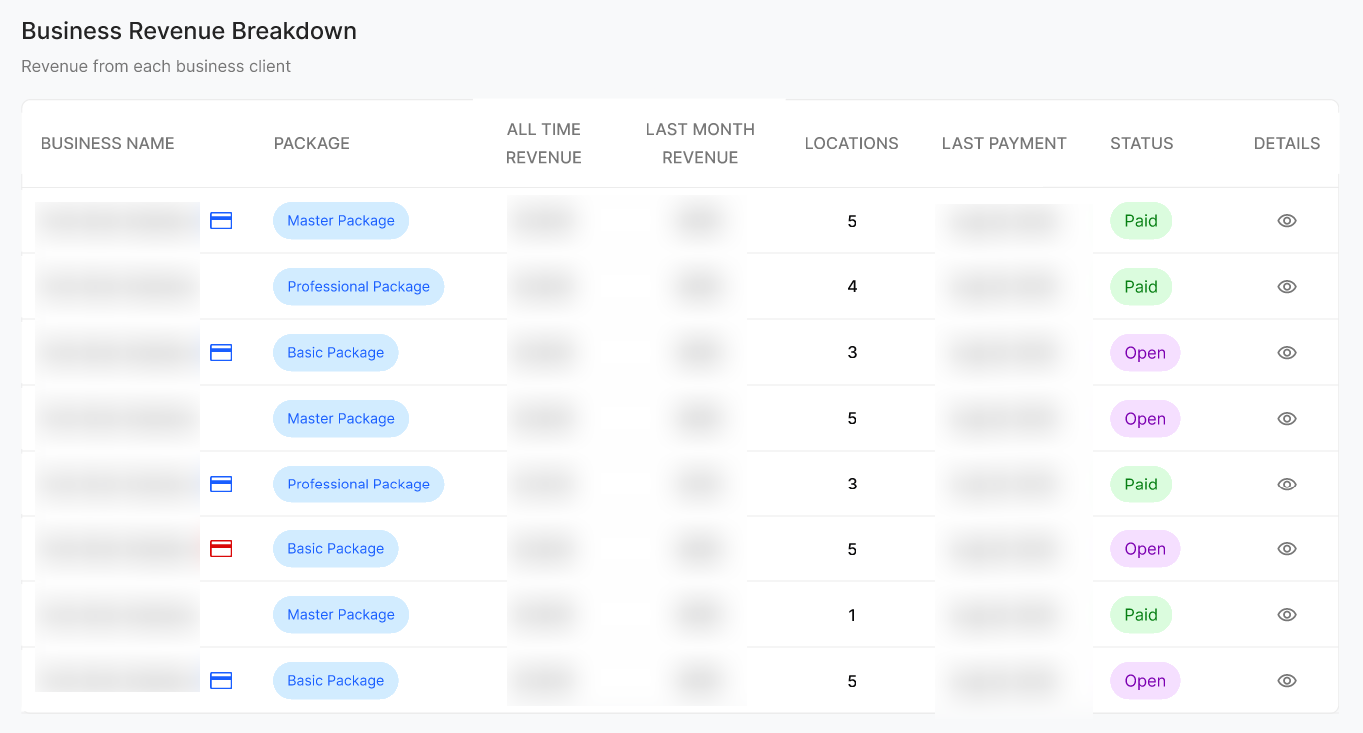
Use the pagination at the bottom-right to move through large business lists.
Open a business's billing history
Select the Details (eye) icon on any business row to open the Billing History side panel.
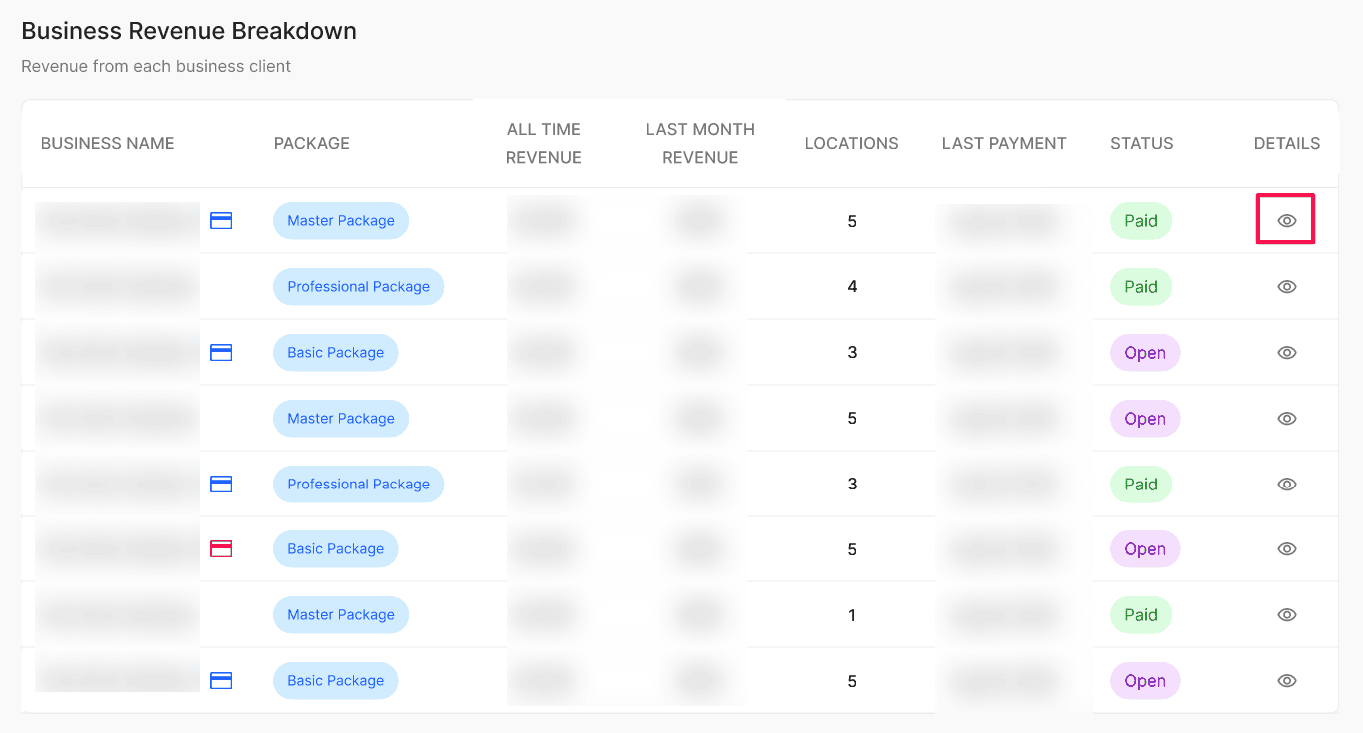
Review the business's active Package and All Time Revenue at the top of the panel.
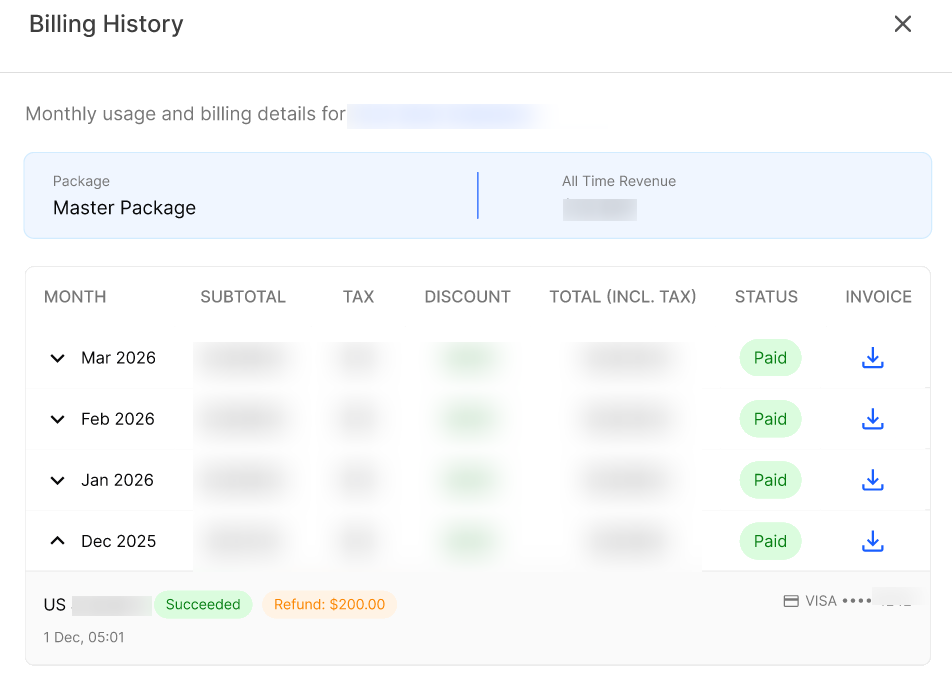
Review each month's row: Subtotal, Tax, Discount, Total (incl. Tax), Status (Paid / Open), and an Invoice download button.
Expand a month's row to see the underlying transactions, including the original charge, the card used (for example, VISA •••• 4242), the timestamp, and any Refund issued against it.
Note: Transaction-level detail and refund tracking inside Billing History is only available for agencies running on Kickcall's managed Stripe. Agencies using their own external payment processor will see the monthly billing summary and invoices, but transaction IDs, card brand/last-4 and refund records are only populated for Kickcall Stripe users.
Configuration reference
Expected result
The summary cards, trend chart, and breakdown table all reflect the agency (or the single business you selected in the filter). Businesses with an outstanding invoice show Open status, and businesses with an expired card show a red payment icon. Opening a business's Details panel shows its monthly billing history and, for Kickcall Stripe agencies, individual transactions and refunds.
Verify the result
Select a specific business in the All Business filter and confirm the summary cards, chart, and table update to match that business only.
Filter the breakdown table by Status = Open and confirm the listed businesses have unpaid invoices.
Open the Details panel for one business and confirm its All Time Revenue matches the figure shown in the breakdown table.
Troubleshooting
Recovery or rollback
Revenue and Billing History are read-only reporting views; there is no configuration to revert. If a business's status or card information looks incorrect, verify it in Billing History and ask the business to update their payment method from the Business Portal, or reconcile the invoice directly with your payment processor.
Frequently Asked Questions
Can I view revenue for just one business instead of the whole agency?
Can I view revenue for just one business instead of the whole agency?
Yes. Use the All Business filter at the top-right of the Revenue page to select a specific business. The summary cards, trend chart, and breakdown table all update to that business.
Why does a business show "Open" even though I know they paid?
Why does a business show "Open" even though I know they paid?
Status reflects what the payment processor has confirmed. If the charge is still pending, failed silently, or was paid through a method outside the platform (e.g. wire transfer), the row stays Open until the invoice is reconciled. Open the Billing History panel to see the exact failure reason or pending state.
The payment method icon next to a business name is red, what does that mean?
The payment method icon next to a business name is red, what does that mean?
The card on file is expired. The next billing cycle will fail unless the business updates their card. Reach out to the business or push them to update it from the Business Portal.
Can I see refunds for a business?
Can I see refunds for a business?
Yes, open Billing History for the business and expand the relevant month. Refunds appear inline under the original transaction with the refunded amount and timestamp. Refund visibility requires Kickcall's managed Stripe.
Does the Monthly Revenue Trend include refunded amounts?
Does the Monthly Revenue Trend include refunded amounts?
Yes, refunds are netted out of the month in which they were issued, so the chart reflects realized revenue, not gross charges.
Can an agency manually update these billing status ?
Can an agency manually update these billing status ?
If an agency is not collecting payment through stripe integration, then they can manually update the billing status.
Related articles
Was this helpful?
Still need help? Ask the team